
Guide
Organize documents on iPhone
Pick one home for documents, usually the Files app on iCloud Drive. Make a short set of folders, such as Home, Money, Taxes, Health, IDs, Car and Work: in a location, tap the More button, then New Folder. Name each file with the date first so it sorts. Add tags for things that cut across folders, like To Pay or Keep Forever. If you scan into Notes, use its folders, tags and Smart Folders instead.

Choose one home for documents
The most common reason people can’t find a paper is that it’s in one of four places. Pick a main home and send everything there.
| Place | Good for | Weak at |
|---|---|---|
| Files app (iCloud Drive) | PDFs you keep for years, share or email; folders, tags, sorting | Search matches names, not the text inside pages |
| Notes | Fast scanning, searching text inside scans | Notes with PDFs can’t be locked; not a file you can easily send |
| Photos | A quick snapshot you’ll file later | Documents get lost among pictures |
| A document app | Search inside every page, naming and filing done for you | Only what’s in the app |
Whatever you choose, take documents out of Photos. A photo of a lease in the camera roll is the paper equivalent of a note on the fridge. The guide to where to keep important documents compares the options in more depth, including Wallet and Health.
A folder plan that works for most homes
Start with these folders and add only when one gets crowded:
- Inbox: everything new lands here first, to be named and filed once a week.
- IDs: passport, driver’s license, birth certificate, Social Security card (scans; originals stay in a safe place).
- Money: bank and card statements, loans, pay stubs.
- Taxes: one subfolder per tax year, holding the return and everything that supports it.
- Home: lease or mortgage, insurance, utility bills, repairs.
- Health: insurance cards, test results, bills and explanations of benefits.
- Car: registration, insurance, title copy, repairs.
- Warranties: receipts, warranties and manuals, one file per purchase.
- Work: contracts, offer letters, benefits.
A tax-year subfolder (“Taxes/2026”) is the one place where a date beats a topic. Everything else, file by topic and let the date in the file name do the sorting.
Set it up in the Files app
These are Apple’s steps for iOS 27.
- Open Files, tap Browse, then iCloud Drive (or another location).
- Tap the More button, then New Folder, and name it. Repeat for each folder.
- To move files in, touch and hold a file, tap Move and choose the folder. To move several, tap the More button, Select, tap the files, then tap Move.
- To rename a file, touch and hold it and tap Rename. With Apple Intelligence, Files suggests a name above the keyboard.
- To tag a file or folder, touch and hold it, tap Tags, choose one or more and tap Done. Find tagged items under Browse > Tags.
- To make a folder stand out, touch and hold it, choose Customize Folder & Tags, pick a color and an icon or emoji.
- To keep a folder one tap away, touch and hold it and tap Favorite.
In any folder, tap the More button to sort by Name, Kind, Date, Size or Tags, and to switch between Icons and List.
Good tags cut across folders: To Pay, Keep Forever, Tax 2026, Needs Reply. A bill is in Home and tagged To Pay; when it’s paid, remove the tag.
Set it up in Notes
If you scan with Notes, organize there instead of copying files around.
- Folders: in the folders list, tap the New Folder button, tap New Folder and enter a name. Drag a folder onto another to make a subfolder.
- Move a note: touch and hold it, tap Move and pick the folder.
- Pin: touch and hold a note and tap Pin Note to keep it at the top.
- Tags: type # followed by a word, such as #taxes, then a space. Tags must be one word; use dashes to join words.
- Smart Folders: tap the New Folder button, name it, tap Make Into Smart Folder and filter by tags or dates. A Smart Folder for #taxes collects every tax note from every folder.
Name files so they sort
A good name is date first, then who it’s from, then what it is: “2026-11-04 City Water bill”. Files sorted by name then line up in date order within each folder. The guide to naming scanned documents has the full pattern and examples.
Keep it tidy in 10 minutes a week
Organizing once is easy. Staying organized is a habit:
- Once a week, open Inbox.
- Rename each new file, move it to its folder, and add a tag if it needs action.
- Delete duplicates and blurry retakes.
- Shred the paper you no longer need. The guide to going paperless at home covers what to keep on paper.
Where Scanner One helps, and where it doesn’t
The Files app and Notes do everything above for free, and for a few papers a month they’re enough.
Scanner One takes over the naming and filing, which is the part people skip. Point your camera at any piece of paper. Scanner One finds the edges, straightens the page, cleans it up and saves a real PDF. Then it reads the text, names the document, tags it and puts it in the right folder.
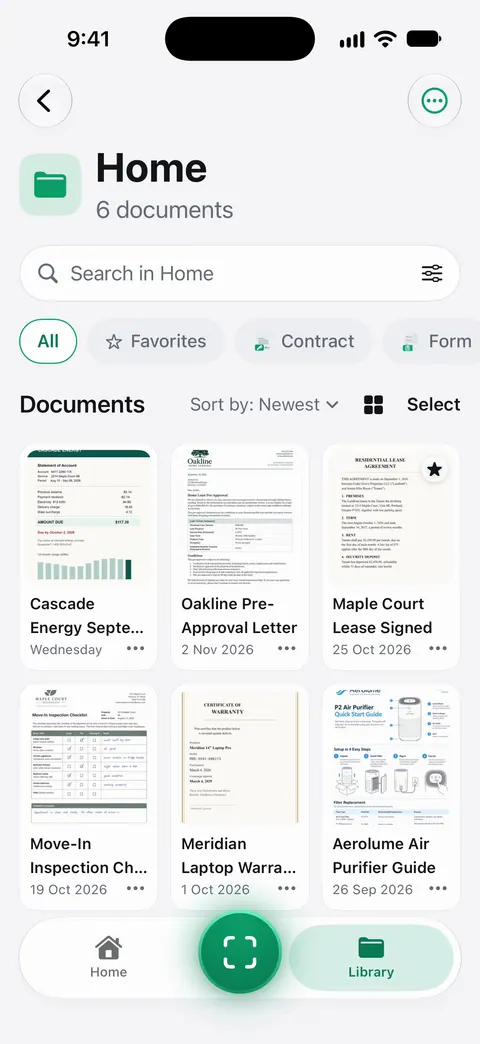
You can still do it by hand: select documents in the Library to share, move, tag, merge, favorite or delete them. And because the text of every page is read, you can find a document even if it’s in the wrong folder: Search looks inside the text of every document and shows the matching line and page.
The limits, plainly:
- Free accounts get smart filing for 10 documents a month. Pro removes every limit.
- It organizes documents inside Scanner One. It doesn’t rearrange your Files app.
- Scanner One doesn’t decide what you keep. Folders and tags are only as good as the papers in them.
Folders can be shared through iCloud. Joining is free; sharing is part of Pro.
The smart filing feature page shows how documents get their names and folders, and finding a document by a word inside it covers search.
Questions and answers
Should I keep documents in Notes or in Files?
Files is better for PDFs you send, share or keep for years, since they’re ordinary files in folders. Notes is quicker for scanning and searches text inside scans, but notes that hold PDFs can’t be locked. Pick one as the main home.
How many folders should I have?
Fewer than you think. Six to ten top-level folders that match how you look for things (Money, Taxes, Health, Home, Car, IDs, Work) beat thirty narrow ones. Use tags for anything that cuts across them.
Can I color-code folders on iPhone?
Yes. In Files, touch and hold a folder, choose Customize Folder & Tags, tap Tags and choose a color, then pick an icon or an emoji. It doesn’t work for Desktop, Documents or Downloads.
Does Scanner One organize documents by itself?
Then it reads the text, names the document, tags it and puts it in the right folder. Free accounts get smart filing for 10 documents a month.
Sources
What this page says about Scanner One was checked against the app on .
- Apple iPhone User Guide, Organize files and folders in Files on iPhone — creating folders, moving and renaming files, tags and favorites; iOS 27 guide, undated, read 2026-11-13
- Apple iPhone User Guide, Modify files and folders in Files on iPhone — folder colors and icons with Customize Folder & Tags, list and icon views; iOS 27 guide, undated, read 2026-11-13
- Apple iPhone User Guide, Find and view files and folders in Files on iPhone — sorting by name, kind, date, size or tags, and narrowing a search to a tag; iOS 27 guide, undated, read 2026-11-13
- Apple iPhone User Guide, Organize your notes in folders on iPhone — Notes folders, subfolders, pinning and moving notes; iOS 27 guide, undated, read 2026-11-13
- Apple iPhone User Guide, Organize your notes with tags on iPhone — Notes tags and the Tag Browser; iOS 27 guide, undated, read 2026-11-13
- Apple iPhone User Guide, Organize your notes with Smart Folders on iPhone — Smart Folders filtered by tags and dates; iOS 27 guide, undated, read 2026-11-13
- Scanner One on the App Store — the app’s own listing: naming, tagging and filing documents
Get Scanner One
Scanner One is free, with generous limits: scanning, clean PDFs and text search never stop.

Scanner OneScan, sign and ask anything
Scanner One is free, with generous limits: scanning, clean PDFs and text search never stop.