
Guide
The best light and background for scanning with a phone
Use soft daylight from a window, not direct sun and not a ceiling light behind you. Lay the page flat on a dark, plain, matte surface so the edges stand out. Hold the phone level with the page, close enough that the page fills most of the screen, and keep still. Turn the flash off for glossy paper; on matte paper it can fill in shadows. Wipe the lens first, and use a document scanner rather than a plain photo.

Use a scanner, not the plain camera
If you can, scan instead of taking a photo. The document scanners in Notes, Files and Preview find the edges of the page, correct the angle and crop away the table, then save a PDF. A plain photo keeps the background, the tilt and the shadows, and you crop it by hand. Everything below helps both, but helps a scan most.
How to start a scan is in how to scan documents on iPhone.
Light: soft, even and in front of you
Light is the biggest difference between a scan that reads like a photocopy and one that looks like a photo of paper.
| Light | Result | What to do |
|---|---|---|
| Daylight from a window, no direct sun | Even and bright: the best | Sit beside the window, page on the table |
| Direct sunlight | Hard shadows, glare on shiny paper | Move out of the sun patch, or close a thin curtain |
| Ceiling light behind you | Your shadow over the page | Turn around so the light is in front of you |
| One desk lamp | One side bright, the other gray | Add the room light, or a second lamp on the other side |
| Warm yellow bulbs | A yellow tint on white paper | Fine for reading; a black-and-white or grayscale filter removes it |
| Dim room | Grain and blur | Add light, or use the flash on matte paper |
The single most common mistake is your own shadow. If the light is above and behind you, your head and phone block it. Move so the light falls on the page from the front or the side. More on this in getting rid of shadows on scans.
The flash: when it helps and when it hurts
The scanners let you set Flash before capturing, and the Camera’s flash switches between Auto, On and Off.
- Matte paper (letters, forms, printer paper): the flash lights the page from the camera’s own position, which fills in shadows. Apple’s iPad guide gives exactly this tip: turn on the flash to remove shadows.
- Glossy or laminated (photos, magazines, ID cards, some receipts): turn it off. The flash reflects straight back as a white spot that hides whatever is under it.
- Auto decides for you based on how dark it is, which may not be what the page needs. For documents, choose On or Off yourself.
Background: dark, plain and matte
The scanner finds the page by looking for its edges. White paper on a white table gives it nothing to find.
- Dark and plain is best: a dark wooden table, a placemat, a closed laptop, a dark folder or a sheet of black card.
- No patterns. A patterned tablecloth or wood grain with strong lines can be mistaken for an edge.
- Matte, not shiny. A glossy black surface reflects the room.
- Bigger than the page, so there’s background on all 4 sides.
The paper: flat and complete
- Flatten folds and curls. Press a folded letter under a heavy book for a few minutes. Curled edges throw shadows and bend the lines.
- Hold it down at the margins if it won’t stay flat, or weigh the corners with small objects placed just outside the edge.
- Thin paper: put a sheet of dark card behind it so the back doesn’t show through.
- Remove clips and sticky notes that cover text.
The phone: level, filling the frame, still
- Clean the lens with a microfiber cloth. Apple’s first fix for blurry photos.
- Hold the phone level with the page, directly above it. The scanner corrects a slight angle, but text on the far side of a steep angle is smaller and softer.
- Fill most of the screen with the page. Don’t zoom: move closer. Don’t go so close that the camera can’t focus.
- Keep still. Rest your elbows on the table, and let automatic capture take the page when you’re steady.
- Check the result before moving on: zoom in on the smallest text.
A 30-second checklist
- Light in front of you or beside you, not behind.
- Dark, plain, matte background, bigger than the page.
- Page flat, nothing covering text.
- Flash off for glossy, on or off by choice for matte.
- Lens wiped, phone level, page filling the screen.
- Zoom in and check before you tap Done.
If the scan still looks soft, see why a scan comes out blurry.
Where Scanner One helps, and where it doesn’t
Light and background matter in any app; they’re physics, not software. What the app adds is a little help once you’ve captured the page. Scanner One finds the edges of the page automatically and corrects the perspective. Scans come with Auto Clean, Color, Grayscale and Receipt filters. Auto Clean is the one to start with on a page shot under room light.
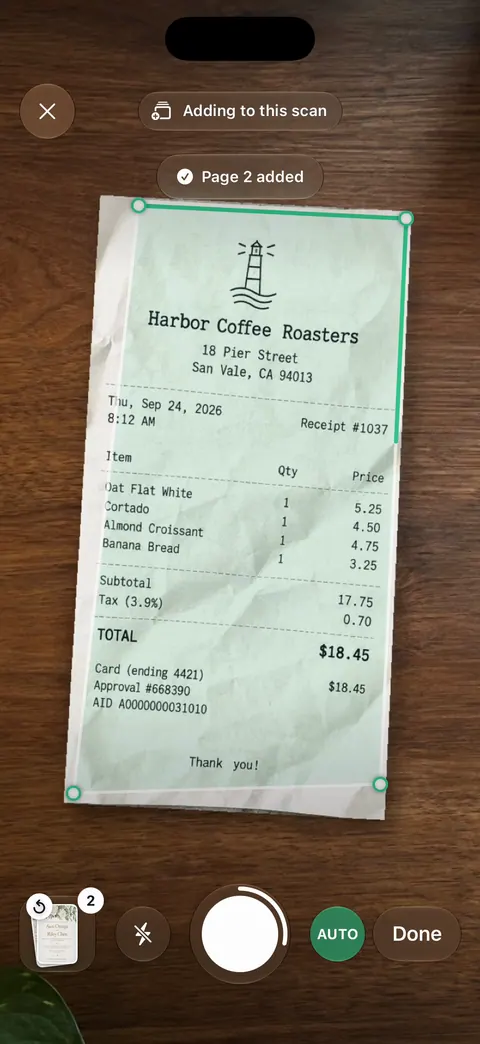
In a dim room the camera can turn on the flashlight while you aim. Receipts and whiteboards have their own handling: Whiteboards are cleaned automatically.
What it doesn’t do: no filter recovers text lost under glare or a deep shadow, so the setup above still decides most of the result. Scanner One is free, with generous limits: scanning, clean PDFs and text search never stop. The scanning page shows the camera and review screens, and more guides are in Guides.
Questions and answers
What’s the best background for scanning a document?
A dark, plain, matte surface: a dark table, a placemat, a folder or a sheet of dark card. It gives the scanner a clear edge to find around white paper. Avoid patterns and white tables.
Should I scan documents in daylight or under a lamp?
Soft daylight near a window is best. Direct sun makes hard shadows and glare, and a single lamp lights one side more than the other.
Should I use the flash when photographing a document?
On matte paper, the flash can fill in shadows. On anything glossy or laminated, turn it off: it leaves a white glare spot over the text.
Is a photo of a document as good as a scan?
A scan is better. The scanners in Notes, Files and Preview find the edges, straighten the page, crop the background and save a PDF. A photo keeps the table, the angle and the shadows.
Sources
What this page says about Scanner One was checked against the app on .
- iPhone User Guide (iOS 27), Scan text and documents in Notes — Flash before capture; automatic capture when the page boundaries are detected; read 2026-11-13
- iPad User Guide (iPadOS 27), Scan documents with your iPad camera — Apple’s tip to turn on the flash to remove shadows, on supported models; read 2026-11-13
- iPhone User Guide (iOS 27), Use camera tools — the Flash control: Auto, On or Off; read 2026-11-13
- Apple Support, If the camera or flash on your iPhone or iPad isn’t working (article 102514) — clean the lenses with a microfiber cloth for blurry photos; published 2026-10-22
- Apple Support, Continuity Camera on Mac (article 102332) — the scanner detects the document’s edges and corrects skew; published 2026-10-26
- Scanner One on the App Store — the app’s own listing
Get Scanner One
Scanner One is free, with generous limits: scanning, clean PDFs and text search never stop.

Scanner OneScan, sign and ask anything
Scanner One is free, with generous limits: scanning, clean PDFs and text search never stop.