
Guide
Split a PDF on iPhone
Preview (iOS 26 and later) has no Split button, but you can split a PDF in two moves. Tap the Actions Menu button next to the filename and tap Duplicate, once for each part you need. Then open each copy, show the page thumbnails, and delete the pages that don’t belong in it with Delete Page. Rename the copies and you have separate files.

Split a PDF with Preview on iOS 26 and later
Preview, Apple’s PDF app on iPhone from iOS 26, has no button called Split. It does have the two things a split needs: a way to copy a file and a way to delete pages. Put together, they split a PDF into as many parts as you like. These steps follow Apple’s iPhone User Guide.
Make one copy for each part
- Open the Preview app and open the PDF.
- Tap the Actions Menu button next to the filename, then tap Duplicate.
- Repeat for each extra part. To split a file into three, you need the original and two copies.
- Give each copy a name that says what it holds: tap the Actions Menu button next to the filename, tap Rename, type the name, then tap Done on the keyboard. “Lease pages 1 to 4” and “Lease pages 5 to 9” are names you’ll understand later.
Delete the pages that don’t belong in each copy
- Open the first copy.
- Show the page thumbnails. On iOS 27, tap the Show Sidebar button (if you don’t see it, tap the PDF). On iOS 26, tap the page count (if it doesn’t appear, pinch two fingers together or apart on the page).
- Touch and hold a page that doesn’t belong in this part, then tap Delete Page.
- Repeat until only this part’s pages are left.
- Tap the Back button to save.
- Open the next copy and keep a different set of pages.
When you’re done, each file holds one part. Check each one by scrolling through it once before you send it anywhere.
Pull out a single page
The same method works for one page: duplicate the PDF, open the copy and delete every page except the one you want. That’s handy when someone asks for “just the signature page” or “only page 3 of the statement”.
When a split is the right move
People split PDFs for a handful of reasons, and the reason decides how to cut.
- An upload form wants each document separately. Rental, visa and job portals often have one upload box per document. If you scanned everything into one file, split it so each box gets the right part. The guide to merging PDFs covers the opposite case.
- The file is too big to email. Two halves of a large scan can each fit under a mail limit. Tap the Info button in Preview to see a file’s size. The guide to making a PDF small enough to email explains the limits and the other ways to shrink a file.
- Some pages are private. A bank wants page 1 of a statement, not the whole history. Send only the pages they asked for. If something on a page you send must stay hidden, redact it properly rather than cutting the page down.
- One scan holds two documents. If you scanned a stack in one go, split it into its separate documents so each can be named and found later.
If you only want to remove one or two pages and keep the rest as one file, you don’t need a split at all: see how to delete or reorder pages.
Tips that save time
- Do the arithmetic first. Write down which pages go into which part before you start deleting. It’s easy to lose track halfway through a long file.
- Keep the original. The Duplicate method leaves the original file as it was, as long as you delete pages only in the copies. Keep it until you’ve checked the parts.
- Mind the page count. For a 40-page file split into two, deleting 20 pages one at a time in each copy is slow. That is where a tool with page ranges earns its place.
- Send the parts together. When you send the PDFs, say in the message how many files there are and what each holds.
On an iPhone without Preview
Apple’s user guide covers Preview for iOS 26 and iOS 27. On an earlier version the app isn’t there, so splitting means a PDF app or a computer. If the pages are still on paper, the simplest split is no split: scan each document as its own file from the start, and give each one a name as you save it.
Where Scanner One helps, and where it doesn’t
For a short PDF split once in a while, Preview’s Duplicate and Delete Page do the job for free. If you have iOS 26 or later, that’s enough.
Scanner One helps when the file is long or you split documents often. The PDF tools merge, split, compress, password-protect, add page numbers and watermarks, and extract text. Split divides a document by page ranges in one step, so a 40-page file doesn’t mean 40 deletions.
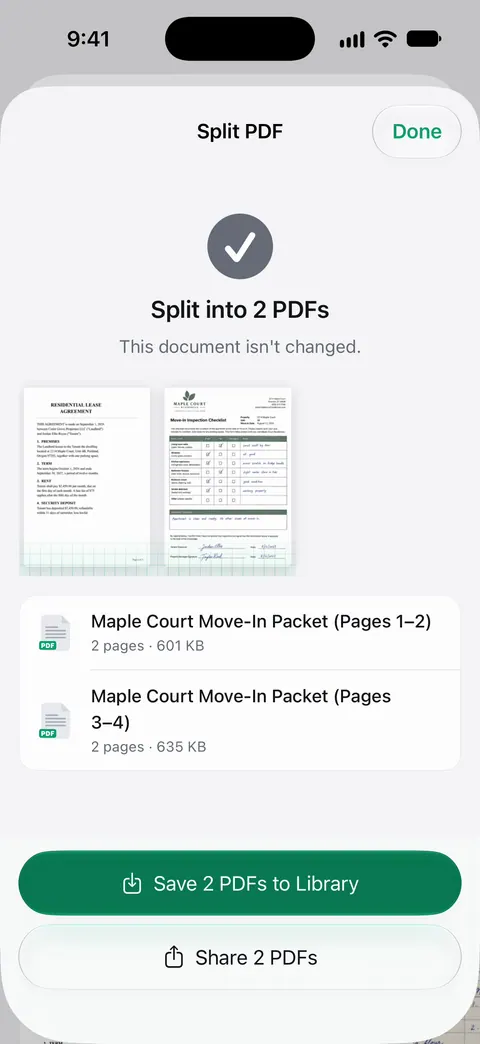
Pages you pick can be copied into a new document or into another one. That suits the “just send page 3” case.
The limits, plainly:
- Free accounts can run the PDF tools and the Word, Excel and CSV exports 3 times a week, from one shared allowance.
- Pro removes every limit.
- On a free account, pages you share, print or export carry a small “Scanned with Scanner One” label at the bottom right. Pro removes it. The built-in way adds no label.
The PDF tools page lists the other tools next to Split.
Questions and answers
Can I split a PDF on iPhone without an app?
Yes, on iOS 26 and later. Duplicate the PDF in Preview once for each part, then delete the pages that don’t belong in each copy. It takes a few more taps than a Split button, but it is free and adds nothing to the pages.
How do I save just one page of a PDF?
Duplicate the PDF in Preview, open the copy, and delete every page except the one you want. For a long document, a split tool that extracts a page range is quicker.
Does splitting a PDF make it smaller?
Each part holds fewer pages, so each file is smaller than the whole. That is one way to get under an email size limit, though compressing the PDF is often simpler.
Is splitting free in Scanner One?
Free accounts can run the PDF tools and the Word, Excel and CSV exports 3 times a week, from one shared allowance. A split is one of those runs. Pro removes every limit.
Sources
What this page says about Scanner One was checked against the app on .
- Apple iPhone User Guide, Save, rename, or move PDFs and images in Preview on iPhone — Duplicate, Rename and saving with the Back button; undated guide page for iOS 26 and 27, read 2026-11-13
- Apple iPhone User Guide, Add, delete, rotate, move, or crop PDF pages in Preview on iPhone — showing thumbnails (page count on iOS 26, Show Sidebar button on iOS 27) and Delete Page; undated guide page for iOS 26 and 27, read 2026-11-13
- Apple iPhone User Guide, Open and view PDFs and images in Preview on iPhone — the Info button shows a file’s size; undated guide page for iOS 26 and 27, read 2026-11-13
- Scanner One on the App Store — the app’s own listing: the PDF tools, Split among them
Get Scanner One
Scanner One is free, with generous limits: scanning, clean PDFs and text search never stop.

Scanner OneScan, sign and ask anything
Scanner One is free, with generous limits: scanning, clean PDFs and text search never stop.