
Guide
Make a PDF small enough to email
In Mail on iPhone, attach the PDF anyway: if it’s over your email account’s limit, Mail offers Mail Drop, which uploads it to iCloud and sends a download link, for attachments up to 5 GB. To shrink the file itself, open it in Preview (iOS 26 and later), tap the Actions Menu, tap Export, choose PDF and use the size options. iCloud Mail allows 20 MB per message and Gmail 25 MB, so aim well under that.

How big is too big
Every email service caps the size of a message, and the cap counts the whole message, attachments included. These are the limits as the providers publish them:
| Where the email goes through | Limit per message | What happens above it |
|---|---|---|
| iCloud Mail | 20 MB | Mail offers Mail Drop, up to 5 GB |
| Gmail, personal account | 25 MB | Gmail swaps the file for a Google Drive link |
| Work or school Gmail | Set by your administrator | Ask your IT team |
| The person receiving it | Their own app may allow less | The message may not arrive |
Apple’s Mail Drop page makes that last point: even if your message goes out, the recipient’s email app may have a smaller limit that stops the attachment from being delivered. So aim well under the limit, not just under it. A few pages of text rarely need more than a few megabytes.
Upload forms on websites (job applications, visa portals, insurance claims) often have their own, smaller limits. The ways to shrink a PDF below work for those too.
Send it anyway with Mail Drop
If the PDF is too big for your account, Mail on iPhone can send it through iCloud instead.
- Open Mail and start a new message.
- Tap in the message, then tap the Insert Attachment Actions button above the keyboard.
- Tap Attach File, then find the PDF in Files.
- Send the message. If the file is over your email account’s limit, follow the onscreen instructions to send it with Mail Drop.
The person gets a link to download the file. Apple’s limits:
- Attachments up to 5 GB.
- The recipient has 30 days to download them.
- Mail Drop has a 1 TB storage limit, and each attachment expires after 30 days.
Mail Drop is the right answer for a large file going to a person. It’s the wrong answer when the PDF has to be attached itself, for example when you send it to an office that files the attachment, or when you must upload it to a website. Then make the file smaller.
Shrink the PDF in Preview
Preview, Apple’s PDF app on iPhone from iOS 26, can save a smaller copy. The steps differ between iOS 26 and iOS 27.
On iOS 27
- Open the Preview app and open the PDF.
- Tap the Actions Menu button next to the file name, then tap Export.
- Choose PDF as the format.
- Turn on Optimize Images for Screen. Apple says this lowers the image resolution for viewing on a screen and makes a smaller file.
- Turn on Save Images as JPEG for a smaller file still.
- Tap the Done button, choose where to save the copy, rename it if you like, then tap Save.
On iOS 26
- Open the PDF in Preview.
- Tap the Actions Menu button next to the file name, then tap Export.
- Choose PDF, then use the slider to adjust the file size.
Either way, Preview saves a new copy and leaves the original alone. Open the copy, zoom in on the smallest print, and check it’s still readable before you send it. Images saved for the screen can look soft when someone prints them, so keep the full-size original for printing.
Share a link instead of a file
For something long, like a lease with all its addenda, a link is often better than an attachment.
- Gmail does this by itself when you send from the Gmail app: if your attachments go over 25 MB, Gmail removes them and adds a Google Drive link.
- iCloud Drive: if the PDF is in iCloud Drive, Apple notes that you can invite people to view it instead of sending a copy. Touch and hold the file in Files, then tap Share.
The guide to sending a PDF from iPhone covers Mail, Messages, AirDrop and links side by side.
Why a ZIP file rarely helps
The Files app has a Compress command that makes a ZIP file, and Apple suggests it to send a smaller version of a file. For a scanned PDF it usually saves little, because the pages are pictures that are already compressed. It also makes the person unzip it before they can read it, an extra step that’s easy to get wrong on a phone. Shrink the PDF itself instead.
Make the next scan smaller from the start
A scan’s size comes mostly from its images: how many pages, in color or not, and how sharp. A few habits keep files small.
- Scan text in grayscale or black and white. A color scan of a black-and-white letter carries color it doesn’t need. The black-and-white scanning guide shows how.
- Crop to the page. The desk around the paper is wasted space.
- Send only the pages asked for. If the office wants page 1 and the signature page, split the PDF and send those two.
- Remove blank pages. The back of a one-sided form adds size and nothing else.
Where Scanner One helps, and where it doesn’t
Mail Drop and Preview handle most of this for free. If Mail Drop gets your file to a person, you don’t need anything else.
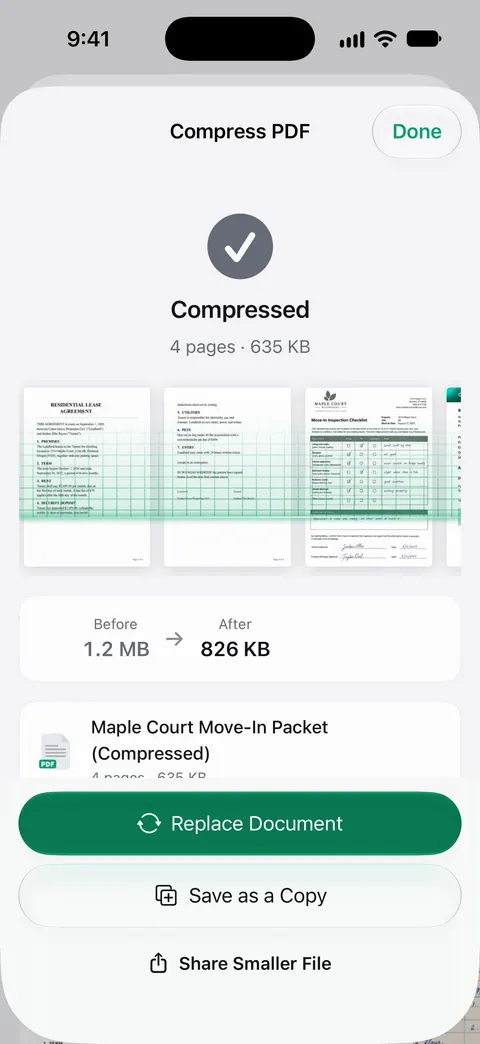
Scanner One helps when you need the PDF itself to be small, and want to see the result before you send it. The PDF tools merge, split, compress, password-protect, add page numbers and watermarks, and extract text. Compress shows the new size beside the old one, so you know the file will fit before you attach it.
It also helps at the scanning step. Scans come with Auto Clean, Color, Grayscale and Receipt filters. Grayscale suits most letters and forms, and the Receipt filter suits receipts.
The limits, plainly:
- Free accounts can run the PDF tools and the Word, Excel and CSV exports 3 times a week, from one shared allowance. Pro removes every limit.
- On a free account, pages you share, print or export carry a small “Scanned with Scanner One” label at the bottom right. Pro removes it.
- Compressing can’t make a 200-page color scan tiny. For long files, Mail Drop or a shared link is still the better way.
The PDF tools page shows compress next to merge, split and the others.
Questions and answers
What is the largest attachment I can email from an iPhone?
It depends on your email provider. Apple lists 20 MB per message for iCloud Mail, and Google lists 25 MB for personal Gmail accounts. With Mail Drop, Mail can send attachments up to 5 GB as a download link.
What does the person receive with Mail Drop?
They get your email with a link to download the attachment instead of the file itself. Apple gives them 30 days to download it, after which the link stops working.
How do I see how big a PDF is on my iPhone?
Open it in Preview and tap the Info button: it shows the file’s size, name and creation date. In the Files app, you can also sort a folder by Size.
Will compressing my scan make it hard to read?
It can, if you shrink it too far. Small text and signatures go soft first. After you export a smaller copy, zoom in on the smallest print before you send it, and keep the original.
Does zipping a PDF make it smaller?
Usually not by much. A PDF of scanned pages is mostly pictures that are already compressed, and the person has to unzip the file before they can read it. Shrinking the PDF itself works better.
Sources
What this page says about Scanner One was checked against the app on .
- Apple Support, Mail Drop limits (article 108329) — Mail Drop sends attachments up to 5 GB; recipients have 30 days; 1 TB storage limit; the recipient’s email app may have a smaller limit; published 2025-03-18
- Apple Support, Mailbox size and message sending limits in iCloud (article 102198) — iCloud Mail messages up to 20 MB, up to 5 GB with Mail Drop turned on; published 2025-03-17
- Apple iPhone User Guide, Export or compress PDFs and images in Preview on iPhone — Preview’s Export: the size slider (iOS 26), and Optimize Images for Screen and Save Images as JPEG (iOS 27); undated guide page for iOS 26 and 27, read 2026-11-13
- Apple iPhone User Guide, Add email attachments in Mail on iPhone — attaching a file in Mail and the Mail Drop prompt when a file is over the account’s limit; undated guide page for iOS 26 and 27, read 2026-11-13
- Gmail Help, Send attachments with your Gmail message (iPhone and iPad) — personal Gmail accounts: 25 MB; larger attachments become a Google Drive link; undated, read 2026-11-13
- Scanner One on the App Store — the app’s own listing: the PDF tools, including compress
Get Scanner One
Scanner One is free, with generous limits: scanning, clean PDFs and text search never stop.

Scanner OneScan, sign and ask anything
Scanner One is free, with generous limits: scanning, clean PDFs and text search never stop.