
Guide
Scan your health insurance card, both sides
Lay the card on a dark surface, turn the flash off and use Scan Documents in Notes, Files or Preview: capture the front, flip the card, capture the back, tap Done. That gives one PDF with both sides. If a patient portal or pharmacy app wants two separate images, export each page from Preview as a JPEG, or take two close photos instead. Check the member ID, group number and the phone numbers on the back are sharp before you upload.

This page is about one task: getting both sides of an insurance card into a portal, a pharmacy app or a form, and keeping a copy you can find again. For organizing visit notes, test results and bills, see keeping medical records on iPhone.
What is on the card, and why both sides
The front usually has your name, member ID, group number and plan name. The back often has the claims address, the phone numbers for members and providers, and the pharmacy details (often labeled Rx BIN, PCN and Rx Group). Front desks and pharmacies need the back as much as the front, which is why nearly every portal asks for both.
Some cards also carry names of dependents. If each person in your family has a card with their own number, scan each one.
Scan both sides into one PDF
- Lay the card on a dark, plain surface, such as a dark table or a folder.
- Start a scan. In Notes, open a note, tap the Attachments button, then Scan Documents. In Files, tap the More button, then Scan Documents. In Preview (iOS 26 and later), tap Scan Documents.
- Turn the flash off. Many cards are glossy plastic, and the flash leaves a white spot over the numbers. On iOS 26 and later the flash and filter options sit on the scanning screen.
- Capture the front. If Auto mode doesn’t catch a card this small, switch to manual capture (in Preview tap Auto so it reads Manual), tap the Shutter button, drag the corners to the card’s corners and tap Keep Scan.
- Flip the card in the same spot and capture the back.
- Tap the Done button. In Files, choose a folder and tap Save.
Name it so you can find it in a waiting room: “Health insurance card, Sam, 2027 plan”. Plans and cards change, often each January, so the year helps you tell the current one from the old one.
Check the small print
Zoom in on the scan and read:
- the member ID and group number, every character;
- the phone numbers and pharmacy codes on the back;
- the plan name or network, if the office needs to check it.
The back of many cards is printed in small gray type. If it is blurry, move closer so the card fills more of the frame, and scan it again.
When the portal wants images, not a PDF
Patient portals and pharmacy apps often have a button for the front and another for the back, and they open your photo library or Files. A 2-page PDF won’t fit that. Two ways round it:
- Export each side as an image. Open the PDF in Preview, tap the Actions menu next to the file name, tap Export, choose JPEG and set the Size slider. Apple notes that a Resolution setting appears when you export a PDF to an image format, and higher values give more detail. Save the image, then pick it in the portal. Repeat for the back. Saving a scan as a JPG covers the details.
- Take two close photos with the Camera, filling the frame with the card. This is faster, but those photos land in your library: delete them afterwards if you don’t want insurance cards among your pictures. Photos even groups identity documents and similar content under Utilities in Collections, which is a handy way to find stray copies.
If the upload is refused, the cause is usually size or format. Uploading a scanned document to a website walks through the common errors, and our free upload size checker tells you whether a file is under a portal’s limit.
Protect the copy
An insurance card is not as sensitive as a Social Security card, but its numbers can still be misused. Medicare’s advice for its own card is to protect your Medicare Number like a credit card and share it only with your providers, your plans and people you trust who work with Medicare. That is good advice for any plan’s member ID.
- Upload through the portal or app, not by email, when you have the choice.
- Keep one current copy in a folder you control, not scattered across Photos, Messages and Downloads.
- When a new card arrives, replace the old scan so you don’t send an expired one.
If you have Original Medicare, Medicare says to carry your card when you’re away from home and show it when you get services. You can also log in to your Medicare account to print or order an official copy. If you have a Medicare Advantage plan, you use that plan’s card instead.
For a first visit, the card is one paper of several. See what to bring to a new patient appointment.
Where Scanner One helps, and where it doesn’t
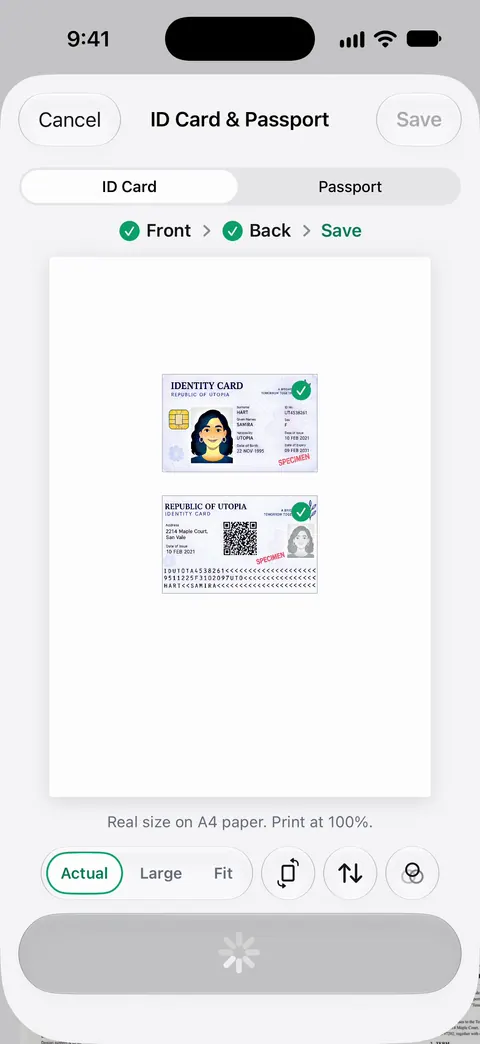
The built-in scanners give you one page per side. ID cards and passports are scanned with both sides on one printable page. That is the format many paper forms and some offices ask for. From Home you can bring in pictures from Photos and files from the Files app, or scan an ID card.
Finding the card later: Search looks inside the text of every document and shows the matching line and page. So typing your insurer’s name or part of the member ID brings up the card. Text recognition runs on every page for everyone, free or Pro.
When a portal wants an image: Share & Export saves a document as a PDF, Word, Excel, PowerPoint, JPG, PNG, a long image, plain text, Markdown, Rich Text, a web page or CSV. That includes JPG and PNG.
The limits: On a free account, pages you share, print or export carry a small “Scanned with Scanner One” label at the bottom right. Pro removes it. An insurance upload with that label is still readable, but Pro removes it. Documents stay on your iPhone unless you share them or turn on iCloud Sync. You can lock the app with Face ID.
What it doesn’t do: it doesn’t replace your insurer’s own digital card, check your coverage or file claims. When the built-in way is enough: if the portal takes a 2-page PDF or two photos, Notes, Files or Preview is all you need. More about the card mode in ID cards and passports.
Questions and answers
How do I upload both sides of my insurance card?
Most portals and pharmacy apps have two upload buttons, one for the front and one for the back, and accept a photo or an image from Files. If yours accepts one file, send a 2-page PDF or a single page with both sides on it.
Can I show a picture of my insurance card instead of the card?
Many offices accept a scan or photo for check-in, and many insurers also offer a digital card in their app. Policies differ, so ask the office or check your insurer’s app. Medicare says to show your Medicare card when you get services.
Why is my insurance card upload rejected?
Usually it is blurry, cropped, too large, or the wrong format. Fill the frame with the card, check the member ID is sharp, and export a JPEG if the portal won’t take a PDF.
Is it safe to keep a photo of my insurance card on my phone?
The card has your member ID, which can be misused like a credit card number. Keep the copy in a folder or app you control rather than mixed into Photos, and lock it if others use your phone.
Do I need to scan my dependents' insurance cards too?
If each family member has their own card or member number, yes. Name each file with the person’s name so you send the right one.
Sources
What this page says about Scanner One was checked against the app on .
- Apple Support, Scan documents on your iPhone or iPad (article 108963) — Notes and Files scanning steps, Auto mode, Keep Scan, flash and filters on iOS 26; page dated 2026-02-13
- iPhone User Guide (iOS 27), Scan text and documents in Preview — Preview scanning and manual capture; read 2026-11-13
- iPhone User Guide (iOS 27), Export or compress PDFs and images in Preview — exporting a PDF as JPEG or PNG and the Resolution setting; read 2026-11-13
- iPhone User Guide (iOS 27), Find receipts, QR codes, recently edited photos, and more — Photos groups identity documents and other content in Utilities; read 2026-11-13
- Medicare.gov, Your Medicare card — protect your Medicare Number, show the card to providers, print an official copy from your Medicare account; no date shown, read 2026-11-13
- Scanner One on the App Store — the app’s own listing
Get Scanner One
Scanner One is free, with generous limits: scanning, clean PDFs and text search never stop.

Scanner OneScan, sign and ask anything
Scanner One is free, with generous limits: scanning, clean PDFs and text search never stop.