
Feature
ID cards and passports on one printable page
ID cards and passports are scanned with both sides on one printable page. On Scanner One’s Home screen, tap ID Card, scan the front, then the back, and both are saved together on one page, ready to print or send. Documents stay on your iPhone unless you share them or turn on iCloud Sync. On a free account, pages you share, print or export carry a small "Scanned with Scanner One" label at the bottom right. Pro removes it.

What it does
A landlord, an employer, a bank or a school asks for “a copy of your ID, front and back”. On a photocopier you would turn the card over and copy it twice onto one sheet. ID cards and passports are scanned with both sides on one printable page. The result is one page you can print at normal size or send as a PDF, instead of two loose photos.
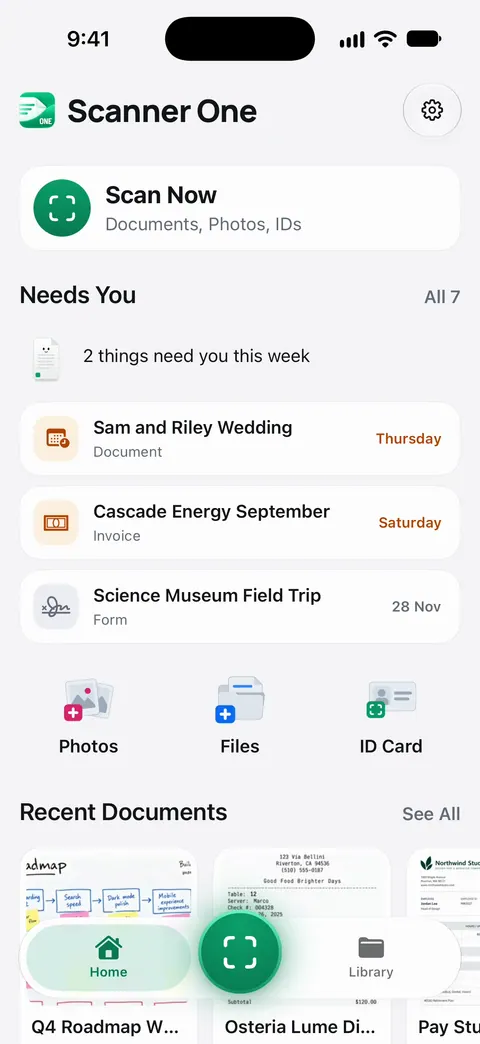
From Home you can bring in pictures from Photos and files from the Files app, or scan an ID card. The ID Card tile is the way in.
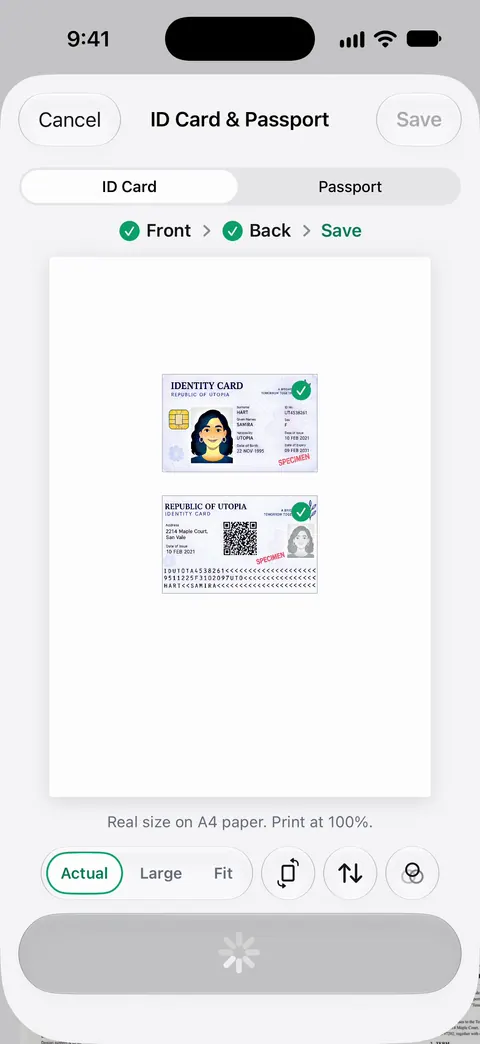
How to scan an ID card
- On Home, tap ID Card in the row under Scan Now.
- Lay the card on a dark, plain surface and scan the front.
- Turn it over and scan the back.
- Save. The front and back are saved together on one page.
- To send it, open the document and tap Share. Share & Export can also print a document or email it to you.
How to scan a passport
- Open the passport to the photo page and hold it flat with your fingertips at the edges.
- Tilt it away from the light until the shine leaves the laminate. Glare over the photo or the lines of letters at the bottom makes a copy hard to read.
- Scan it with Scanner One. ID cards and passports are scanned with both sides on one printable page.
- Zoom in before you send: every letter of the bottom lines should be readable.
Our guide to scanning a passport photo page covers the details, and front and back on one page covers cards with the iPhone’s own tools as well.
Tips for a copy that gets accepted
- Glare is the enemy. Cards are glossy. Light from the side works better than a lamp right above.
- Nothing cut off. All four corners of the card should be visible. Some offices turn down a copy with an edge missing.
- Readable, not huge. A copy that is sharp but small is better than a blurry one at full size.
- Check what is asked. Some offices want only the front, some want both sides, some want to see the original in person. A copy is for your records or for when a copy is what they ask for.
Sending an ID copy safely
An ID copy is what someone needs to open accounts in your name, so treat it like the card itself.
- Send it only to the person or office that asked, ideally through their own upload page rather than an email thread with many people on it.
- Hide what they don’t need. If someone only needs to see your name and photo, you can black out the rest. Redaction is permanent. See permanent redaction and the free limits there.
- Keep your own copy locked. Documents stay on your iPhone unless you share them or turn on iCloud Sync. You can lock the app with Face ID. More on the privacy page.
- If your wallet goes missing, a copy helps you report and replace what was in it. See your wallet was stolen.
ID copies come up in a lot of paperwork: proving your address, getting a REAL ID and renting an apartment are three. More in the checklists.
Where Scanner One helps, and where it doesn’t
With the iPhone alone, you can scan the front and the back in Notes or Files, one after the other, and get two pages. That is fine when the person asking accepts two pages. For both sides on one printable page, like a photocopy, Scanner One’s ID Card tile does it in one go.
Scanner One is free, with generous limits: scanning, clean PDFs and text search never stop. On a free account, pages you share, print or export carry a small “Scanned with Scanner One” label at the bottom right. Pro removes it. If a copy must go out without that label, that is part of Pro: No ads, no watermark. Prices are on Free and Pro.
In Scanner One 1.0.1, IDs about to expire show up on Home: Needs You gathers bills due, return windows and IDs about to expire on Home, from your own papers.
Questions and answers
How do I get both sides of my ID on one page?
In Scanner One, tap ID Card on Home, scan the front, then the back. ID cards and passports are scanned with both sides on one printable page.
Can I scan a passport with it?
Yes. ID cards and passports are scanned with both sides on one printable page. For the photo page, open the passport flat, avoid glare on the laminate, and keep the two lines of letters at the bottom sharp.
Is it safe to keep a copy of my ID on my phone?
Documents stay on your iPhone unless you share them or turn on iCloud Sync. You can lock the app with Face ID. Keep the phone itself locked with a passcode, and send copies only to people who asked for them.
Will the copy have a watermark?
On a free account, pages you share, print or export carry a small "Scanned with Scanner One" label at the bottom right. Pro removes it.
Sources
What this page says about Scanner One was checked against the app on .
- Apple Support, How to scan documents on your iPhone or iPad — scanning several pages with Notes or Files; page published 2026-02-13
- Scanner One on the App Store — the app’s own listing: ID cards and passports with both sides on one printable page
Get Scanner One
Scanner One is free, with generous limits: scanning, clean PDFs and text search never stop.

Scanner OneScan, sign and ask anything
Scanner One is free, with generous limits: scanning, clean PDFs and text search never stop.