
Feature
Listen: any document read aloud
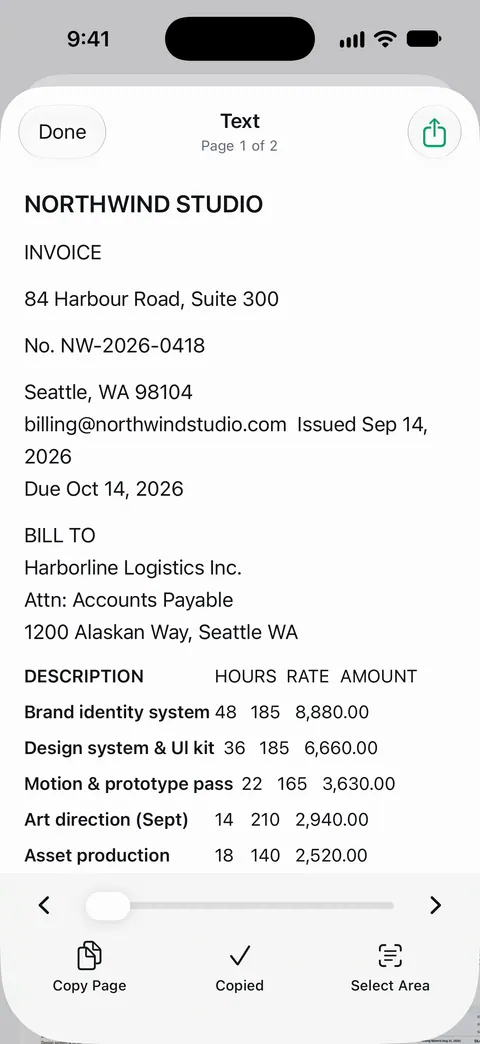
Listen reads any document aloud. So a letter you scanned a minute ago can be read to you as easily as a PDF that came by email. For any text on screen, the iPhone also has Speak Screen: turn it on in Settings, Accessibility, Read & Speak, then swipe down with two fingers from the top of the screen.

What it does
Listen reads any document aloud. You open a document and listen to it instead of reading it: a long letter from the bank on the walk to work, a lease while you cook, a chapter you scanned from a library book.
It works on scans too. Text recognition runs on every page for everyone, free or Pro. Text recognition runs on the device, in 29 languages.
Who it helps
- Anyone with tired eyes or small print to get through, like insurance terms or a medication leaflet.
- People with low vision or dyslexia, alongside the iPhone’s own accessibility features.
- Someone helping a parent with letters they find hard to read. See helping a parent with paperwork.
- Students listening to scanned readings. See book pages, split and flattened.
- Language learners who want to hear a document while following the text.
How to listen to a document
- Open the document in Scanner One.
- Choose Listen.
- Listen, and follow along on the page if you like.
For a clean reading, start with a clean scan: a sharp, flat page gives better results than a blurred one.
Getting a better reading
- Scan flat and sharp. Curled lines and blur turn into odd words. For books, flatten the lines when Review offers it.
- Tables and columns are hard to follow by ear. For numbers, reading the page is often quicker.
- Another language. Text recognition runs on the device, in 29 languages. See languages, and translating a document on iPhone if you need it in your own language first.
The iPhone’s own way: Speak Screen
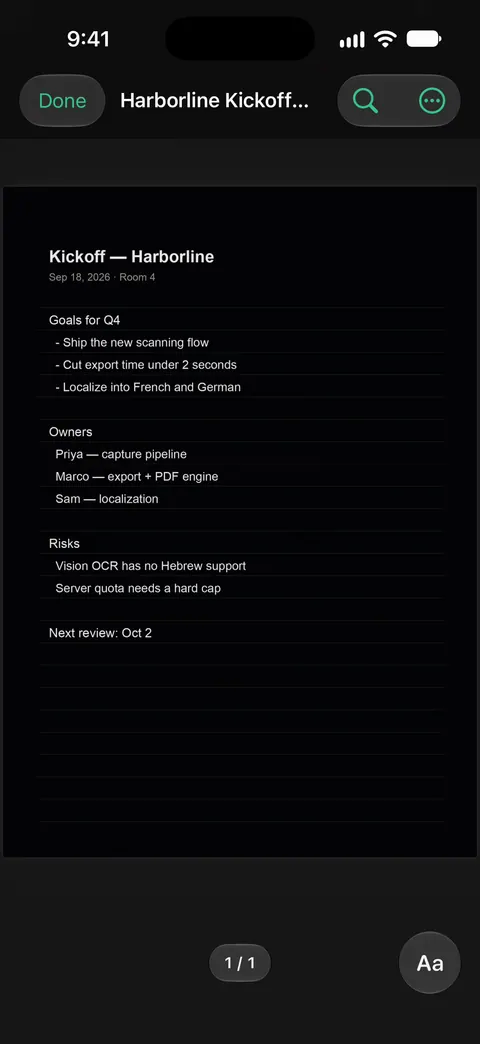
Your iPhone can read the screen aloud in any app, which is worth knowing even if you use Scanner One. Apple’s steps:
- Open Settings, tap Accessibility, then Read & Speak.
- Turn on Speak Screen to hear all the text on the screen, or Speak Selection to hear text you select.
- To hear the whole screen, swipe down with two fingers from the top of the screen. The controls that appear let you pause, change the speed and move forward or back.
- To hear a selection, select the text and tap Speak.
- You can also ask Siri something like “Speak screen”.
In the same Read & Speak settings you can choose a voice, a default language, turn on Detect Languages, and set the Speaking Rate. Accessibility Reader, also there, reads text in a full-screen view with your choice of fonts and colors. Our guide to having a document read aloud goes through both ways.
Where Scanner One helps, and where it doesn’t
Speak Screen reads what is on the screen, in any app, and costs nothing. For a PDF with real text, or a web page, it may be all you need.
Listen helps with paper: scan a letter and have it read to you in the same app, next to your other documents. Listen reads any document aloud. Scanner One is free, with generous limits: scanning, clean PDFs and text search never stop. For the free and Pro details, see Free and Pro.
Questions and answers
Can my iPhone read a PDF out loud?
Yes. Turn on Speak Screen in Settings, Accessibility, Read & Speak, open the PDF and swipe down with two fingers from the top of the screen. In Scanner One, Listen reads any document aloud.
Can it read a scanned letter, not just a PDF with text?
Yes. Listen reads any document aloud. Text recognition runs on every page for everyone, free or Pro.
Does it read handwriting?
Handwriting is much harder to recognize than print, so a handwritten page may be read with mistakes or gaps. Printed letters, forms and books work best.
Why does it skip or mispronounce words?
A blurred scan, a fancy font or a table can produce odd words, so a sharper scan helps. If you use the iPhone’s Speak Screen instead, its voice and Speaking Rate are in Settings, Accessibility, Read & Speak.
Sources
What this page says about Scanner One was checked against the app on .
- Apple Support, Hear iPhone speak the screen, selected text, and typing feedback (iPhone User Guide, iOS 27) — Speak Screen, Speak Selection and Accessibility Reader under Settings, Accessibility, Read & Speak; read 2026-11-13
- Scanner One on the App Store — the app’s own listing: Listen, any document read aloud
Get Scanner One
Scanner One is free, with generous limits: scanning, clean PDFs and text search never stop.

Scanner OneScan, sign and ask anything
Scanner One is free, with generous limits: scanning, clean PDFs and text search never stop.