
Feature
Book pages, split and flattened
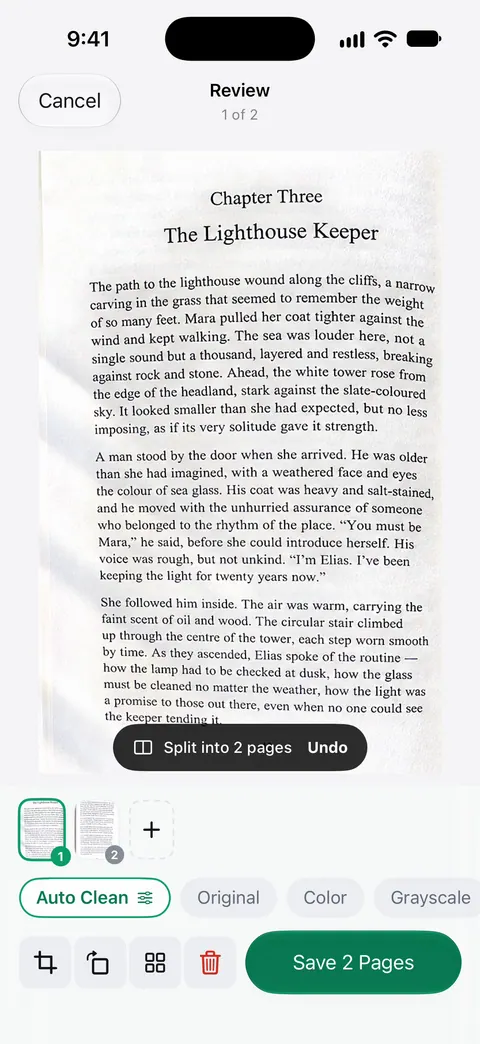
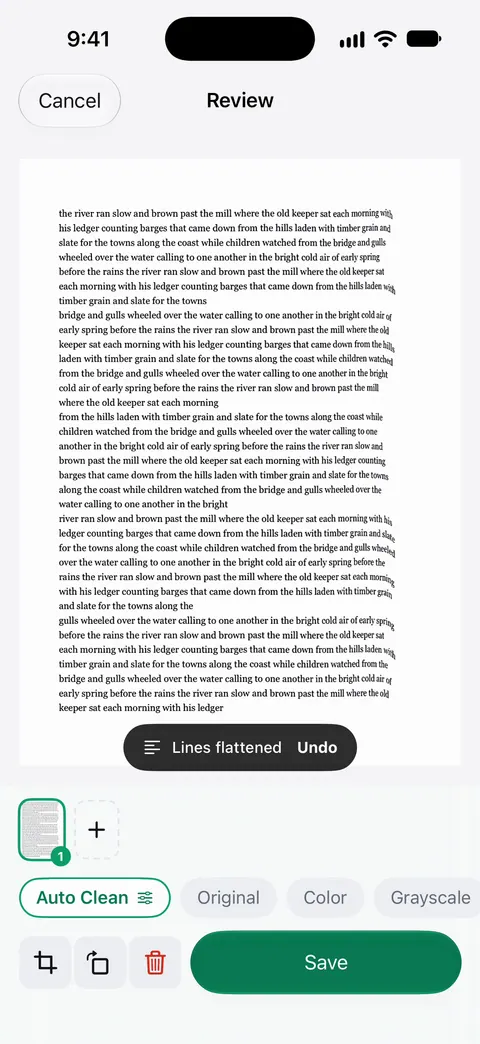
Book spreads are split into two pages and curved lines are flattened. Photograph the open book as one picture. In Review, Scanner One offers to split the spread; tap it and you get a left and a right page. On a page that curls toward the spine, Review offers Flatten lines. Text recognition runs on every page for everyone, free or Pro. Search looks inside the text of every document and shows the matching line and page.

What it does
Book spreads are split into two pages and curved lines are flattened. That is two separate fixes for the two problems every book scan has:
- Two pages in one picture. An open book is a spread. Scanner One turns one photo of the spread into two pages, left and right, so the PDF reads page by page instead of in landscape pairs.
- Lines that bend toward the spine. Pages near the binding curve away from the camera, so the lines of text arc. Flattening straightens them, which makes the page easier to read and to print.
How to scan an open book
- Open the book on a table, in good light from the side or from a window. Avoid a lamp straight above you, which puts your shadow on the pages.
- Tap Scan Now on Home and hold the phone above the middle of the spread, parallel to the table.
- Hold the book open at the outer edges with your fingertips, away from the text.
- Take the picture. In Review, Scanner One offers to split the spread. Tap it, and the spread becomes two pages.
- If a page still curls toward the spine, Review offers Flatten lines. Tap it and look at the result.
- Add the next spread and repeat. When you are done, save. The pages are read as they are saved.
Tips that make book scans better
- Thick books curve more. Near the start and the end of a thick book, one side of the spread lies flatter than the other. If one page keeps coming out warped, photograph that page on its own, closer.
- Glossy pages reflect. Tilt the book a little away from the window or lamp until the bright patch leaves the text.
- Keep the gutter in view. If the spine shadow is deep, open the book a little wider rather than pressing it until it cracks.
- Choose the filter for the paper. Old yellowed paper and pencil notes often look better in Grayscale than in black and white. See Auto Clean and the filters.
- Check the order. Before you share a chapter, open the Pages sheet and make sure nothing is out of place. A scan can have many pages, and you can reorder them.
The full method is in our guide to scanning a book without the curve.
What it cannot do
- It cannot see into the gutter. If words disappear into a tight binding, no software can recover them from the photo. Open the book wider or photograph that page on its own.
- It is not a book scanner. For hundreds of pages, a library’s overhead scanner or a scanning service will be faster than a phone. Our roundup of apps to scan book pages compares the phone options, with Scanner One disclosed as ours.
- It does not remove copyright. Scan for your own reading and study, and share only what you are allowed to.
What you can do with the pages afterwards
Text recognition runs on every page for everyone, free or Pro. So a scanned chapter becomes something you can search: Search looks inside the text of every document and shows the matching line and page. Find a quote again with Search, or have a chapter read to you with Listen. Students will find more in scanner apps for students.
Where Scanner One helps, and where it doesn’t
The iPhone’s own scanner in Notes and Files works well for a single flat page, and for a book page you can press flat, it may be all you need. Apple’s steps for it cover finding the page, the corners and a filter; they don’t mention splitting a spread or flattening curved lines, so expect wide pairs and bent text near the spine.
Scanner One helps when you scan from books often: Review offers the split and the flattening as you go, and the text is read when you save. Scanner One is free, with generous limits: scanning, clean PDFs and text search never stop. On a free account, pages you share, print or export carry a small “Scanned with Scanner One” label at the bottom right. Pro removes it.
Questions and answers
Do I need to press the book flat to scan it?
It helps, but you don’t have to flatten it completely. Book spreads are split into two pages and curved lines are flattened. Hold the pages open at the edges, keep your fingers off the text, and let the app straighten the curve near the spine.
Can I scan a whole chapter into one PDF?
Yes. A scan can have many pages, and you can reorder them. Scan spread after spread and split each one, then check the order in the Pages sheet before you share.
Can I search the text of a book I scanned?
Text recognition runs on every page for everyone, free or Pro. Search looks inside the text of every document and shows the matching line and page. Listen reads any document aloud.
Is it legal to scan a book?
Scanning pages for your own study is common, but copyright rules decide what you may copy and share, and they differ by country. Share only what you are allowed to, and check your library’s or school’s rules.
Sources
What this page says about Scanner One was checked against the app on .
- Apple Support, How to scan documents on your iPhone or iPad — what the built-in Notes and Files scanner offers (auto capture, corners, a filter in iOS 26); page published 2026-02-13
- Scanner One on the App Store — the app’s own listing: book spreads split into two pages and curved lines flattened
Get Scanner One
Scanner One is free, with generous limits: scanning, clean PDFs and text search never stop.

Scanner OneScan, sign and ask anything
Scanner One is free, with generous limits: scanning, clean PDFs and text search never stop.