
Feature
QR codes and barcodes found on every page
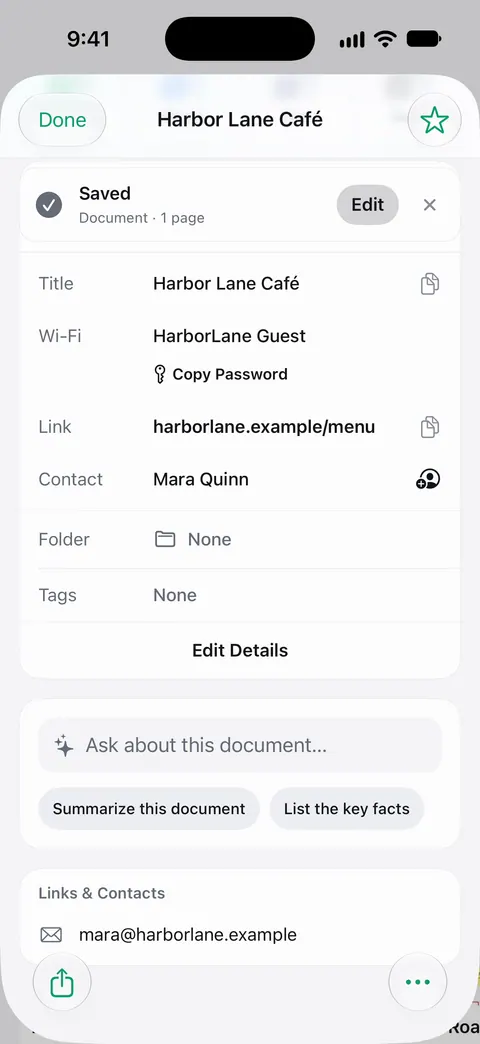
QR codes and barcodes are found on every page. You don’t switch to a code reader: scan or import the paper as usual, open the document, and the codes found are listed with its details, such as a Wi-Fi network, a link or a contact. For one QR code in front of you, the iPhone Camera reads it on its own. Check a link before you open it.

What it does
QR codes and barcodes are found on every page. You don’t switch to a separate code reader: the codes on a document’s pages are listed on the document with its other details.
That matters because codes are now printed on everyday paper: a Wi-Fi card at a café or an Airbnb, a bill with a payment link, a parcel slip with a tracking barcode, a ticket, a warranty card that links to registration, a business card with a contact in a QR code.
How to use it
- Scan the paper with Scan Now, or bring in a photo or PDF. From Home you can bring in pictures from Photos and files from the Files app, or scan an ID card.
- Save, then open the document.
- Scroll to the document’s details. The codes found on its pages are listed there, each with what it holds.
- Use what you need: a contact in a code gets its own Add to Contacts, as on the café card above.
Because codes are found on every page, a stack of paper with codes on page 3 and page 7 doesn’t need you to hunt for them.
Why reading codes from paper you keep is useful
- Wi-Fi details. A router label or a Wi-Fi card scanned once keeps the network details with the document, so you are not crawling behind the router next time.
- Links on letters. A bill or a letter with a QR code for paying or registering keeps that link with the paper it came on, so you can check it against the letter.
- Warranty and product codes. A warranty card or a box label scanned at purchase keeps its codes with the receipt. See keeping warranties in one place.
- Contacts. For cards, see business cards straight to Contacts.
Staying safe with codes
A QR code is a link you can’t read until it is decoded, and scammers use that. The FTC’s advice is short:
- Inspect the address before you open it, especially for a code in an unexpected place. Look for misspellings or swapped letters.
- Be wary of codes in unexpected emails or texts, especially ones that push you to act now. Contact the company through a website or number you already know is real.
- Keep your phone updated and your accounts protected with strong passwords and two-factor sign-in.
Scanner One lists what a code holds on the document, so you can read the address before you decide to go there.
What it does not do
- For a code in front of you, the Camera is quicker. Scanner One finds codes on the pages of documents; for a menu code on a table, use the Camera (below).
- It cannot read a code the photo didn’t capture sharply. Small barcodes need a close, steady shot.
- Whether a link is safe is your call. The FTC tips above help.
Where Scanner One helps, and where it doesn’t
For one code in front of you, your iPhone is enough. Apple’s steps: open Camera, stay in Photo mode, position the phone so the code appears in the frame, and tap the link that appears at the bottom of the screen. You can also add the Scan Code control to Control Center and tap it. Our guide to reading a QR code from a photo or a PDF covers codes that are already in a photo or a PDF.
Scanner One helps when the code is on paper you keep: it is found on every page, kept with the document, and the page itself is searchable. Search looks inside the text of every document and shows the matching line and page. Scanner One is free, with generous limits: scanning, clean PDFs and text search never stop.
Questions and answers
Can I read a QR code from a PDF or a photo on my iPhone?
Yes. Bring the PDF or photo into Scanner One from Files or Photos. QR codes and barcodes are found on every page. The codes found are listed on the document.
Does the iPhone have a QR code reader built in?
Yes. Open Camera in Photo mode, point it at the code and tap the link that appears. Control Center also has a Scan Code control you can add.
Does it read barcodes as well as QR codes?
QR codes and barcodes are found on every page.
Is it safe to open a link from a QR code?
Look at it first. The FTC advises inspecting the address before you open a link from a QR code in an unexpected place, and not scanning codes from unexpected emails or texts that push you to act fast.
Sources
What this page says about Scanner One was checked against the app on .
- Apple Support, Scan a QR code with your iPhone camera (iPhone User Guide, iOS 27) — the Camera and Control Center ways to scan a QR code; read 2026-11-13
- FTC Consumer Advice, Scammers hide harmful links in QR codes to steal your information — inspect a link before opening it, be wary of unexpected codes; dated 2023-12-06
- Scanner One on the App Store — the app’s own listing: QR codes and barcodes found on every page
Get Scanner One
Scanner One is free, with generous limits: scanning, clean PDFs and text search never stop.

Scanner OneScan, sign and ask anything
Scanner One is free, with generous limits: scanning, clean PDFs and text search never stop.