
Feature
Business cards straight to Contacts
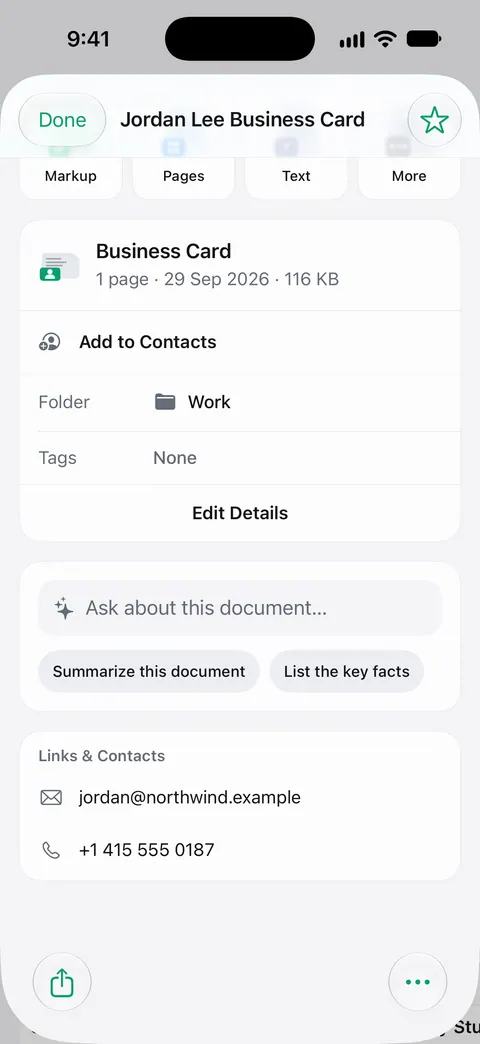
Business cards go straight to Contacts. Scan the card like any page. When you open it, Scanner One shows the details it read from the card, such as the name, phone number and email, with an Add to Contacts button. Check the fields, then save. For one phone number or email, the iPhone Camera’s Live Text can be enough on its own.

What it does
Business cards go straight to Contacts. You scan a card the way you scan any page. Scanner One reads the printed text, picks out the details a contact needs, and shows them on the card’s document with an Add to Contacts button.
How to scan a business card
- On Home, tap Scan Now.
- Lay the card on a dark surface so its edges stand out, and scan it. For a two-sided card, scan the back as a second page.
- Save, then open the card’s document.
- Look at the details read from the card.
- Tap Add to Contacts.
- Check the new contact’s fields, and fix a letter or a digit if the print was small or fancy.
The card stays in your Library as a scanned document too. Search looks inside the text of every document and shows the matching line and page. So if you forget the name but remember the company, a search for the company finds the card.
Cards with QR codes
Many cards now carry a QR code that holds a contact, a link or a profile. QR codes and barcodes are found on every page. On the document, the codes found are listed with the details: a contact gets its own Add to Contacts.
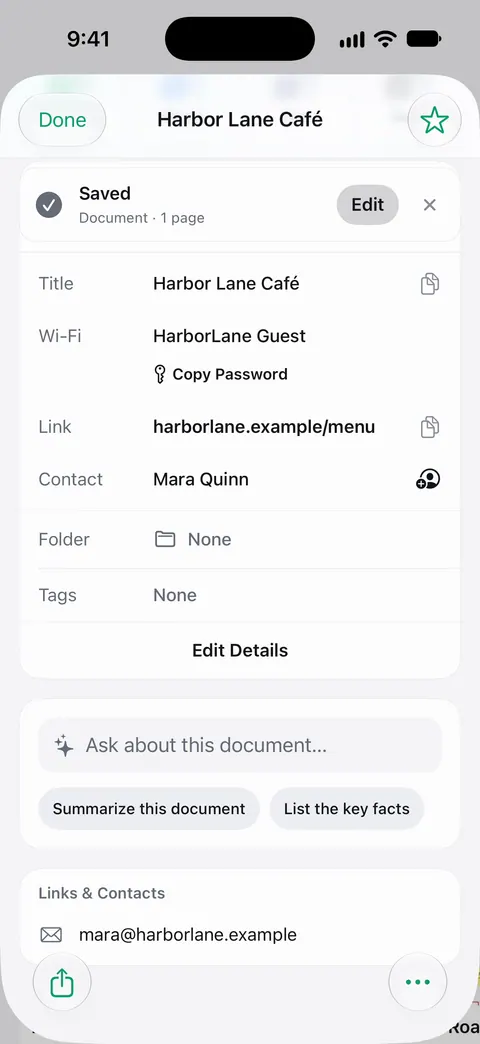
More on codes is on QR codes and barcodes.
Getting the details right
- Small or decorative type is the main cause of a wrong letter. Scan closer, in good light, and check the email address character by character.
- Glossy or metallic cards reflect. Tilt the card away from the light.
- Dark cards with light text: try Color or Grayscale if black and white loses the text.
- Several numbers on one card (office, mobile, fax): check which field each lands in before you save the contact.
- Two-sided cards often have the logo on the front and the details on the back. Scan both as pages of the same document.
Keeping a stack of cards after an event
Scan each card as its own document rather than as pages of one, so each has its own details and its own Add to Contacts. Then it reads the text, names the document, tags it and puts it in the right folder. To keep an event’s cards together, select them in the Library and use Tags to give them the event’s name; later, the Library filtered to that tag shows only those cards. Once the contacts are saved, you can keep the scans or delete them. Deleted documents wait in Recently Deleted for 30 days before they are deleted for good.
Where Scanner One helps, and where it doesn’t
For a single detail, your iPhone already helps. Apple’s page on Live Text describes it: open Camera, frame the text, tap the Live Text button when the yellow frame appears, then copy the text or use a quick action to call a number, visit a website or start an email. If you only need to call someone back, that is enough. Our guide to scanning a business card into Contacts compares both ways, and copying text from a photo covers Live Text in more depth.
Scanner One helps when you collect cards: the whole contact goes to Contacts in one step, and the card itself stays searchable in your Library next to your other papers. Text recognition runs on the device, in 29 languages. If you meet clients for work, scanner apps for a small business and starting as a freelancer cover the rest of the paperwork. Scanner One is free, with generous limits: scanning, clean PDFs and text search never stop.
Questions and answers
How do I scan a business card into my iPhone contacts?
In Scanner One, scan the card, open it and tap Add to Contacts under the details read from the card. Business cards go straight to Contacts. Check the name and number before you save the contact.
Can the iPhone scan a business card without an app?
Partly. Point the Camera at the card, tap the Live Text button when the yellow frame appears, and use a quick action to call a number, open a website or start an email. That works detail by detail rather than filling a whole contact.
Can it read a card with a QR code on it?
QR codes and barcodes are found on every page. On the scanned card, the codes found are listed with the other details.
Does it keep a picture of the card?
The card is saved as a document in your Library like any other scan, so you can find it again later by a word on it. Search looks inside the text of every document and shows the matching line and page.
Sources
What this page says about Scanner One was checked against the app on .
- Apple Support, Use Live Text with your iPhone camera (iPhone User Guide, iOS 27) — Live Text in Camera: copy text and quick actions to call numbers, visit websites and start an email; read 2026-11-13
- Scanner One on the App Store — the app’s own listing: business cards straight to Contacts
Get Scanner One
Scanner One is free, with generous limits: scanning, clean PDFs and text search never stop.

Scanner OneScan, sign and ask anything
Scanner One is free, with generous limits: scanning, clean PDFs and text search never stop.