
Guide
Translate a document on iPhone
For a paper page, open the Translate app, tap Camera and hold the page in view: the text is translated in real time. Tap the Take Picture button to freeze it, then tap a translated line to copy it. For a photo, tap Camera, then the Photo Library button. For a PDF with selectable text, select the text and tap Translate. To keep translations on your iPhone, download the languages and set On-Device Translation to Always in Settings > Apps > Translate.

Translate a paper page with the camera
The Translate app reads the page through the camera and lays the translation over it. These are Apple’s steps for iOS 27.
- Open the Translate app.
- Tap Camera, then hold your iPhone so the text is on the screen. The text is translated in real time as you move.
- Tap the Take Picture button to freeze the image.
- Tap a language at the top to change the from or to language.
- Zoom in to read the overlaid translation more closely.
- Tap a translated line to see the details, then copy it, save it or play it aloud.
This is the quickest way to understand a letter, a form or a label. It is not the way to get a clean translated copy of a five-page document: you’d be copying line by line.
Translate a photo or a screenshot
If someone sent you a photo of a document, or you took one earlier:
- Open the Translate app and tap Camera.
- Tap the Photo Library button and choose the photo.
- Change the languages if needed.
- To keep the result, tap the Share button and share or save the translated image.
You can also work from the Photos app: open the photo, tap the Detect Text button, select the text and tap Translate. The guide to copying text from a photo covers the selecting part.
Translate a PDF or a long text
A PDF made on a computer, such as a contract or a bank letter, has real text you can select. Translate it where it is:
- Open the PDF, or any text in an app such as Notes or Mail.
- Select the text, then tap Translate. If you don’t see it, tap the Show More Items button.
- Tap the Language Menu to choose the languages.
- To hear it, tap More, then the play button on the original or the translation.
For a longer text, paste it into the Translate app instead: tap Enter text, paste, and tap Next. On an iPhone with Apple Intelligence, Accessibility Reader can translate the text of whatever is open. Turn it on in Settings > Accessibility > Read & Speak > Accessibility Reader, open it from Control Center or the Share button, then tap the Translate button and choose one of your preferred languages.
A scanned PDF is pictures of pages. If you can’t select its text, the text has to be recognized first. The guide to copying all the text out of a PDF shows how.
Keep translations on your iPhone
Where a translation is processed matters for a private letter or a medical report. Apple’s Translate settings let you choose:
- Open Settings, tap Apps, then Translate.
- Tap Languages and tap the Download button next to each language you need.
- Go back and set On-Device Translation:
- Automatic: translations are processed on your iPhone when the languages are downloaded; otherwise they may be processed on Apple servers.
- Always: translations are always processed on your iPhone, using the languages you downloaded.
With the languages downloaded, translation also works without an internet connection. The guide to on-device and cloud AI explains the difference in more detail.
Which languages work
Apple publishes the lists on its Feature Availability page. When we read it on 13 November 2026, the Translate app listed Arabic, Dutch, English, French, German, Hindi, Indonesian, Italian, Japanese, Korean, Mandarin Chinese, Polish, Portuguese (Brazil), Russian, Spanish, Thai, Turkish, Ukrainian and Vietnamese. System-wide translation (the Translate button when you select text) listed more, including Danish, Finnish, Hebrew, Malay, Norwegian and Swedish.
To translate a photo, iPhone must also be able to read the text in it, and that list is different. Hebrew, for example, can be translated once it’s text but is not on the Live Text list. See text recognition in other languages.
When a machine translation isn’t enough
A translation on your phone is for understanding. Offices that make decisions about you usually want more. USCIS, for example, requires that any document in a foreign language come with a full English translation, with the translator certifying that it is complete and accurate and that they are competent to translate. It says a summary is unacceptable. Courts, universities and consulates have rules of their own. Read the instructions for your application before you pay for a translation, and keep a scan of the original next to it.
Where Scanner One helps, and where it doesn’t
The translating itself is best done by Apple’s Translate app and the Translate button, which are free and can run fully on your iPhone. For a sign, a menu or a single letter, that’s all you need.
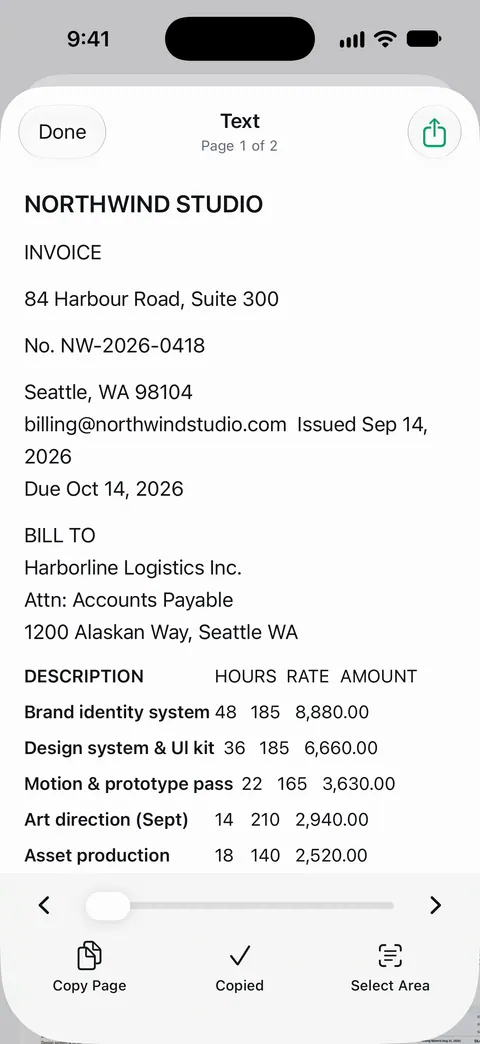
Scanner One helps with the step before: getting clean, complete text out of paper. Point your camera at any piece of paper. Scanner One finds the edges, straightens the page, cleans it up and saves a real PDF. Text recognition runs on the device, in 29 languages. Text recognition runs on every page for everyone, free or Pro. Then take the text out and paste it into Translate: Share & Export saves a document as a PDF, Word, Excel, PowerPoint, JPG, PNG, a long image, plain text, Markdown, Rich Text, a web page or CSV.
A document’s tools include Translate, which translates its text with cloud AI. Cloud AI is off until you switch it on, and page images are a separate permission. If you would rather nothing leaves your iPhone, use Apple’s Translate with the text instead.
The limits, plainly:
- Free accounts can run the PDF tools and the Word, Excel and CSV exports 3 times a week, from one shared allowance.
- On a free account, pages you share, print or export carry a small “Scanned with Scanner One” label at the bottom right. Pro removes it.
- Scanner One doesn’t certify anything. A scan from any app is a copy of the original, and an official translation still has to come from a translator who certifies it.
The languages feature page lists what Scanner One reads and the languages its screens come in.
Questions and answers
Can iPhone translate a whole PDF at once?
Not in one tap with the Translate app. Select the text in the PDF and tap Translate, a page or a section at a time. On an iPhone with Apple Intelligence, Accessibility Reader can translate the text of what’s open into one of your preferred languages.
Does translation work without the internet?
Yes, for languages you download. Apple says on-device translation is processed on your iPhone, even without an internet connection. Download languages in Settings > Apps > Translate > Languages.
Is a phone translation good enough for an official application?
Usually not. USCIS, for example, requires a full English translation that the translator certifies as complete and accurate, and says a summary is unacceptable. Other agencies and courts have their own rules, so check what yours asks for.
Why is there no Translate button when I select text?
Tap the Show More Items button in the menu to see more options. If the language isn’t on Apple’s supported list, Translate won’t appear for it.
Sources
What this page says about Scanner One was checked against the app on .
- Apple iPhone User Guide, Use the camera in the Translate app on iPhone — translating text around you and text in a photo from your library; iOS 27 guide, undated, read 2026-11-13
- Apple iPhone User Guide, Translate text in apps on iPhone — selecting text in an app and tapping Translate, Replace with Translation, Download Languages; iOS 27 guide, undated, read 2026-11-13
- Apple iPhone User Guide, Change your Translate settings on iPhone — downloading languages and the On-Device Translation setting (Automatic or Always); iOS 27 guide, undated, read 2026-11-13
- Apple iPhone User Guide, Read or listen to text in apps with Accessibility Reader on iPhone — translating a whole document’s text in Accessibility Reader with Apple Intelligence; iOS 27 guide, undated, read 2026-11-13
- Apple, iOS and iPadOS Feature Availability — the languages listed for the Translate app and system-wide translation; read 2026-11-13
- USCIS Policy Manual, Volume 1, Part E, Chapter 6, Evidence — foreign-language documents need a full English translation certified by the translator; a summary is unacceptable; current as of 2026-10-27
- Scanner One on the App Store — the app’s own listing: text recognition and exports
Get Scanner One
Scanner One is free, with generous limits: scanning, clean PDFs and text search never stop.

Scanner OneScan, sign and ask anything
Scanner One is free, with generous limits: scanning, clean PDFs and text search never stop.