
Who it’s for
Scanning worksheets, tests and student work on iPhone
Scan a clean master of each worksheet or test with the iPhone’s Notes or Files app (Scan Documents), one PDF per handout, named by unit and lesson. Scan student work only when you need to, keep it out of your photo library and personal cloud folders, and follow your school’s rules: FERPA treats records directly related to a student and kept by the school as education records. Use the school’s own systems for grades and anything you share.

This page is about a teacher’s paper: making clean masters of handouts, keeping tests on file, and scanning student work with privacy in mind. If you are a student choosing an app, the scanner app comparison for students is the page for you.
The papers a teacher deals with week to week
- Worksheets and handouts, many of them old photocopies of photocopies.
- Tests and answer keys, which should not travel far.
- Student work to grade, keep as samples, or show at a parent conference.
- Permission slips and field trip forms with parent signatures.
- Notes home, IEP or 504 meeting papers and other confidential forms.
- Whiteboard and chart paper from a lesson worth keeping.
- Professional records: certifications, training certificates and evaluations.
A workflow for clean masters
- Pick the cleanest copy and remove staples. Flatten folded corners.
- Scan it flat on a dark desk in even light. In Notes, tap the Attachment button, then Scan Documents; in Files, tap the More button, then Scan Documents. Auto mode captures the page; drag the corners if needed and tap Keep Scan.
- Choose black and white for text handouts so the gray photocopy background drops out and toner lasts longer. See scan in black and white.
- One handout, one PDF. Multi-page packets stay together in order.
- Name it by unit and lesson, for example “Grade 7 Science, Unit 3, Lesson 4, density worksheet”.
- Keep a folder per unit, and print from the PDF master every year.
For lesson boards, the whiteboard scanning guide shows how to get rid of glare.
A workflow for student work
- Decide why you are scanning. Samples for a portfolio, evidence for a conference, or work to return after grading. Scan only what you need.
- Use the school’s system when there is one: the learning management system or a district-approved drive.
- Remove or cover names on samples you keep to show future classes.
- Name by class period and assignment, not by student, when the files sit outside the school system.
- Delete working copies once the work is graded and returned.
At the end of the year, families often want a record of their child’s work; scan schoolwork at the end of the year is the guide to share with them.
What the iPhone already covers
Notes and Files make good multi-page PDFs, and Notes search finds text in scanned documents and handwriting in supported languages. You can lock many notes so their contents stay hidden, and a locked note shows only its title in search, but Apple says notes with PDF or file attachments, tags or iCloud sharing can’t be locked. For a few handouts a week, this is enough. Where it slows down is a whole filing cabinet of masters, where you need to find “the photosynthesis quiz” by a word inside it.
FERPA in plain words
The Department of Education’s Student Privacy Policy Office explains that FERPA, the Family Educational Rights and Privacy Act, is a federal law that protects students’ education records and the personally identifiable information in them.
- Education records are records directly related to a student and kept by the school or someone acting for it, in any form: handwriting, print, computer files, email, video. Grades, class lists and discipline files are examples.
- Personally identifiable information includes the student’s name, a parent’s name, an address, a student number, and other details that would let someone in the school community identify the student.
- Sole-possession notes are excluded: records kept only by the person who made them, used as a personal memory aid and not shown to anyone except a temporary substitute.
- Rights belong to parents until the student turns 18 or enters college, when they pass to the student.
What this means on a phone: a scan of graded work or a class list is still a student record. Keep it where your district says, lock the device, and don’t post it or send it to anyone the school wouldn’t.
This page is general information, not legal advice. Your state and district may have stricter rules about student data and approved apps; check with your school and the Student Privacy Policy Office pages listed under Sources.
The mistakes that cost time
- Scanning copies of copies. Each generation gets grayer. Make one good master.
- Photos in the camera roll. Student work ends up next to family photos and in shared albums.
- Tests left in an unlocked app on a phone students handle.
- Separate files for each page of a packet. Merge PDFs on iPhone fixes that, or use our free merge PDF tool in a browser.
- No names in file names, but no system either. Use unit and lesson so you can find it next year.
Where Scanner One helps, and where it doesn’t
Point your camera at any piece of paper. Scanner One finds the edges, straightens the page, cleans it up and saves a real PDF. A scan can have many pages, and you can reorder them. Text recognition runs on the device, in 29 languages. Scanner One makes searchable PDFs. That makes a folder of old masters findable by a word inside them.
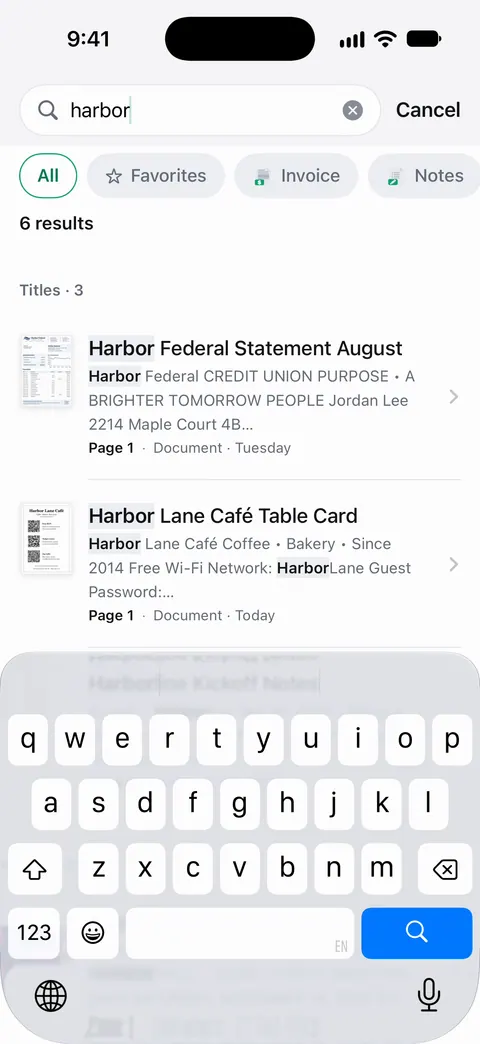
Whiteboards are cleaned automatically. Book spreads are split into two pages and curved lines are flattened. The PDF tools merge, split, compress, password-protect, add page numbers and watermarks, and extract text. Documents stay on your iPhone unless you share them or turn on iCloud Sync. You can lock the app with Face ID.
What to know first:
- Free accounts can run the PDF tools and the Word, Excel and CSV exports 3 times a week, from one shared allowance.
- On a free account, pages you share, print or export carry a small “Scanned with Scanner One” label at the bottom right. Pro removes it. Printed handouts from a free account carry that label.
- Text recognition runs on every page for everyone, free or Pro. Pro removes every limit.
It is not a grade book or a learning management system, and it is not on your district’s approved list unless the district says so. Check that before you store student work in it. For handout masters and your own professional records, it is a fit; for a few scans a term, Notes is enough.
Questions and answers
Is it OK to scan student work on my personal iPhone?
It depends on your school or district policy. FERPA covers education records the school keeps, and many districts say where student work and grades may be stored. If your district has an approved app or drive, use that, and keep student scans out of your personal photo library.
How do I make a worksheet from an old paper copy?
Scan the cleanest copy you have flat, in good light, with a black-and-white filter so the gray background disappears. Save it as a PDF master and print from that instead of photocopying copies of copies.
Can I make a scanned worksheet searchable?
Yes. Notes search finds text in scanned documents, and Preview on iPhone can embed text when you export a PDF. A dedicated scanner app can also save a searchable PDF.
Are my own notes about a student covered by FERPA?
The regulations exclude records kept in the sole possession of the person who made them, used only as a personal memory aid and not shown to anyone except a temporary substitute. Once notes are shared or put in a student’s file, they can become education records.
Sources
What this page says about Scanner One was checked against the app on .
- U.S. Department of Education, Student Privacy Policy Office: What is FERPA? — FERPA protects education records and the personally identifiable information in them; rights pass to the student at 18 or at college; 20 U.S.C. 1232g and 34 CFR Part 99; undated, read 2026-11-13
- U.S. Department of Education, Student Privacy Policy Office: What is an education record? — records directly related to a student and maintained by the school, in any form, with examples such as grades and class lists; undated, read 2026-11-13
- 34 CFR 99.3, Definitions (Cornell LII copy of the eCFR) — the sole-possession exclusion for personal memory aids and the definition of personally identifiable information; read 2026-11-13
- Apple Support, Scan documents on your iPhone or iPad (article 108963) — Scan Documents in Notes and Files, Auto mode, Keep Scan; page dated 2026-02-13
- Apple iPhone User Guide, Search through your notes on iPhone — Notes search covers text in scanned documents and handwriting in supported languages; locked notes show only titles; read 2026-11-13
- Apple iPhone User Guide, Lock your notes on iPhone — locking notes with the device passcode or a custom password, and which notes can’t be locked; read 2026-11-13
- Apple iPhone User Guide, Export or compress PDFs and images in Preview on iPhone — Preview’s Embed Text option, which runs OCR to make an exported PDF searchable; read 2026-11-13
- Scanner One on the App Store — the app’s own listing: multi-page scans, text recognition, PDF tools
Get Scanner One
Scanner One is free, with generous limits: scanning, clean PDFs and text search never stop.

Scanner OneScan, sign and ask anything
Scanner One is free, with generous limits: scanning, clean PDFs and text search never stop.