
Guide
Merge PDFs on iPhone
Open the first PDF in Preview (iOS 26 and later) and show the page thumbnails. Touch and hold the last thumbnail, tap Insert from File and pick the next PDF. Repeat for each file, drag thumbnails to fix the order, then tap Back to save. Duplicate the first file beforehand if you want to keep it unchanged. For an occasional merge, Preview is all you need.

Merge PDFs with Preview on iOS 26 and later
Preview is Apple’s PDF app on iPhone from iOS 26. It has no button called Merge, but its page thumbnails can insert a whole PDF into the one you have open, which is the same thing. These steps come from Apple’s iPhone User Guide.
- Open the Preview app and open the PDF that should come first.
- Show the page thumbnails. On iOS 27, tap the Show Sidebar button (if you don’t see it, tap the PDF). On iOS 26, tap the page count (if it doesn’t appear, pinch two fingers together or apart on the page).
- Touch and hold the last thumbnail, then tap Insert from File.
- Find the second PDF in the file browser and tap it. Its pages are added to the open document.
- Repeat steps 3 and 4 for each further file.
- Check the order. To move a page, touch and hold its thumbnail until the menu appears, then drag it above or below another one.
- Tap the Back button to save the file.
That’s a merged PDF. To give it a clear name, tap the Actions Menu button next to the filename, then tap Rename.
Keep the first file as it was
Preview saves the inserted pages into the PDF you opened. If you still need that file on its own, make a copy before step 3: tap the Actions Menu button next to the filename, then tap Duplicate, and do the merge in the copy.
Add a photo or a paper page while you’re there
The same thumbnail menu has two more ways to add pages:
- Insert from File also takes images, so a photo of a receipt or a screenshot can go into the PDF. The guide to turning photos into a PDF covers whole sets of pictures.
- Scan Pages opens the scanner. Scan the paper, tap Done, and the new pages join the document.
If the file you want isn’t in the list
Insert from File opens a file browser, so it can only see files saved on your iPhone or in a place like iCloud Drive. A PDF that only exists as a Mail attachment or a Safari download link has to be saved there first. In Safari, open the PDF, tap the Page Menu button, tap Share, then tap Save to Files and Save. For a Mail attachment, open it and use the Share button to save a copy to Files. Then go back to Preview and insert it.
Put the pages in the right order
Merging is quick; getting the order right is where people lose time. A few habits help.
- Decide the order before you start. Open the file that should come first, then insert the rest in order. Inserting in sequence means less dragging afterwards.
- Look at every thumbnail once. Scroll the sidebar from top to bottom before you save. A statement inserted twice, or a page upside down, is easy to miss in a long file.
- Fix single pages afterwards. If one page is in the wrong spot, drag it. If one shouldn’t be there at all, touch and hold it and tap Delete Page. The guide to deleting or reordering PDF pages has every option.
- Name it for the person receiving it. “Smith lease application, all documents” says more than “Scan 14”.
Before you send the merged PDF
A merged file is the sum of its parts, and scans add up fast. If you are emailing it, check the size first: tap the Info button in Preview to see it. Many mail services refuse large attachments, and the guide to making a PDF small enough to email explains the limits and how to get under them.
To send it, tap the Share button in Preview, choose to send a copy, then pick Mail, Messages or another way.
If you need the opposite, one PDF cut into several, see how to split a PDF on iPhone.
On an iPhone without Preview
Apple’s user guide covers Preview for iOS 26 and iOS 27. If your iPhone runs an earlier version, you won’t have the app and will need another way to combine files, such as a PDF app or a computer.
If the papers are still in your hand, you may not need to merge at all: scan them together into one file from the start. The guide to scanning several pages into one PDF shows how.
Where Scanner One helps, and where it doesn’t
For a merge now and then, Preview does it well, costs nothing and leaves your pages untouched. If you have iOS 26 or later, start there.
Scanner One helps when the files you want to combine are already in it, such as scans you made over a few days. The PDF tools merge, split, compress, password-protect, add page numbers and watermarks, and extract text. You pick the documents you want and combine them into one PDF.
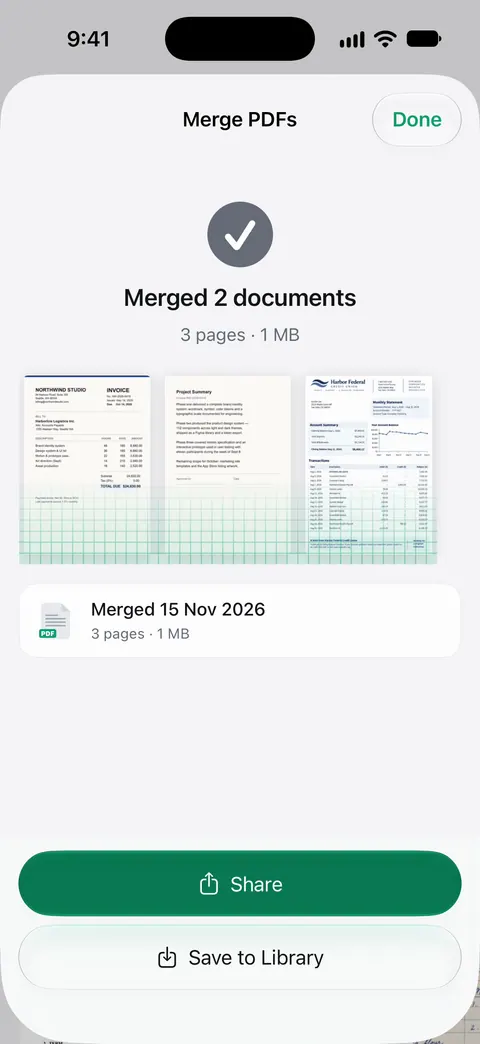
You can also start from the Library: select documents and Merge appears beside Share, Move, Tags, Favorite and Delete. A scan can have many pages, and you can reorder them.
The limits, plainly:
- Free accounts can run the PDF tools and the Word, Excel and CSV exports 3 times a week, from one shared allowance.
- Pro removes every limit.
- On a free account, pages you share, print or export carry a small “Scanned with Scanner One” label at the bottom right. Pro removes it. The built-in way adds no label.
- Scanner One runs on iPhone and iPad. Files that live on a computer have to reach your iPhone first.
The PDF tools page lists everything else that sits next to Merge.
Questions and answers
Can I merge PDFs on iPhone without an app?
Yes, on iOS 26 and later. Preview, Apple’s PDF app, can insert one PDF into another with Insert from File in the page thumbnails. It is free and adds nothing to your pages.
Can I add a photo or a paper page to a PDF?
Yes. Insert from File takes images as well as PDFs, and Scan Pages in the same menu scans paper straight into the PDF you have open.
Does merging change the original files?
Preview saves the inserted pages into the PDF you opened. The files you inserted from stay as they were. Tap the Actions Menu button and Duplicate first if you want to keep the first file untouched.
How many PDFs can I merge for free in Scanner One?
Free accounts can run the PDF tools and the Word, Excel and CSV exports 3 times a week, from one shared allowance. A merge is one of those runs. Pro removes every limit.
Sources
What this page says about Scanner One was checked against the app on .
- Apple iPhone User Guide, Add, delete, rotate, move, or crop PDF pages in Preview on iPhone — Insert from File, Scan Pages and moving pages; the iOS 26 version shows thumbnails from the page count, the iOS 27 version from the Show Sidebar button; undated guide page for iOS 26 and 27, read 2026-11-13
- Apple iPhone User Guide, Save, rename, or move PDFs and images in Preview on iPhone — saving with the Back button, Rename and Duplicate; undated guide page for iOS 26 and 27, read 2026-11-13
- Apple iPhone User Guide, Share PDFs or images in Preview on iPhone — sending the merged file by Mail or Messages; undated guide page for iOS 26 and 27, read 2026-11-13
- Apple iPhone User Guide, Download a PDF from Safari to your iPhone — saving a PDF from Safari with Share and Save to Files; undated guide page for iOS 26 and 27, read 2026-11-13
- Scanner One on the App Store — the app’s own listing: the PDF tools, Merge among them
Get Scanner One
Scanner One is free, with generous limits: scanning, clean PDFs and text search never stop.

Scanner OneScan, sign and ask anything
Scanner One is free, with generous limits: scanning, clean PDFs and text search never stop.