
Guide
How to tell if a scanner app is safe to use
Check 6 things before you scan an ID or a bank statement. Read the App Privacy label on its App Store page, especially Data Used to Track You and Data Linked to You. See whether it needs an account to scan, and whether pages are processed on the phone or uploaded. Give it only the permissions it needs. Watch for a tracking prompt. Then turn on App Privacy Report in Settings and see which web domains it contacts. The label is the developer’s own statement.

A scanner app sees some of the most private papers you own: passports, tax returns, medical letters, bank statements. You can’t inspect its code, but you can check a lot from your iPhone in 10 minutes. This page is a checklist that works for any app; the privacy label comparison applies it to popular scanner apps side by side.
1. Read the App Privacy label
Every app’s App Store page has an App Privacy section. Scroll down to it before you install. It sorts what the app collects into groups:
- Data Used to Track You: data linked with other companies’ data for advertising, or shared with data brokers. For a scanner, this is the group to worry about most.
- Data Linked to You: collected and tied to your identity, for example through an account.
- Data Not Linked to You: collected without your identity attached, often diagnostics.
- Data Not Collected: the developer says nothing leaves the device in a way they keep.
What “collected” means matters. Apple tells developers it means transmitting data off the device in a way that lets them or their third-party partners access it for longer than needed to serve the request in real time. Analytics tools, advertising networks and SDKs from other companies count as partners, and their collection must be declared too.
One caution: the label is the developer’s own answer. Apple says developers are responsible for keeping it accurate and up to date. Treat it as a promise you can hold them to, not a test result.
Look specifically for User Content (which includes documents and photos) under Linked to You or Used to Track You. A scanner that lists your documents as collected is telling you they leave the phone.
2. Does it need an account to scan?
An account isn’t bad in itself: syncing and sharing need one. But an app that won’t let you scan a single page without an email address is linking everything you scan to your identity from day one. Check the screenshots and description, or open the app before you give it anything.
3. Where are pages processed?
Text recognition, conversion to Word and AI summaries can happen on the phone or on a server. Read the description and the privacy policy (linked from the App Store page) for words like “on-device”, “upload”, “cloud” or “servers”. If processing is in the cloud, look for:
- Whether it’s optional, and off until you turn it on.
- How long files are kept on the server, and whether you can delete them.
- Whether your documents are used to train models.
For AI features specifically, see on-device AI vs cloud AI and is it safe to upload documents to AI.
4. Give it only the permissions it needs
A scanner needs the Camera. It may ask for Photos to import pictures and Contacts to save business cards. It has no reason to need your location or microphone to scan a page.
To review what any app can reach:
- Open Settings, then Privacy & Security.
- Tap a data type, such as Photos or Contacts, to see which apps have access.
- Change or remove access for any app. For Photos you can also change how much an app can see.
Apple notes that an app appears in these lists only after it asks.
5. Watch for the tracking prompt
If an app shows “Allow [app] to track your activity across other companies’ apps and websites?”, it wants to track you. For a document scanner, tap Ask App Not to Track. To stop all such requests, go to Settings > Privacy & Security > Tracking and turn off Allow Apps to Request to Track. Apple says apps that ask while this is off are treated as if you had asked them not to track.
6. Check what it actually does with App Privacy Report
The label is what the developer says. App Privacy Report shows what the app did on your phone.
- Open Settings, tap Privacy & Security.
- Scroll down, tap App Privacy Report, then Turn on App Privacy Report.
- Use the scanner for a few days as you normally would.
- Come back and tap the app to see when it used the camera or photos, and which web domains it contacted in the past 7 days.
Apple says the report is encrypted and stored only on your device, and it starts collecting only after you turn it on. A scanner contacting its own server for purchases or updates is normal. A long list of advertising and analytics domains is worth noticing.
A few more signs of care
- A lock. Can you lock the app with Face ID? See lock documents with Face ID.
- A way out. Can you export everything as PDFs and delete your data, and does the policy say how?
- Plain language. A privacy policy that names what it collects and why is a better sign than one written to say nothing.
None of these checks proves an app is safe. Together they tell you a great deal, and they take less time than reading a long privacy policy.
Where Scanner One helps, and where it doesn’t
Apply the checklist to us too: the label is on our App Store page, and you can run App Privacy Report against Scanner One like any other app.
What the app states: Scanner One needs no account and does no tracking. Scanner One’s privacy manifest declares no tracking. Documents stay on your iPhone unless you share them or turn on iCloud Sync. Text recognition runs on the device, in 29 languages. Cloud AI is off until you switch it on, and page images are a separate permission. You can lock the app with Face ID.
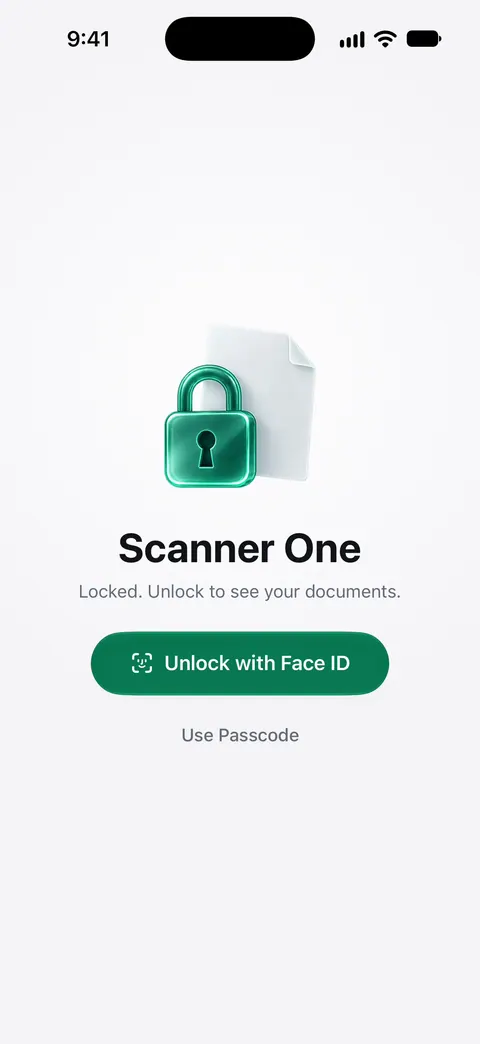
What that doesn’t cover, plainly:
- iCloud Sync is your choice to make: a synced copy is protected by your Apple Account’s iCloud settings, not by the phone alone.
- Cloud AI is, by its name, not on-device. Decide what you allow before you switch it on.
- Once you share a document, the copy you sent is outside any app’s control.
The privacy feature page has the details.
Questions and answers
Are free scanner apps safe?
Some are and some aren’t, and price doesn’t tell you which. A free app can collect nothing; a paid one can upload every page. Check the App Privacy label, whether an account is required, and where pages are processed, then decide.
What does 'Data Not Collected' mean on the App Store?
It means the developer says no data leaves the device in a way they or their partners can keep. Apple defines collecting as transmitting data off the device so it can be accessed for longer than needed to serve the request in real time. The label is self-reported, so it is a statement, not an audit.
Do scanner apps upload my documents to the cloud?
Some do, to read the text, convert files or sync across devices; others do everything on the phone. The App Store description and privacy policy should say which. App Privacy Report shows which web domains the app contacts after you use it.
Should I let a scanner app access all my photos?
Only if you import from Photos often. In Settings > Privacy & Security > Photos you can see which apps have access and change it, including giving an app access to only some photos.
Sources
What this page says about Scanner One was checked against the app on .
- Apple Developer, App privacy details on the App Store — what the privacy label covers, that developers fill it in and keep it accurate, what counts as collected, third-party partners, and the meaning of tracking; read 2026-11-13
- Apple Support, About App Privacy Report (article 102188) — turning on App Privacy Report, data and sensor access and network activity over the past 7 days, stored only on the device; read 2026-11-13
- Apple Personal Safety User Guide, App privacy features in Apple products — reviewing permissions in Settings > Privacy & Security, App Tracking Transparency and Allow Apps to Request to Track; published October 2025
- Scanner One on the App Store — the app’s own listing and privacy label
Get Scanner One
Scanner One is free, with generous limits: scanning, clean PDFs and text search never stop.

Scanner OneScan, sign and ask anything
Scanner One is free, with generous limits: scanning, clean PDFs and text search never stop.