
Guide
Scan a passport photo page, and keep the copy private
Open the passport flat at the photo page, turn the flash off, and scan it with Scan Documents in Preview or the Files app, capturing the whole page including the 2 lines of letters and numbers at the bottom. Save it in color. Then decide where it lives: a file in iCloud Drive is on every device signed in to your Apple Account, On My iPhone stays on this phone, and a Camera photo lands in Photos. Lock the PDF with a password before you share it.

Scan the photo page
The photo page is the one most requests are about: your photo, name, passport number, dates and, at the bottom, 2 lines of letters, numbers and arrow-like symbols that machines read. A copy that cuts off those lines is often sent back.
- Open the passport to the photo page and lay it flat on a dark, plain surface. Hold the facing page down with a fingertip at its outer edge.
- Open Preview (iOS 26 and later) and tap Scan Documents, or open Files, go to the folder you want, tap the More button and then Scan Documents.
- Turn the flash off. The photo page is laminated, and the flash puts a white spot over your photo or the numbers.
- Switch to manual capture (in Preview, tap Auto so it reads Manual). A booklet confuses the edge finder, which may grab both pages.
- Tap the Shutter button and drag the corners to the corners of the photo page only. Make sure the 2 bottom lines are inside the frame.
- Tap Keep, then Done. In Files, choose a location and tap Save.
Check the result before you put the passport away: zoom in on the passport number and the bottom lines. If any character is unclear, tilt the passport slightly to move the glare and scan again. Keep it in color.
Where the scan lives, and who can see it
The app you scan with decides where the copy is stored. That matters more for a passport than for most papers.
| Where you saved it | Where it is | Who can open it |
|---|---|---|
| Files, iCloud Drive | Apple’s iCloud, synced | Anyone using a device signed in to your Apple Account, plus people you share the folder with |
| Files, On My iPhone | This iPhone only | Anyone who can unlock this iPhone |
| Notes (iCloud account) | Inside the note, synced | Your signed-in devices, and anyone you share the note with |
| Photos (a Camera photo) | Your photo library, and iCloud Photos if it’s on | Your signed-in devices; Photos also groups identity documents under Utilities |
Some things to know:
- iCloud Drive is convenient and synced. Apple notes you can reach its content from every device signed in to the same Apple Account. That includes a shared family iPad if it’s signed in to your account.
- On My iPhone is local. It doesn’t sync, so it’s private to this phone, and it also disappears with the phone if you don’t back it up.
- Notes locking has limits. Apple’s list of notes you can’t lock includes notes with PDF or file attachments, and a scan is saved as a PDF in the note. If Lock doesn’t appear for that note, keep the passport somewhere else.
- Photos is the worst home for it. A photo of a passport sits among your holiday pictures, and gets shared by accident more easily than a PDF in a folder.
Lock it down
- Lock the PDF. In Preview, open the scan, tap the Actions menu next to the file name, tap Lock, enter a password twice and tap Done. Apple suggests making a duplicate first if you want an unlocked copy too.
- Lock the app that holds it. Touch and hold the app on the Home Screen and tap Require Face ID (or Touch ID or Passcode). Apple notes that built-in apps such as Files can be locked but not hidden. More in locking documents with Face ID.
- Keep it offline for travel. For a copy you can reach with no signal, touch and hold the file in Files and tap Keep Downloaded.
Sending a passport copy
Send it only to someone who asked, through their secure upload if they have one. Write who it’s for across the copy, such as “Copy for hotel check-in, Nov 2026”, using Markup in Preview (Markup button, Add button, then text). The same advice for ID cards is in scanning both sides of an ID card.
If your passport is lost or stolen while abroad, having the details of the photo page to hand makes reporting it simpler: see what to do if you lose your passport abroad. And if the expiry date on the scan is getting close, read when to renew your passport.
Where Scanner One helps, and where it doesn’t
ID cards and passports are scanned with both sides on one printable page. That covers the photo page.
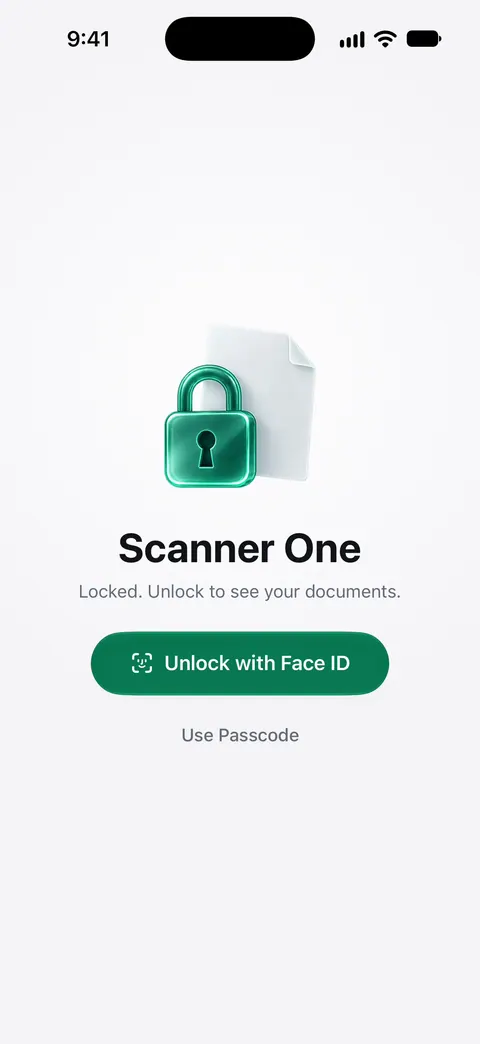
On where the copy lives: Documents stay on your iPhone unless you share them or turn on iCloud Sync. Scanner One needs no account and does no tracking. You can lock the app with Face ID. Cloud AI is off until you switch it on, and page images are a separate permission.
Before you send a copy, you can hide what the receiver doesn’t need, such as the passport number for a simple identity check: Redaction is permanent. Redaction is a Pro feature. A free account also adds a small label to what you share: On a free account, pages you share, print or export carry a small “Scanned with Scanner One” label at the bottom right. Pro removes it.
What it doesn’t do: it doesn’t replace the passport, it doesn’t check whether a copy meets an office’s rules, and it doesn’t renew anything. For the papers a renewal needs, see the US passport renewal checklist. The privacy page explains what the app stores and sends.
Questions and answers
Which passport page should I scan?
The photo page (also called the data or biographic page) with your photo, name, number and dates, plus the 2 machine-readable lines at the bottom. Add a visa page only if someone asks for it.
Is it safe to keep a passport scan on my phone?
It’s reasonable if you know where it is. A copy in iCloud Drive syncs to your other devices; one in On My iPhone stays on the phone. Use a passcode, and lock the PDF or the app that holds it.
Should I scan my passport in color?
Yes. Offices that ask for a copy usually want it to look like the original, and the photo and security printing are hard to judge in black and white.
Can I see my passport scan without internet when I travel?
Yes, if the file is on the phone. In Files, touch and hold a file in iCloud Drive and tap Keep Downloaded, or keep the copy in On My iPhone.
Sources
What this page says about Scanner One was checked against the app on .
- iPhone User Guide (iOS 27), Scan text and documents in Preview — the Preview scanning steps and manual capture; read 2026-11-13
- iPhone User Guide (iOS 27), Set up iCloud Drive — iCloud Drive content is available on all devices signed in to the same Apple Account; read 2026-11-13
- iPhone User Guide (iOS 27), Lock your notes — which notes can be locked; notes with PDF or file attachments cannot; read 2026-11-13
- iPhone User Guide (iOS 27), Find receipts, QR codes, recently edited photos, and more — Photos groups identity documents in Utilities; read 2026-11-13
- iPhone User Guide (iOS 27), Lock PDFs in Preview — locking a PDF with a password, and keeping an unlocked duplicate; read 2026-11-13
- iPhone User Guide (iOS 27), Lock or hide an app — Require Face ID for an app; built-in apps can be locked but not hidden; read 2026-11-13
- iPhone User Guide (iOS 27), Transfer files from iPhone to a storage device, a server, or the cloud — Keep Downloaded keeps a file on the iPhone for offline use; read 2026-11-13
- Scanner One on the App Store — the app’s own listing
Get Scanner One
Scanner One is free, with generous limits: scanning, clean PDFs and text search never stop.

Scanner OneScan, sign and ask anything
Scanner One is free, with generous limits: scanning, clean PDFs and text search never stop.