
Feature
Auto Clean and the filters
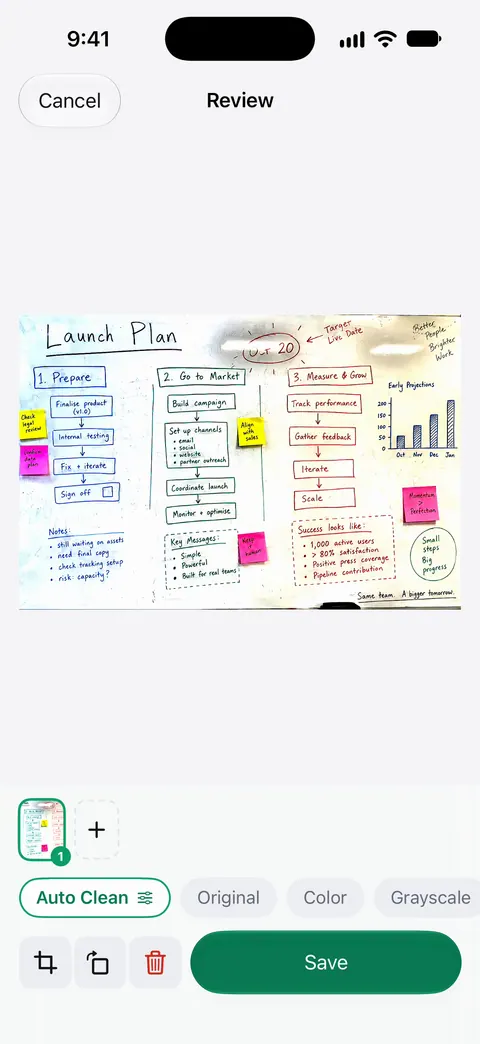
Scans come with Auto Clean, Color, Grayscale and Receipt filters. Whiteboards are cleaned automatically. After you scan, the page opens in Review with the filters as chips under it: tap one and the page changes in place, so you can compare before you save. Auto Clean suits most printed pages, Receipt suits faint till slips, and Grayscale or Color keep what black and white would lose.

What the filters are
Scans come with Auto Clean, Color, Grayscale and Receipt filters. They are applied in Review, right after you take the picture, and you see each one on your own page before you save.
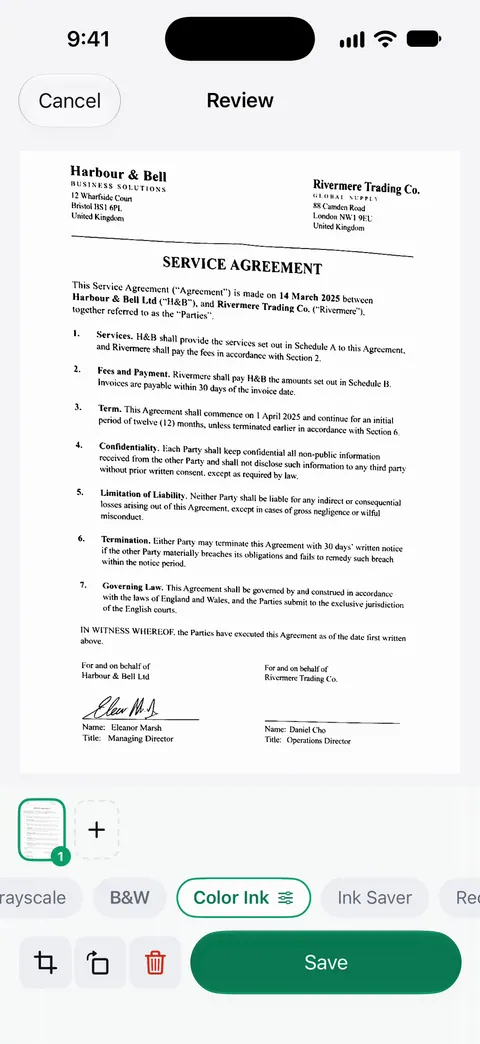
The chips in Review, as the screenshot shows them, are Original, Auto Clean, B&W, Color Ink, Ink Saver and Grayscale. A receipt gets its own Receipt look. Here is what each is good for:
| Paper | Try first | Why |
|---|---|---|
| A printed letter, contract or form | Auto Clean | A good first choice for everyday printed pages |
| A page for printing a copy | B&W | The photocopy look, which usually prints cleanest |
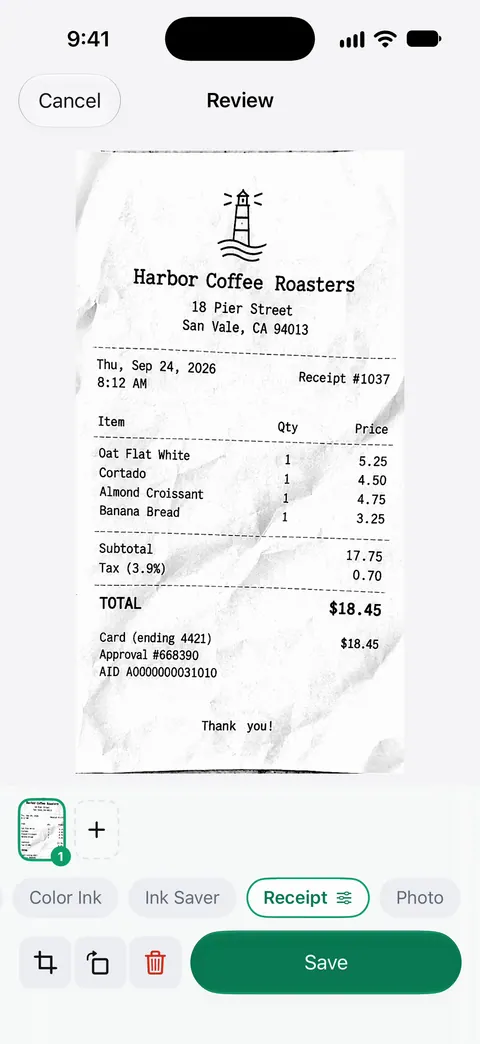
| A receipt from a till | Receipt | Till slips are often faint; the screenshot below shows one after Receipt, crisp black on white |
| A whiteboard | Auto Clean | Whiteboards are cleaned automatically. |
| A page with a colored stamp, a chart or a photo | Color or Color Ink | Keeps the color that carries meaning |
| Pencil notes, a drawing, an old photo | Grayscale | Keeps the soft shades that black and white throws away |
| Anything you are unsure about | Original | The photo as taken, to compare against |
How to change the filter
- Scan the page. It opens in Review.
- Tap the chips under the page one by one. The page changes in place, so you can compare on your own paper.
- If you picked B&W, use the slider on its chip to set the strength. The percentage shows over the page while you drag.
- Save when it looks right.
Picking well
- Look at the faintest thing on the page, not the boldest. A filter that makes the heading crisp can lose a pencil note, a light signature or a gray table line. Zoom in on that before you save.
- Signatures and stamps. If someone needs to see that a signature is in ink or that a stamp is red, keep Color.
- Shadows. A filter can lift a soft shadow, but a hard one from your phone usually needs a new photo with better light. Our guide to getting rid of shadows explains both.
- Photocopy look. If someone asked for a black and white copy, the black and white scanning guide covers the settings and when they matter.
- Receipts and whiteboards have their own guides: scanning a receipt and scanning a whiteboard.
What filters cannot do
A filter works with the photo you took. It cannot bring back writing that glare washed out, sharpen a page that was blurred when you took it, or remove a coffee ring or a pen mark. For marks on the paper itself, see Clean Up, the smart eraser; for blur, retake the page and see why a scan comes out blurry.
Where Scanner One helps, and where it doesn’t
Your iPhone’s own scanner in Notes and Files lets you choose an image filter in iOS 26, as Apple’s page says. For a clear, printed page that is often all you need.
Scanner One helps when the paper is harder: a receipt, a whiteboard, a page with color that matters, or a faint page where you want to set the strength yourself. Scanner One is free, with generous limits: scanning, clean PDFs and text search never stop. On a free account, pages you share, print or export carry a small “Scanned with Scanner One” label at the bottom right. Pro removes it. More on scanning in general is on the scanning feature page.
Questions and answers
Which filter should I use for a document I will print?
For black text on white paper, a black and white look prints sharpest and uses the least toner. Keep Color or Grayscale when the page has a stamp, a signature in blue ink, a photo or a chart that black and white would flatten.
Can I make the black and white filter lighter or darker?
Yes. When B&W is picked, its chip has a strength slider, and the percentage shows over the page while you drag it. Try it on a page with faint writing before you save.
Does a filter change the text recognition?
Text recognition runs on every page for everyone, free or Pro. A cleaner page is easier to read for people and software alike, so for a faded page, try a stronger filter before you save.
Can the iPhone’s own scanner apply filters?
Yes. Apple says that in iOS 26, Notes and Files let you choose an image filter while you scan. For a single clear page that is often enough.
Sources
What this page says about Scanner One was checked against the app on .
- Apple Support, How to scan documents on your iPhone or iPad — Notes and Files offer an image filter while scanning in iOS 26; page published 2026-02-13
- Scanner One on the App Store — the app’s own listing: Auto Clean, Color, Grayscale and Receipt filters, whiteboards cleaned automatically
Get Scanner One
Scanner One is free, with generous limits: scanning, clean PDFs and text search never stop.

Scanner OneScan, sign and ask anything
Scanner One is free, with generous limits: scanning, clean PDFs and text search never stop.