
Guide
Find a document by a word inside it
Where the document lives decides where to search. For scans saved in Notes, tap the Search button in Notes: it searches typed and handwritten text and text in scanned documents. For one PDF, open it in Preview and tap the Search button. Across the iPhone, swipe down on the Home Screen and use Search. The Files app’s search matches file names, folder names and document types, so a scan with a vague name needs a better name or a text layer before it can be found.

Which search finds what
iPhone has several searches, and each one looks in a different place. Pick the one that matches where the document is kept.
| Where the document is | Search to use | Looks inside the pages? |
|---|---|---|
| A scan in a note | Notes search | Yes, text in scanned documents and handwriting, in supported languages |
| One PDF you can open | Preview’s Search button | Yes, if the PDF has a text layer |
| Anywhere on the iPhone | Spotlight (swipe down on the Home Screen) | For apps that support Spotlight indexing, and text in photos |
| A file in the Files app | The Files search field | Matches file names, folder names and document types |
Search inside scans in Notes
If you scan with the Notes app, Notes is also where to search. Apple’s guide says Notes search covers typed and handwritten text, objects in images and text in scanned documents, in supported languages.
- Open Notes.
- Tap the Search button and type the word. Notes searches every note in every folder.
- Tap a result to open the note.
To search inside one long note and its attachments:
- Open the note.
- Tap the Note Actions button, then Find in Note.
- Tap the Search button and select Include Attachments, so the PDFs in the note are searched too.
- Type the word.
One catch: if a note is locked, only its title appears in the results. That is the price of the lock, so give locked notes a title that says what is inside.
Search inside one PDF with Preview
When you already know which PDF it is, Preview finds the word and takes you to it.
- Open the Preview app and open the PDF.
- Tap the Search button.
- Type a word or a phrase. A phrase is searched as that exact phrase.
- For fewer, better matches, tap the Search Options button and choose Whole Words (so “rent” doesn’t match “current”) or Match Case.
- Tap the Next Result and Previous Result buttons to move between matches.
If Preview finds nothing in a PDF that clearly has words on it, the PDF is pictures of pages with no text behind them. See the last section below.
Search the whole iPhone with Spotlight
Spotlight is the search you get when you swipe down on the Home Screen (or tap the Search button on the Home Screen of models with Face ID). Apple says it searches apps, content in apps like Mail and Messages, and text in your photos using Live Text.
- Swipe down on the Home Screen.
- Type the word.
- Tap a result to open it, or tap Search to see more.
Two limits matter for documents. Apple notes that content from third-party apps appears only if the app supports Spotlight indexing. And you can choose which apps are included under Settings > Search: if an app’s documents never show up, check that Show App in Search is on for it.
What the Files app search finds
The Files app is where most PDFs end up, from Mail, Safari and other apps. Apple’s guide describes its search field this way: enter a filename, a folder name or a document type. Below the field, you can narrow the search to Recents, one location such as iCloud Drive, or a tag.
So in Files, the name does most of the work. A scan called “Scan 2026-03-04 at 09.12” can only be found by its date. A scan called “2026-03-04 Dr Ruiz lab results” can be found by the doctor, the word “lab” or the date. The guide to naming scanned documents has a pattern that holds up for years, and the guide to organizing documents on iPhone adds folders and tags.
Make old scans searchable
A scan saved without text recognition is a photo inside a PDF. No search can find its words until the text is read. Preview can add the text:
- Open the scanned PDF in Preview.
- Tap the Actions Menu button next to the filename, then Export.
- Choose PDF, then turn on Embed Text. Apple describes it as running text recognition on images to make the PDF searchable.
- Tap Done, choose where to save, and tap Save.
The guide to making a scanned PDF searchable goes further, including what to do with many files at once.
Search tips that save time
- Search for the rare word. An invoice number, a last name, a street or a policy number finds one document. “Invoice” finds fifty.
- Search for part of a word. “insur” finds insurance, insured and insurer, and survives a misread letter at the end.
- Try the other spelling of a date. A letter may say “March 4, 2026”, “04/03/2026” or “2026-03-04”.
- Remember misreads. Text readers swap 0 and O, 1 and l, rn and m. If an account number doesn’t match, search for its last 4 digits.
Where Scanner One helps, and where it doesn’t
If your scans live in Notes, Notes search is good and free, and Preview handles a single PDF well. You may not need anything else.
Scanner One helps when you have years of paper and want one search for all of it. Search looks inside the text of every document and shows the matching line and page. Text recognition runs on every page for everyone, free or Pro. Scanner One is free, with generous limits: scanning, clean PDFs and text search never stop.
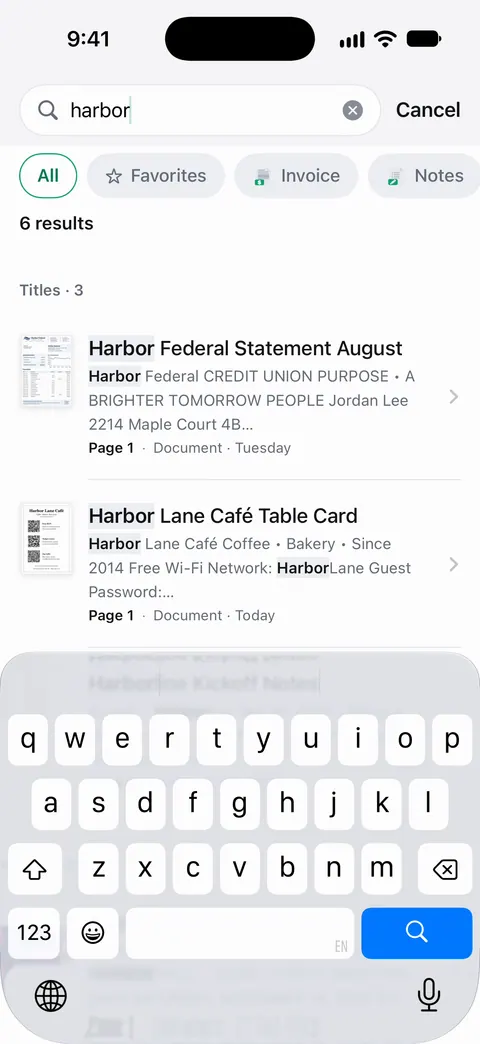
Tap a result and the document opens on the page where the words were found, with the words highlighted. The search covers what you have in Scanner One, not files kept in other apps. To bring those in: Other apps can send a file to Scanner One with Save to Scanner One in their share sheet.
Text recognition runs on the device, in 29 languages. Faded print and handwriting can still be misread, so the search tips above apply here too. To find documents by voice, see finding a document with Siri.
Questions and answers
Why can’t the Files app find a word I know is in my PDF?
Apple describes the Files search as matching a filename, a folder name or a document type. To find a word inside a PDF, open it in Preview and use its Search button, or keep your scans somewhere that searches inside the pages.
Can Notes find text in a scanned document?
Yes. Apple says Notes search covers text in scanned documents, typed and handwritten text in supported languages, and objects in images. A locked note shows only its title in the results.
Why does search miss a word that is clearly on the page?
The scan has no text layer, the text was misread (an O read as a 0, for example), or the language isn’t supported. Try a different word from the same page, or a shorter part of the word.
Does Scanner One search inside every page?
Search looks inside the text of every document and shows the matching line and page. Scanner One is free, with generous limits: scanning, clean PDFs and text search never stop.
Sources
What this page says about Scanner One was checked against the app on .
- Apple iPhone User Guide, Search through your notes on iPhone — Notes search covers typed and handwritten text, objects in images and text in scanned documents; locked notes show only their title; Find in Note with Include Attachments; iOS 27 guide, undated, read 2026-11-13
- Apple iPhone User Guide, Open and view PDFs and images in Preview on iPhone — Find text in a PDF, with Whole Words and Match Case; iOS 27 guide, undated, read 2026-11-13
- Apple iPhone User Guide, Search with Spotlight on iPhone — searching the whole iPhone, text in photos, and that third-party apps appear only if they support Spotlight indexing; iOS 27 guide, undated, read 2026-11-13
- Apple iPhone User Guide, Find and view files and folders in Files on iPhone — what the Files search field matches and how to narrow the scope; iOS 27 guide, undated, read 2026-11-13
- Apple iPhone User Guide, Export or compress PDFs and images in Preview on iPhone — the Embed Text option, which runs text recognition on a PDF’s images and makes it searchable; iOS 27 guide, undated, read 2026-11-13
- Scanner One on the App Store — the app’s own listing: search inside every document with the matching line and page
Get Scanner One
Scanner One is free, with generous limits: scanning, clean PDFs and text search never stop.

Scanner OneScan, sign and ask anything
Scanner One is free, with generous limits: scanning, clean PDFs and text search never stop.