
Guide
Move your scans to a new iPhone
Put the old iPhone next to the new one and follow Quick Start: you can transfer data directly from the old phone or download it from iCloud. Files in iCloud Drive and notes in iCloud appear once you sign in with the same Apple Account. Documents inside apps come across with the transfer or the backup. Before you erase or trade in the old phone, open a few documents in every app that holds them on the new one.

Before you start
Ten minutes of preparation saves the one thing you can’t redo: a document that only existed on the old phone.
- Update both iPhones to the latest iOS. Apple asks for this before Quick Start.
- Make a fresh backup. In Settings > your name > iCloud > iCloud Backup, tap Back Up Now, or back up to a computer.
- Know your Apple Account password. You’ll be asked for it.
- List the apps that hold documents: Files, Notes, a scanner app, your bank’s app, a health app. You’ll check each one at the end.
- Check iCloud storage if you plan to move data from iCloud.
Quick Start, phone to phone
Quick Start sets up the new iPhone from the old one. Apple’s steps:
- Make sure the old iPhone is on Wi-Fi with Bluetooth on. Unlock it and go to the Home Screen.
- Turn on the new iPhone and place it near the old one. Follow the instructions that appear.
- Connect the new iPhone to Wi-Fi or your cellular network, activate cellular service if asked, and set up Face ID.
- Choose how to transfer your data:
- From iCloud: apps and data download in the background, so you can start using the new phone right away.
- Directly from the old iPhone: you wait until the transfer finishes on both phones before using either.
- Keep both phones close together and plugged in until the migration is done.
Quick Start occupies both phones for a while, so pick a time when you don’t need the old one.
Restore from a backup instead
If the old phone is lost, broken or already wiped, restore from its backup.
From iCloud: turn on the new iPhone. At the Hello screen, tap Set Up Manually, then Restore from iCloud Backup, and follow the steps. (If the phone is already set up, it has to be erased first.)
From a computer: connect the new iPhone with a cable. On a Mac with macOS 10.15 or later, select it in the Finder sidebar, click Trust, then Restore from this backup, choose the backup and click Continue. On Windows, use the iTunes app. An encrypted backup asks for its password.
Scans in Notes, Files and iCloud Drive
These don’t really move. They’re already in iCloud, and they appear when you sign in.
- Files on iCloud Drive show up in Files > Browse > iCloud Drive once iCloud Drive is on.
- Notes in iCloud, scans included, sync once Notes is on in iCloud settings.
- Files in On My iPhone are not in iCloud Drive. They move with the transfer or the backup.
Locked notes need one extra thought. If you lock notes with your device passcode, Apple says each device uses its own passcode, so the new phone’s passcode opens them. If you set a custom Notes password, you use that same password on every device. Have it ready.
Documents inside apps
Apple says iCloud Backup includes app data for the apps you’ve downloaded, and the direct transfer copies your data too. So documents kept inside a scanner app, a bank app or a health app normally come across with the move.
Apps differ, though. Some keep data only on the phone, some sync through their own service, some through iCloud. If an app holds documents you can’t replace, do one of these before you start:
- turn on the app’s own sync, if it has one, and let it finish;
- or export the documents as PDFs to iCloud Drive, so they’re in Files on the new phone either way.
Check before you erase the old iPhone
Don’t wipe or trade in the old phone on the day you set up the new one. First:
- On the new iPhone, open each app from your list and open three documents in each, including an old one.
- Open a locked note to make sure you can unlock it.
- Check that the newest scans are there, not just older ones.
- Only then erase the old iPhone.
Where Scanner One helps, and where it doesn’t
Quick Start and iCloud handle most moves on their own. For scans in Files or Notes, there’s nothing else to do.
For Scanner One, a few facts make the move simple. Scanner One needs no account and does no tracking. There’s no login to remember on the new phone. Documents stay on your iPhone unless you share them or turn on iCloud Sync. So unless you’ve turned on iCloud Sync, your documents are on the old iPhone only. That’s why the export below, and the check before you erase the old phone, matter.
For an extra copy before you move, export them. Share & Export saves a document as a PDF, Word, Excel, PowerPoint, JPG, PNG, a long image, plain text, Markdown, Rich Text, a web page or CSV. Select several documents in the Library and tap Share to save them to iCloud Drive or a computer.
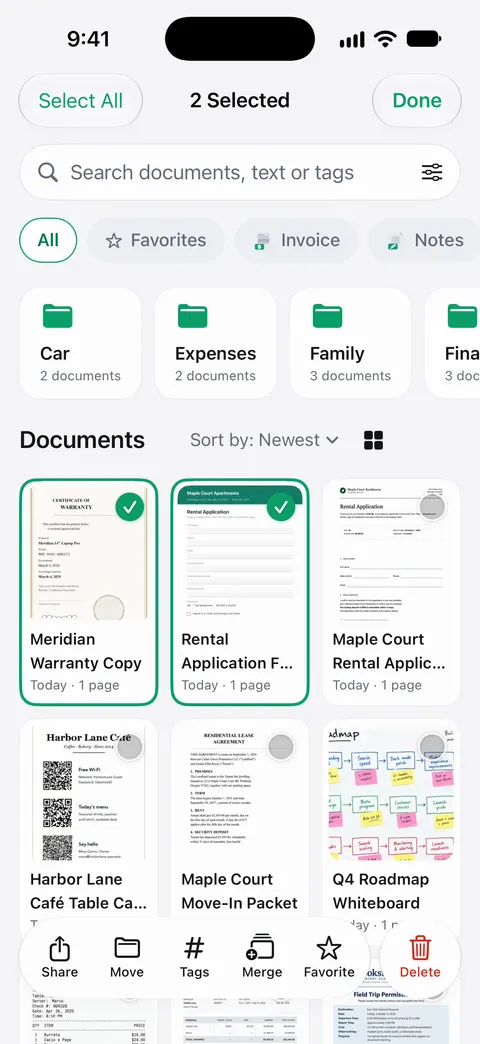
The limits, plainly:
- Scanner One runs on iPhone and iPad. Scanner One needs iOS 17 or later. There’s no Android or web version to move to or from.
- On a free account, pages you share, print or export carry a small “Scanned with Scanner One” label at the bottom right. Pro removes it.
- Then open a few documents on the new phone before you erase the old one, as with any app.
The guide to backing up scanned documents sets up copies you’ll be glad of next time, and the privacy feature page explains where documents are kept.
Questions and answers
Do my Notes scans move to the new iPhone automatically?
If Notes is turned on in iCloud, yes: the notes, and the scans in them, sync to any device signed in to the same Apple Account. Notes kept in On My iPhone move with the transfer or the backup instead.
Should I transfer directly or from iCloud?
Apple says that downloading from iCloud lets you use the new phone right away while apps and data download in the background. A direct transfer means waiting until it’s done on both phones. Either works for documents.
Can I move scans from Android to iPhone?
Export them as PDFs on the old phone, put them in a cloud service such as Google Drive or Dropbox, and open that service in the Files app on the iPhone. Then move them into the app or folder you’ll keep them in.
Do I need an account to move Scanner One documents?
Scanner One needs no account and does no tracking. Documents stay on your iPhone unless you share them or turn on iCloud Sync.
Sources
What this page says about Scanner One was checked against the app on .
- Apple Support, Use Quick Start to transfer data to a new iPhone or iPad (article 102659) — Quick Start, transferring from iCloud or directly from the old device; published 2026-09-14
- Apple iPhone User Guide, Restore all content to iPhone from a backup — restoring from an iCloud or computer backup, and encrypted backup passwords; iOS 27 guide, undated, read 2026-11-13
- Apple iPhone User Guide, Back up iPhone — Back Up Now and computer backups; iOS 27 guide, undated, read 2026-11-13
- Apple Support, What does iCloud back up? (article 108770) — app data in iCloud Backup, and data that syncs instead; published 2025-05-01
- Apple iPhone User Guide, Transfer files from iPhone to a storage device, a server, or the cloud — opening a cloud storage service such as Dropbox under Locations in the Files app; iOS 27 guide, undated, read 2026-11-13
- Apple iPhone User Guide, Lock your notes on iPhone — device passcode versus custom password for locked notes on each device; iOS 27 guide, undated, read 2026-11-13
- Scanner One on the App Store — the app’s own listing: where documents are stored, iCloud Sync, no account
Get Scanner One
Scanner One is free, with generous limits: scanning, clean PDFs and text search never stop.

Scanner OneScan, sign and ask anything
Scanner One is free, with generous limits: scanning, clean PDFs and text search never stop.