
Guide
Scan a receipt that stays readable
Open Notes, tap the Attachments button in a note, then Scan Documents. Lay the receipt flat on a dark surface in even light, let the iPhone capture it, and choose a black-and-white or grayscale filter so faint print stands out. Scan it soon: many till receipts are thermal paper, which fades with heat and light. Save receipts in one place, such as a Receipts folder in Files, named by date and store.

Scan a receipt with Notes
Notes is already on your iPhone and handles receipts well.
- Open Notes and open a note. A note called “Receipts 2026” keeps them together.
- Tap the Attachments button (the paperclip), then tap Scan Documents.
- Before you capture, tap Filters and choose a black-and-white or grayscale look. Apple’s guide lists color, grayscale, black-and-white and photo as the filter choices.
- Hold the iPhone over the receipt. It captures automatically when it finds the edges. If it can’t find them, capture manually and drag the corners to the edges of the paper, then tap Keep.
- Scan more receipts, then tap Done.
Each receipt is saved as a PDF page inside the note. If you would rather have one file per receipt in a folder, use the Files app instead: open your Receipts folder, tap the More button, then Scan Documents, and save. See scanning straight into the Files app.
Make the print come out sharp
Receipts are small, narrow and often curled, which is hard for any scanner.
- Flatten it first. Run the receipt along the edge of a table, print side up, to take out the curl. A curled receipt bends the text at the top and bottom.
- Use a dark, plain background. White paper on a dark table gives the scanner a clean edge to find.
- Bright, even light, no flash glare. The surface of a thermal receipt is slightly shiny. If the flash leaves a white spot, turn it off and move to a window. More in the best light for scanning.
- Get close enough. A receipt is narrow; let it fill the height of the screen rather than sitting small in the middle.
- Pick the right filter. Black and white makes faint gray print darker, which is what most receipts need. Use color when a stamp, handwritten tip or logo matters.
Long grocery receipts that don’t fit in one frame can be scanned in sections as pages of one PDF. See scanning long and large documents.
Scan it before it fades
Many till receipts, the smooth and slightly shiny kind, are thermal paper: there is no ink, and the printer writes by heating a coated paper. A guide for staff at California State University, San Bernardino, puts it plainly: highlighting a thermal receipt “basically destroys the printed information”, tape laid over the print fades it, and sunlight or a heat source damages the paper. The US National Archives warned in 1996 that images on thermal paper “may begin to deteriorate in as few as six months” and told federal offices to copy thermal faxes on arrival.
What that means for you:
- Scan receipts you need to keep the same day or the same week. A wallet, a hot car and a sunny dashboard all speed up fading.
- Don’t highlight or tape over the print. Mark the total on the scan instead.
- Keep the paper away from heat if you also need the original, for example for a warranty claim or a return.
Keep receipts where you can find them
A scan you can’t find is no better than a faded receipt.
- One place. A Receipts note in Notes, or a Receipts folder in Files with one folder per year.
- A name that sorts. In Files, rename each scan with the date first: “2026-11-13 Hardware store 48.20”. Files then sorts them by date on its own. More naming ideas are in naming scanned documents.
- Photos finds receipt photos. If you already snapped receipts with the Camera, Photos gathers them: tap Collections, scroll to Utilities, and look for the receipts collection.
How long to keep them depends on what they are for: see how long to keep receipts, and for business and tax use, scanning receipts for taxes and expense reports.
Receipts that arrive by email
More and more receipts never touch paper: online orders, rideshares, hotel bills. Keep them with the scanned ones so there’s one place to look.
- In Mail, open the receipt email.
- If the receipt is an attachment, touch and hold it and choose Save to Files, then pick your Receipts folder.
- If the receipt is the email itself, move it to a Mail folder called Receipts, or forward it to an address you keep for records.
Name these the same way as your scans, date first, so a folder sorts into one timeline.
Where Scanner One helps, and where it doesn’t
Receipts are the case the app has a filter for. Scans come with Auto Clean, Color, Grayscale and Receipt filters. The screenshot below shows a receipt after the Receipt filter: crisp black text on white.
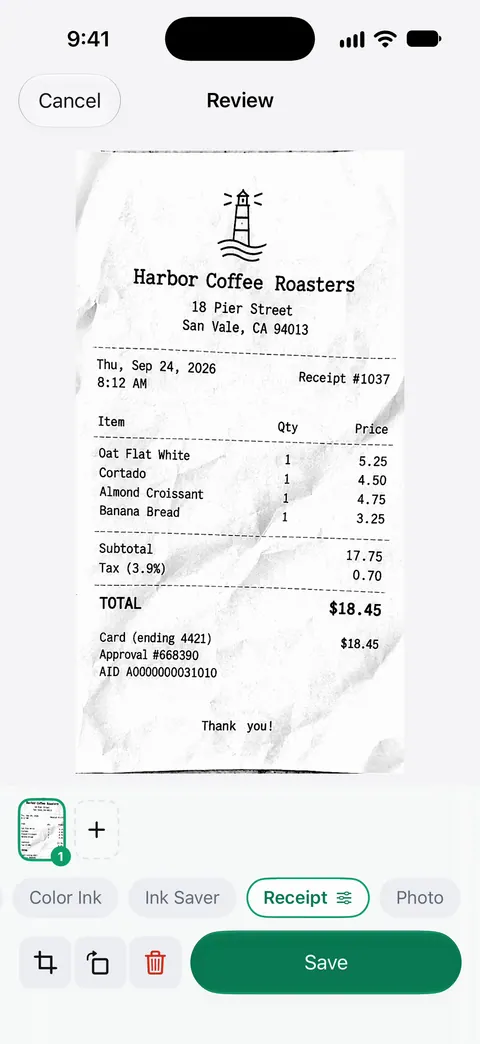
You scan the receipt and save it. Then it reads the text, names the document, tags it and puts it in the right folder. So a receipt lands named and in its folder without you typing anything. Search looks inside the text of every document and shows the matching line and page. Ask your documents anything. When does the lease end? What did I spend at the shop? The answer comes back with the page it came from.
Needs You gathers bills due, return windows and IDs about to expire on Home, from your own papers. That covers the return window printed at the bottom of a receipt.
The limits: Free accounts get smart filing for 10 documents a month. Free accounts can ask the on-device AI 3 questions a day. On a free account, pages you share, print or export carry a small “Scanned with Scanner One” label at the bottom right. Pro removes it. Scanning itself is never limited: Scanner One is free, with generous limits: scanning, clean PDFs and text search never stop.
When the built-in way is enough: a few receipts a month for your own records fit well in a Notes note or a Files folder. An app is worth it when receipts pile up weekly and you need to find one by store or amount later. Other scanning guides are in Guides.
Questions and answers
Why do receipts fade?
Many till receipts are printed on thermal paper, which darkens where a heated print head touches it. The image is sensitive to heat and light, and the US National Archives warned that thermal images may start to deteriorate in as few as six months.
Can I scan a receipt that has already faded?
Often, yes. Scan it in bright, even light and try the black-and-white or grayscale filter, which makes faint gray print darker. If the text is gone entirely, no scanner can bring it back.
Is a photo of a receipt good enough?
For your own records it usually is, if every line is readable. A document scan is better: it straightens the receipt, crops the background and saves a PDF that is easy to file and send.
Should I highlight the total before scanning?
Not on a thermal receipt. A highlighter can wipe out the thermal print, and the color can turn black on a scan. Mark the total on the scan afterwards instead.
Sources
What this page says about Scanner One was checked against the app on .
- iPhone User Guide (iOS 27), Scan text and documents in Notes — the Notes scanning steps, with Flash and Filters before capture; read 2026-11-13
- iPhone User Guide (iOS 15), Scan text and documents in Notes — names the filter choices: color, grayscale, black-and-white or photo
- California State University, San Bernardino, Preparing Documents for Scanning: Tips and Techniques — thermal receipts print with heat; highlighters and tape ruin the print; keep them out of sunlight and heat; no date shown
- US National Archives, NARA Bulletin 96-03: Preservation of facsimile transmissions — images on thermal paper are unstable and may begin to deteriorate in as few as six months; dated 1996-02-12, now marked superseded
- iPhone User Guide (iOS 27), Find receipts, QR codes, recently edited photos, and more — Photos groups receipts in Utilities; read 2026-11-13
- iPhone User Guide (iOS 27), Download email attachments in Mail — touch and hold an attachment, then Save to Files; read 2026-11-13
- Scanner One on the App Store — the app’s own listing
Get Scanner One
Scanner One is free, with generous limits: scanning, clean PDFs and text search never stop.

Scanner OneScan, sign and ask anything
Scanner One is free, with generous limits: scanning, clean PDFs and text search never stop.