
Guide
Convert handwriting to text on iPhone
In Notes, open a note, tap the Attachments button, tap Scan Text, point the camera at the writing, select it and tap Insert. Or take a photo of the page, open it in Photos, tap the Detect Text button, then touch and hold to copy the text. Both work best on neat, printed handwriting in a supported language. Always read the result against the page: names and numbers are where mistakes hide.

You have a page of handwriting, from a lecture, a meeting or a relative’s recipe, and you want it as text you can edit, search or paste into an email. An iPhone can do some of this with no extra app. It also gets things wrong more often with handwriting than with print, so the trick is knowing which tool to use and how to check the result. If what you need is a good-looking scan of the page itself, see scanning handwritten notes instead.
Before you start: set your expectations
Text recognition was built for print. Handwriting varies from person to person and line to line, so results range from almost perfect to unusable.
| Writing | What to expect |
|---|---|
| Neat printed capitals or block letters | Often good; a few errors per page |
| Tidy everyday print | Usable, with corrections |
| Joined-up cursive | Patchy; many words missed or wrong |
| Quick scribbles, abbreviations, arrows | Mostly unusable |
| Numbers in a list or table | Read well, but check every one |
Apple’s own pages describe handwriting support carefully: Notes search covers “typed and handwritten text (in supported languages)”, and Live Text “isn’t available in all regions or languages”. Plan to proofread.
Option 1: Scan Text in Notes
Scan Text puts recognized text straight into a note, from the camera. Apple’s steps:
- Open Notes and open or create a note.
- Tap the Attachments button (the paper clip), then tap Scan Text.
- Point the camera so the writing is in the frame.
- Drag or use the grab points to select the text you want, then tap Insert.
The text lands in the note as normal typed text you can edit. It works one camera view at a time, so for a full page, do it in sections and check each one before moving on.
Option 2: Live Text on a photo
Live Text reads text in any photo. It’s handy when you already have a picture of the page, or want to take one carefully first.
- Turn it on if you haven’t: open Settings, tap General, then Language & Region, and turn on Live Text.
- Take a sharp photo of the page: straight on, filling the frame, in daylight.
- Open the photo in Photos and tap the Detect Text button.
- Touch and hold the selected text, use the grab points to choose what you want, then tap Copy Text (or Select All).
- Paste it into Notes, Pages, Mail or wherever it’s going.
Apple says Live Text needs an iPhone XS, iPhone XR or later. You can also copy text straight from the camera; the guide to copying text from a photo covers that and Preview.
Option 3: write on an iPad with Apple Pencil
If the goal is notes that become text, writing on paper and converting later is the hard way round. On an iPad with Apple Pencil, Notes converts as you go:
- In a note, tap the Scribble tool (to the left of the pen).
- Write with Apple Pencil. Your handwriting is turned into typed text as you write.
For handwriting you’ve already written in Notes on an iPad, select it with Smart Selection (double-tap a word, or touch and hold and drag) and you can paste it as typed text into another note or app. Apple says both work in supported languages.
Get a better result from any of them
Most recognition mistakes come from the picture, not the writing. Before you blame your handwriting:
- Light evenly. A shadow across the page turns strokes into noise. Daylight from a window is best.
- Fill the frame. Hold the iPhone close enough that the writing is large on screen, and parallel to the page.
- Hold still. A soft photo is the most common cause of missed words.
- Dark ink on plain paper reads better than pencil on lined or squared paper.
- One column at a time. Margins full of notes and arrows confuse the reading order.
Why text recognition gets words wrong explains the causes and fixes in detail.
Check it against the page
Recognized text looks confident even when it’s wrong. Read it with the page beside you, and pay special attention to:
- Numbers: 1 and 7, 5 and S, 0 and O, and decimal points.
- Names and places, which no dictionary can correct.
- Short words that change the meaning: “not”, “no”, “on”.
- Line breaks and lists, which may run together.
For anything that matters, such as a recipe’s quantities, a phone number, or a dose, check twice.
Where Scanner One helps, and where it doesn’t
For a few lines, Scan Text or Live Text is enough, and it’s already on your iPhone.
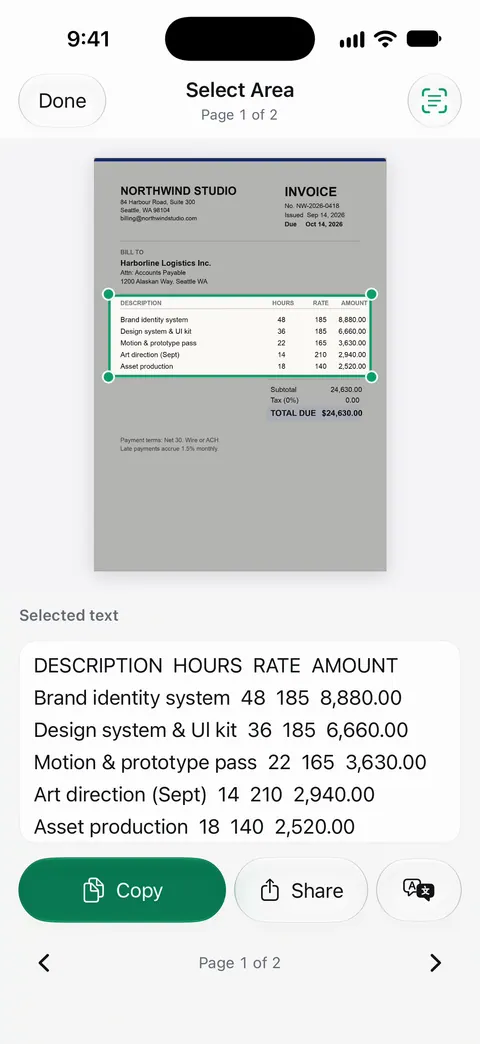
Scanner One helps when you want the scan and its text together. Text recognition runs on the device, in 29 languages. Text recognition runs on every page for everyone, free or Pro. Select Area lets you draw a box on a page and read just the text inside it, which is useful for one paragraph on a busy page.
Scanner One exports to Word, keeping headings, lists and tables, and to Excel and CSV. So typed pages go to Word with their structure.
The limits, plainly:
- It doesn’t promise to read handwriting. Text recognition works best on print, and handwriting is read far less reliably, so name and tag handwritten scans rather than counting on their text.
- Free accounts can run the PDF tools and the Word, Excel and CSV exports 3 times a week, from one shared allowance. That allowance covers the Word export. Pro removes every limit.
- On a free account, pages you share, print or export carry a small “Scanned with Scanner One” label at the bottom right. Pro removes it.
If handwriting is most of what you scan, the handwriting app comparison looks at other options.
Questions and answers
Can iPhone read cursive handwriting?
Sometimes, but don’t count on it. Apple doesn’t promise how well Live Text or Scan Text read handwriting, and joined-up writing is the hardest case. Neat printed letters do much better.
What is the most accurate way to turn handwriting into text on iPhone?
For writing on paper, Scan Text in Notes or Live Text on a sharp, well-lit photo, then correct it by hand. For new notes, writing on an iPad with Apple Pencil and the Scribble tool turns it into text as you go, which is far more reliable than reading a page later.
Why does Live Text not detect my handwriting?
The writing may be too faint, too small or too joined-up, or Live Text may be off or not support your language. Check Settings, General, Language and Region, retake the photo closer in better light, and try again.
Can I search my handwritten notes without converting them?
In Notes, yes, to a degree. Apple says Notes search covers handwritten text in supported languages and text in scanned documents. Results depend on how readable the writing is, so add a typed title too.
Sources
What this page says about Scanner One was checked against the app on .
- iPhone User Guide, Scan text and documents in Notes using the iPhone camera — Scan Text inserts text from the camera in supported languages; undated guide page for iOS 26 and 27, read 2026-11-13
- iPhone User Guide, Interact with content in a photo or video on iPhone — turning on Live Text, the Detect Text button, Copy Text and Select All; not available in all regions or languages; undated guide page, read 2026-11-13
- Apple Support, Copy and translate text from photos on your iPhone or iPad (article 120004) — Live Text needs iPhone XS, XR or later; published 2026-05-01
- iPhone User Guide, Search through your notes on iPhone — Notes search covers typed and handwritten text in supported languages and text in scanned documents; read 2026-11-13
- iPad User Guide, Add drawings and handwriting in Notes on iPad — the Scribble tool transcribes handwriting as you write with Apple Pencil; Smart Selection pastes handwriting as typed text; supported languages; read 2026-11-13
- Scanner One on the App Store — the app’s own listing: on-device text recognition and Word export
Get Scanner One
Scanner One is free, with generous limits: scanning, clean PDFs and text search never stop.

Scanner OneScan, sign and ask anything
Scanner One is free, with generous limits: scanning, clean PDFs and text search never stop.