
Guide
Copy text from a photo or a scan on iPhone
Open the photo in Photos, tap the Detect Text button, then touch and hold the text and drag the grab points, or tap Select All. Tap Copy Text and paste it into Notes, Mail or Messages. The same works in the Camera app before you take the picture, and in Preview for images. If you don’t see the button, turn on Live Text in Settings > General > Language & Region. For a few lines, this built-in way is all you need.

Copy text from a photo with Live Text
Live Text is the text reader built into iOS. It works on photos, screenshots, paused videos and pictures you find online. These are the steps from Apple’s iPhone User Guide for iOS 27.
- Open the photo in the Photos app.
- Tap the Detect Text button.
- Touch and hold the text you want, then drag the grab points to cover it. To take everything iPhone found, tap Select All.
- Tap Copy Text.
- Open Notes, Mail, Messages or any app with a text field, touch and hold where you want the text, and tap Paste.
- Tap the Detect Text button again to go back to the photo.
The same menu has Look Up, Translate, Search the web and Share. If the photo shows a phone number, a web address or a price in another currency, a quick action appears at the bottom of the screen: tap it to call, open the page or convert the amount.
Turn on Live Text first
If there is no Detect Text button on a photo full of text, Live Text may be switched off. Apple’s steps:
- Open Settings.
- Tap General, then Language & Region.
- Turn on Live Text.
Copy text straight from the camera
You don’t have to take a picture first. Point the camera at a page and copy the words you need.
- Open Camera and hold the page in the frame.
- When a yellow frame appears around the text, tap the Detect Text button.
- Touch and hold the text, drag the grab points, then tap Copy. Select All takes everything in the frame.
- Tap the Detect Text button again to go back to the camera.
This is handy for a serial number on the back of a router, a Wi-Fi password on a card, or a reference number on a letter. If the yellow frame never appears, go to Settings > Camera and check that Show Detected Text is on.
Put text straight into a note
Notes can do the copy and paste for you. In a note, tap the Attachments button, then Scan Text. Hold the page in the camera frame, select the text with the grab points and tap Insert. The words land in the note as text you can edit.
Copy text from a screenshot or an image in Preview
A screenshot is a photo, so the Photos steps above work. Images you keep in the Files app open in Preview (or Quick Look), which also reads text:
- Open the image in Preview.
- Select the text. Touch and hold a word, then drag the grab points.
- Tap Copy. Preview also offers Look Up and Translate for the selection, and Call, Message or Add to Contacts when the text is a phone number or an address.
A PDF made from a scan is a different case: it is pictures of pages, and whether you can select its text depends on whether text recognition was run on it. The guide to copying all the text out of a PDF covers that, and the guide to making a scanned PDF searchable adds the missing text layer.
When Live Text can’t read the text
Most failures come from the photo or the language, not from the iPhone.
- The language isn’t supported. Apple says Live Text isn’t available in all regions or languages. Its list, which we read on 13 November 2026, covers English, Chinese, Japanese, Korean, Thai, Russian, Ukrainian, Vietnamese and most European languages. Arabic and Hebrew are not on it. The guide to text recognition in other languages has the workarounds.
- The photo is blurry or dark. Retake it in daylight or under a lamp, hold the phone square to the page and tap to focus. Small print needs the phone closer, not zoomed in.
- The page is curved or creased. Text near a book’s spine or a fold is read badly. Flatten the page with one hand, or scan it with a document scanner that straightens pages.
- It is handwriting. Neat print is often read. Joined-up writing, pencil and faint ink often are not. The guide to scanning handwritten notes has tips.
- The background is busy. Text over a photo, a pattern or a watermark confuses any reader. Crop to the words you need.
Always read what you pasted before you use it. Text readers swap similar characters: 0 and O, 1 and l, 5 and S. For a phone number, an account number or an amount, check each digit against the photo.
Where Scanner One helps, and where it doesn’t
For a line or a paragraph now and then, Live Text is free, fast and already on your iPhone. Use it.
Scanner One helps when the text is on paper you want to keep, or spread over many pages. Point your camera at any piece of paper. Scanner One finds the edges, straightens the page, cleans it up and saves a real PDF. Text recognition runs on the device, in 29 languages. Text recognition runs on every page for everyone, free or Pro. So a scanned letter is already text you can copy and search, and Scanner One makes searchable PDFs.
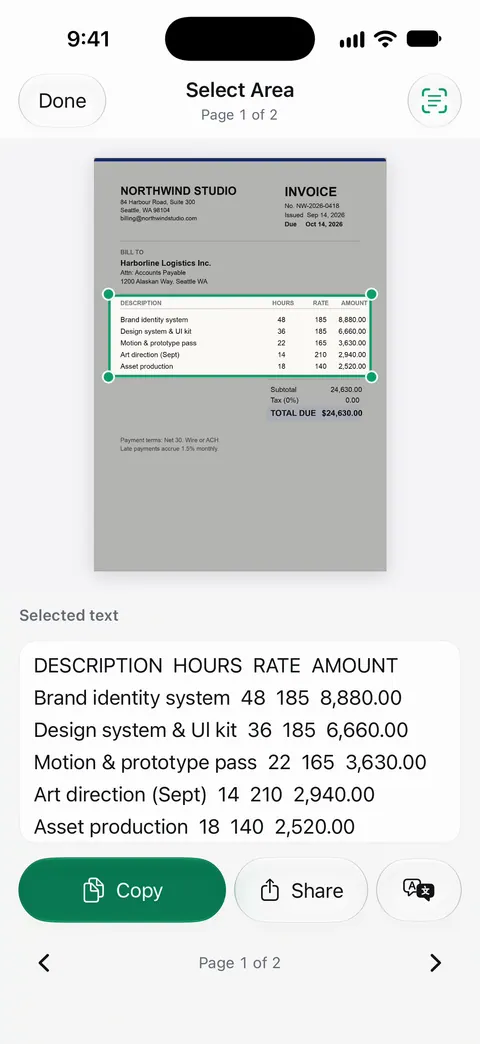
When you only need one part of a page, the Select Area tool reads just the box you draw.
To take all the text away, Share & Export saves a document in other formats: Share & Export saves a document as a PDF, Word, Excel, PowerPoint, JPG, PNG, a long image, plain text, Markdown, Rich Text, a web page or CSV. The PDF tools merge, split, compress, password-protect, add page numbers and watermarks, and extract text. The text layout view shows a scan read as a title, paragraphs and a table.
The limits, plainly:
- Free accounts can run the PDF tools and the Word, Excel and CSV exports 3 times a week, from one shared allowance. Pro removes every limit.
- On a free account, pages you share, print or export carry a small “Scanned with Scanner One” label at the bottom right. Pro removes it.
- Handwriting and faded print are hard for every text reader, this one included. Check names and numbers before you rely on them.
The search feature page shows how the text found on each page is used across your documents.
Questions and answers
Why don’t I see the Detect Text button on my photo?
Live Text may be off, or the photo may not have text iPhone can read. Turn it on in Settings > General > Language & Region. Apple also notes that Live Text isn’t available in all regions or languages, so a page in an unsupported language shows no button.
Can I copy handwriting from a photo?
Sometimes. Neat, dark handwriting is often picked up, but joined-up or faint writing is read poorly or not at all. Check what you pasted against the photo before you rely on it.
How do I copy text from a whole page, not just a line?
After you tap the Detect Text button, touch and hold the text and tap Select All. Everything iPhone found in the frame is selected, and you can tap Copy Text.
Is Live Text free?
Yes. It is part of iOS, in Photos, Camera, Safari, Quick Look and other apps. Nothing to install and nothing to pay.
Does Scanner One read the text on every page?
Text recognition runs on every page for everyone, free or Pro. Text recognition runs on the device, in 29 languages.
Sources
What this page says about Scanner One was checked against the app on .
- Apple iPhone User Guide, Interact with content in a photo or video on iPhone — turning on Live Text, the Detect Text button, Copy Text, Select All, Translate and quick actions in Photos; iOS 27 guide, undated, read 2026-11-13
- Apple iPhone User Guide, Use Live Text with your iPhone camera — Live Text in the Camera app, the yellow frame, and the Show Detected Text setting; iOS 27 guide, undated, read 2026-11-13
- Apple iPhone User Guide, Interact with text in an image in Preview on iPhone — copying and translating text in an image in Preview; iOS 27 guide, undated, read 2026-11-13
- Apple iPhone User Guide, Scan text and documents in Notes using the iPhone camera — Scan Text, which inserts text from the camera straight into a note; iOS 27 guide, undated, read 2026-11-13
- Apple, iOS and iPadOS Feature Availability — the languages Apple lists for Live Text; read 2026-11-13
- Scanner One on the App Store — the app’s own listing: text recognition, searchable PDFs and exports
Get Scanner One
Scanner One is free, with generous limits: scanning, clean PDFs and text search never stop.

Scanner OneScan, sign and ask anything
Scanner One is free, with generous limits: scanning, clean PDFs and text search never stop.