
Guide
Have letters and mail read aloud with an iPhone
Open Magnifier, tap the Detection Mode button, make sure Text is selected, and hold the envelope in front of the rear camera: iPhone reads the text it sees aloud. For a whole letter, capture it in Magnifier (press and hold the capture button, choose Document, tap Confirm), then open it in the Reader and tap Play. Make sure Silent mode is off. For bills and official letters, ask the sender for large print, braille or audio too.

A stack of mail is a daily chore that low vision turns into a hard one: which envelopes matter, who they’re from, what the bill says and when it’s due. An iPhone can read printed mail aloud with tools already on it. This guide is about paper mail specifically, from sorting envelopes to listening to a full letter. For having any document on the screen read aloud (PDFs, web pages, email), see having a document read aloud.
A routine for the daily mail
- Sort first, by sender. Hear the outside of each envelope (step below) and set aside ads and catalogs. You only need to open what’s left.
- Open and listen to each letter that matters.
- Note what needs action: a due date, an amount, a phone number. Ask Siri to set a reminder, or save the letter so you can listen again.
- Ask someone you trust to double-check anything about money, health or a deadline you can’t afford to miss.
Sit at a table with good light, and lay each envelope flat. Everything below works better on a flat, well-lit page.
Hear who an envelope is from: Magnifier text detection
Magnifier’s Detection Mode reads the text the camera sees, as you move. Apple’s steps:
- Open the Magnifier app.
- Tap the Detection Mode button. If you don’t see it, you can add it to Magnifier’s controls.
- Touch and hold the Detection Mode button, and make sure Text is selected.
- Hold the iPhone so the rear camera sees the envelope, about a hand’s length above it.
If you hear nothing, make sure Silent mode isn’t on. To pause, double-tap the screen with two fingers; do it again to resume.
Point & Speak is the other choice in the same menu: point your finger at a word and iPhone reads the text under it (or above it, in settings). It’s useful for picking out the return address on a busy envelope.
Two settings help with mail. In Magnifier, tap the Settings button, tap Detect, then Text:
- Automatic Flashlight turns the flashlight on for 10 seconds when it’s too dark to read.
- Detect Languages reads text in other languages too.
Apple’s guide says Detection Mode should not be relied on in high-risk or emergency situations. For mail, that means: use it to sort and to get the gist, and have important details confirmed.
Listen to a whole letter: capture, then Reader
Reading a full page by moving the camera is tiring. Magnifier can capture the page and read all of it to you.
- Open Magnifier and hold the iPhone over the letter.
- Press and hold the capture button, then select Document.
- Follow the spoken instructions to get the page in frame, or drag the corners of the box around the text, then tap Confirm.
- Tap the Reader button to open the captured text.
- Tap Play to listen. You can pause, skip back or forward, and change the speed.
Magnifier tells you if no text was found in the frame. In the Reader you can also change the text color, background, size and font, which helps if you still read some print.
When the letter is on screen already
Many companies send the same letter as a PDF or email. On screen, two built-in tools read it:
- Speak Screen: turn it on in Settings, Accessibility, Read & Speak, then swipe down with two fingers from the top of the screen to hear everything on it.
- Accessibility Reader: turn it on in the same place. Open it from the Accessibility Shortcut (triple-click the side button), Control Center or the share menu, then tap Play.
In Read & Speak you can also choose the voice and the speaking rate. If a scanned PDF reads nothing at all, it has no text in it yet: having a document read aloud explains how to fix that.
Ask senders for formats you can use
Reading mail with a phone works, but the easiest letter is the one that arrives in a form you can read.
- IRS notices. The IRS says you can file Form 9000, Alternative Media Preference, to get your notices in braille, large print, audio or electronic formats, including notices about tax owed. Send it with your return, mail it on its own, or call the IRS. After that, future notices come in your chosen format.
- Banks, utilities and insurers. Many offer large print, braille or e-statements on request. Call the number on the bill and ask; switching to electronic statements also means they can be read on screen.
- Doctors and pharmacies. Ask for appointment letters and instructions by email or in large print.
Keep the letters you need to hear again
A letter you listened to once is easy to forget. Scan the important ones so they stay readable and findable: in Notes, tap the Attachments button, then Scan Documents, and give the note a name you can search, like “Water bill November”. The mail scanning guide covers which letters to keep. If you’re setting this up for a parent, helping a parent with paperwork and the guide for seniors have more ideas.
Where Scanner One helps, and where it doesn’t
Magnifier, Speak Screen and Accessibility Reader are free, built in, and work with VoiceOver. For reading the day’s mail, start there.
Scanner One helps with the letters you keep. Point your camera at any piece of paper. Scanner One finds the edges, straightens the page, cleans it up and saves a real PDF. Text recognition runs on the device, in 29 languages. Listen reads any document aloud. So a scanned letter can be heard again next week without rescanning it.
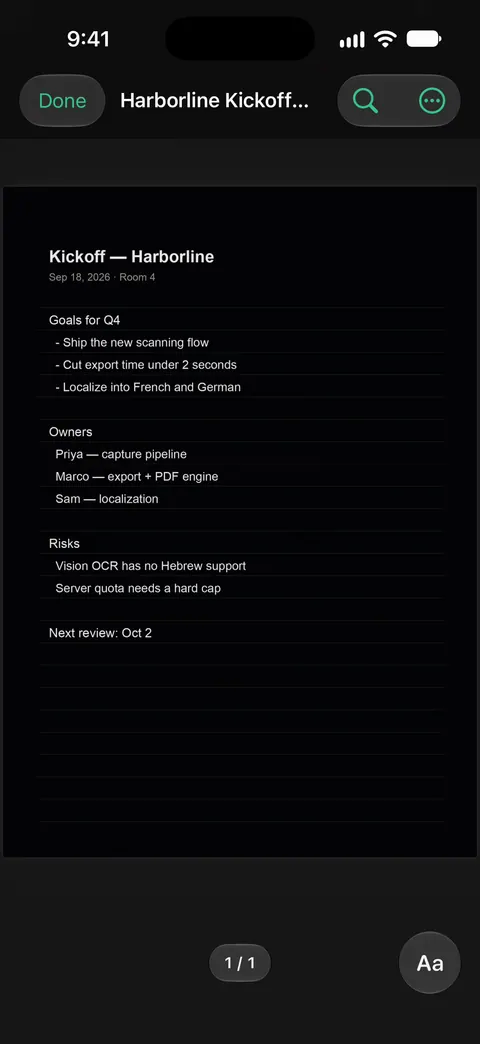
Ask your documents anything. When does the lease end? What did I spend at the shop? The answer comes back with the page it came from. That’s a quick way to get the due date or the amount from a long letter. Free accounts can ask the on-device AI 3 questions a day.
Bills you don’t have to remember. Needs You gathers bills due, return windows and IDs about to expire on Home, from your own papers.
The limits, plainly:
- It reads what’s printed. Faded print and handwriting can be misread, and a misread word is read aloud as misread, so confirm amounts and dates that matter.
- It doesn’t replace Magnifier for sorting the mail as it comes in: it works on letters you’ve scanned.
- Scanner One is free, with generous limits: scanning, clean PDFs and text search never stop.
The Listen feature page shows the reader in more detail.
Questions and answers
Can an iPhone read my mail out loud?
Yes. Magnifier’s Detection Mode reads text the camera sees, which works well for envelopes and short notices. For a full letter, capture it as a document in Magnifier and listen to it in the Reader. Both are built into iPhone.
Which is better for letters, Magnifier or VoiceOver?
They work together. VoiceOver reads the iPhone’s screen and controls. Magnifier reads paper in front of the camera. Apple says Text Detection and Point & Speak work with VoiceOver, so you can use both at once.
Why is Magnifier not speaking the text?
Check that Silent mode is off and the volume is up, and that Speech is turned on under Detection Feedback in Magnifier’s settings. In a dim room, turn on Automatic Flashlight so it can see the page.
Can I get IRS letters in large print or braille?
Yes. The IRS says you can file Form 9000, Alternative Media Preference, to get future notices in braille, large print, audio or electronic formats. You can send it with your tax return, mail it on its own, or call the IRS.
Sources
What this page says about Scanner One was checked against the app on .
- iPhone User Guide, Detect text in the camera frame and have it read out loud using Magnifier — Detection Mode with Text or Point & Speak, Silent mode, Detect Languages, Automatic Flashlight, works with VoiceOver; undated guide page for iOS 26 and 27, read 2026-11-13
- iPhone User Guide, Magnify or get information about things around you with Magnifier — Document capture with Confirm, viewing and listening to captured text in the Reader, and the warning not to rely on Detection Mode in high-risk situations; undated guide page, read 2026-11-13
- iPhone User Guide, Read or listen to text in apps with Accessibility Reader — turning on Accessibility Reader, opening it from the Accessibility Shortcut, Control Center or the share menu, and its playback controls; read 2026-11-13
- iPhone User Guide, Hear iPhone speak the screen, selected text, and typing feedback — Speak Screen with a two-finger swipe down, Speak Selection, voices and speaking rate; read 2026-11-13
- IRS Tax Tip 2024-22, Taxpayers: Get accessible tax info and forms from the IRS Alternative Media Center — Form 9000 lets taxpayers receive IRS notices in braille, large print, audio or electronic formats; dated 2024-03-27
- Scanner One on the App Store — the app’s own listing: Listen, text recognition, Ask
Get Scanner One
Scanner One is free, with generous limits: scanning, clean PDFs and text search never stop.

Scanner OneScan, sign and ask anything
Scanner One is free, with generous limits: scanning, clean PDFs and text search never stop.