
Guide
Convert HEIC photos to JPG on iPhone
For a photo you already took, save it to Files (Share, then Save to Files), open it in the Preview app, tap the Actions Menu button, tap Export, choose JPEG and tap Save. To make every new photo a JPG, go to Settings > Camera > Formats and choose Most Compatible. When you share from Photos, tapping Options and then Most Compatible may also send the photo as JPEG.

This page is about changing the format of a photo: HEIC in, JPG out. If what you really need is one file holding several photos, a PDF is usually better: see converting HEIC photos to PDF.
Why you have HEIC files at all
The iPhone camera saves photos in HEIF, a format Apple introduced with iOS 11 that compresses better than JPEG while keeping the same visual quality. The files end in .heic. Your photos take less room, and every Apple device opens them.
JPEG (the .jpg file) is the older format almost everything understands. You need it when:
- a website’s upload button says “JPG or PNG only” and greys out your photo,
- someone on an older Windows PC can’t open what you sent,
- a print kiosk, a photo book site or an online form refuses HEIC.
The HEIC glossary page explains the format in more depth.
Convert a photo you already took, with Preview
Preview is Apple’s image and PDF app on iPhone from iOS 26. It exports an image in another format, and it opens files from the Files app, so the photo needs a copy there first.
- In Photos, open the photo, tap the Share button and choose Save to Files. Pick a folder such as Downloads.
- Open the Preview app, tap Browse, and open the image.
- Tap the Actions Menu button next to the filename, then tap Export.
- Choose JPEG. (The other formats on the list are HEIC, PDF, PNG and TIFF.)
- Drag the Size slider: left for a smaller file, right for higher quality. For a photo you’ll upload, the middle is a good start.
- Tap the Done button, choose where to save, rename the file in Save As if you like, then tap Save.
The JPG is a new file in the folder you chose. The HEIC original stays in Photos as it was.
You’ll repeat these steps for each photo. For a batch, the browser tool below or the share route is quicker.
Send photos as JPG without converting them yourself
When you share straight from Photos, you can ask for the most compatible format for that share.
- Open the photo in Photos (or tap Select and pick several).
- Tap the Share button, then tap Options at the top of the share sheet.
- Under the file format, tap Most Compatible. Apple says files may then be converted to JPEG.
- Tap the Close button and choose how to send them.
The other choices are Automatic (the best format for where it’s going) and Current (no conversion at all). Apple also notes that sharing by AirDrop, Messages or email with a device that doesn’t support HEIF may send JPEG on its own.
One thing to watch while you’re on the Options screen: Apple says a shared photo carries its metadata, such as the date, time and location. If that matters, check the Options before you send.
Make the camera save JPG from now on
- Open Settings and tap Camera.
- Tap Formats.
- Choose Most Compatible.
New photos are now JPEG (and new videos H.264). Apple says this option only appears on iPhones that can capture HEIF. To go back, choose High Efficiency.
Before switching, weigh what you give up. Apple recommends capturing in HEIF, because High Efficiency photos take less space on your iPhone and in iCloud Photos at the same visual quality. If you only send photos to websites once in a while, converting the few you need is the lighter choice.
Convert in your browser
Our free HEIC to JPG tool does the conversion in your browser. It’s handy for several photos at once, or when the photos are already on a computer.
Moving photos to a Windows PC
When you import photos into a PC over a USB cable, Apple says they might be converted to JPEG on the way. The setting that stops this is in Settings > Apps > Photos: Keep Originals. If your PC receives HEIC files it can’t open, check that Keep Originals isn’t the one chosen.
Photos of documents: JPG or PDF
If the photo is of a paper (a receipt, an ID, a signed form), check what the form actually asks for. Many accept PDF too, and a PDF can hold several pages in one file. A scan also looks better than a photo, because the scanner crops and straightens the page. For uploading papers to a site, see how to upload a scanned document to a website, and for the reverse trip, turning a PDF into JPG images.
Where Scanner One helps, and where it doesn’t
For converting ordinary photos (holidays, pets, a print kiosk order), Preview, the share Options or the camera setting are all you need. Scanner One adds nothing there.
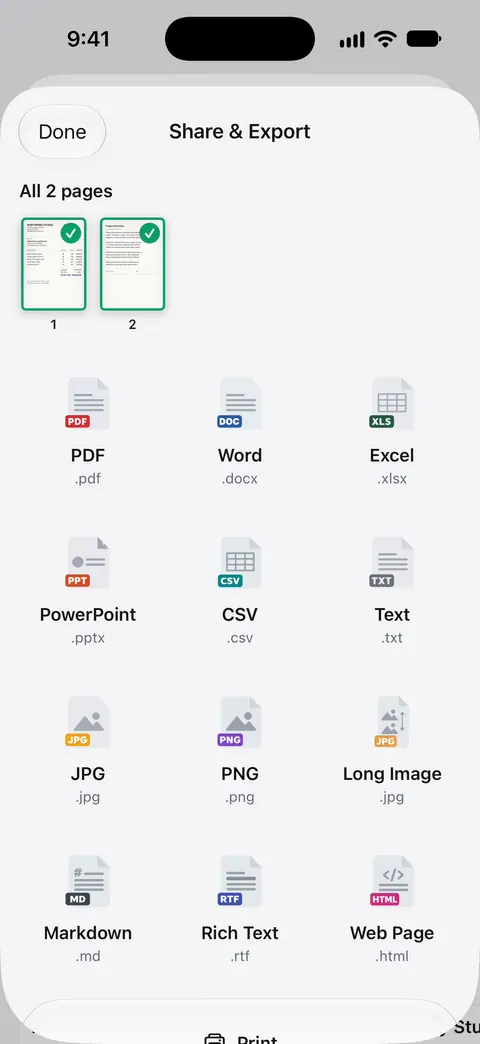
Scanner One helps when the JPG is a document: a page you scanned that a form wants as an image. Share & Export saves a document as a PDF, Word, Excel, PowerPoint, JPG, PNG, a long image, plain text, Markdown, Rich Text, a web page or CSV. You scan the paper, and the app gives you a straightened, cleaned page to save as JPG or PNG, without a HEIC step in between.
The limits:
- On a free account, pages you share, print or export carry a small “Scanned with Scanner One” label at the bottom right. Pro removes it.
- Scanner One is not a photo converter for your camera roll. It works on documents you bring into it.
- If a form sets a maximum file size or pixel size, check the exported image against it, whichever app made it.
Questions and answers
Does converting HEIC to JPG lose quality?
A little, because JPEG compresses more loosely than HEIF. With Preview’s Size slider toward the right, the difference is hard to see. For a photo of a document, it doesn’t matter.
Will Most Compatible change the photos I already have?
No. It only changes how new photos are saved. Photos you took before stay HEIC; convert those one by one or share them with Most Compatible.
Do HEIC photos turn into JPG when I email them?
Sometimes. Apple says that when you share by AirDrop, Messages or email with a device that doesn’t support HEIF, the photo may be sent as JPEG. Uploading to a website gets no such conversion, which is why upload forms reject HEIC.
JPG or PNG for a photo of a document?
JPG. The file is much smaller and almost every form accepts it. PNG suits screenshots and diagrams with sharp edges.
Sources
What this page says about Scanner One was checked against the app on .
- Apple Support, Using HEIF or HEVC media on Apple devices (article 116944) — HEIF compression, Settings > Camera > Formats, Most Compatible and High Efficiency, automatic JPEG when sharing to devices without HEIF support, Keep Originals for USB imports; published 2025-12-05
- Apple iPhone User Guide, Export or compress PDFs and images in Preview on iPhone — export formats HEIC, JPEG, PDF, PNG and TIFF, and the Size slider for JPEG; undated guide page, read 2026-11-13
- Apple iPhone User Guide, Share photos and videos on iPhone — Options when sharing: Automatic, Current, Most Compatible (may convert to JPEG); sharing includes metadata such as location; undated guide page, read 2026-11-13
- Scanner One on the App Store — the app’s own listing
Get Scanner One
Scanner One is free, with generous limits: scanning, clean PDFs and text search never stop.

Scanner OneScan, sign and ask anything
Scanner One is free, with generous limits: scanning, clean PDFs and text search never stop.