
Guide
Convert a PDF to PowerPoint on iPhone
iPhone has no built-in PDF to PowerPoint converter. The free workaround: in Preview, export each PDF page as a PNG or JPEG image; in Keynote, add one image per slide; then tap More, Export, PowerPoint to get a .pptx file. Each slide is a picture of the page, so the text isn’t editable. If you need editable slides, use a converter app, and check the result before you present.

This page covers turning a PDF into slides. If you want to edit the text of a PDF as a document, the guide to converting a PDF to Word is the better match.
What iPhone can and can’t do
iPhone has no PDF to PowerPoint converter. It does have Preview, which turns PDF pages into images, and Keynote, Apple’s free presentation app, which exports PowerPoint files. Together they make a .pptx where each slide shows one page of your PDF.
That suits a lot of real jobs: showing a handout in a meeting, presenting a report someone sent you, adding a few pages to a deck. It doesn’t suit a job where you need to change the words on the slides, because each slide is a picture.
Build slides from a PDF with Preview and Keynote
1. Export the pages as images
- Open the PDF in the Preview app.
- Tap the Actions Menu button next to the filename, then tap Export.
- Choose PNG for pages of text and charts (crisper edges) or JPEG for photo-heavy pages (smaller files).
- On iOS 27, set the Resolution. Around 150 pixels per inch is enough for a projector or a TV; go higher if people will zoom in. On iOS 26 there is only the format and the size slider.
- Tap the Done button, choose a folder, and tap Save.
Open the folder and check that every page you want came out as an image. If one is missing, open that page and export again, or take a screenshot of it as a fallback for a screen.
2. Put one image on each slide
- Open Keynote and create a presentation. A plain theme with a blank layout works best, so nothing sits on top of your page.
- Tap the Content Hub button in the toolbar, tap the More Options button, then tap Choose File (or Choose Photo or Video if you saved the images to Photos).
- Pick the first page image.
- Drag a blue dot to resize it to fill the slide, then tap the Done button.
- Add a new slide and repeat for each page.
PDF pages are usually tall (portrait) and slides are wide, so a page fills only the middle of a slide. If that bothers you, crop the page in Preview first to the part that matters, or split a dense page across two slides.
3. Export as PowerPoint
- In Keynote, tap the More button in the toolbar.
- Tap Export, then tap PowerPoint.
- Choose how to send or save the .pptx file.
Apple notes that the exported file opens and edits in Microsoft PowerPoint, and that changes to it don’t affect your Keynote original. If the Keynote file has a password, the PowerPoint copy gets the same one.
Make page images that work on a slide
A page designed for paper doesn’t always read well on a wall. A few choices at the export stage help:
- Crop before you export. Use Preview’s Crop button to cut wide margins, headers and footers, so the content fills more of the slide.
- Turn sideways pages the right way. In the thumbnails, tap the More button and tap Rotate Left or Rotate Right before exporting.
- One idea per slide. A page with a chart and a table can become two slides: export the page twice and crop each copy to one part in Keynote.
- Pick PNG for charts and text. Edges stay crisp when projected. JPEG at a high size setting is fine for photos.
- Check the resolution on the big screen. If small text looks soft on a TV, export again at a higher resolution on iOS 27.
When you need editable slides
If you have to change the text, recolor charts or rearrange bullet points, pictures of pages won’t do. Your options:
- A converter app or website that rebuilds text boxes from the PDF. Results vary with the PDF: a PDF made from PowerPoint converts far better than a scan.
- Retype the key points into Keynote and keep the charts as images from the PDF. For a short talk this is often quicker than fixing a messy conversion.
- Ask for the source file. If someone made the PDF from a presentation, the original .pptx is the cleanest answer.
If the PDF is a scan, there’s no text in it to rebuild until it has been through text recognition. See making a scanned PDF searchable.
Before you present
- Read every slide on the screen you’ll use. Small print in a PDF page is smaller still on a slide.
- Remove the pages you don’t need before converting: the guide to splitting a PDF shows how to keep only some pages.
- Check fonts and layout in a converted .pptx: a converter may substitute fonts, and a line that fit in the PDF can spill off the slide.
- Keep the PDF. If anything goes wrong on the day, the PDF opened full screen works as a slideshow.
Where Scanner One helps, and where it doesn’t
If a slide that shows the page is all you need, Preview and Keynote do it for free. Use them.
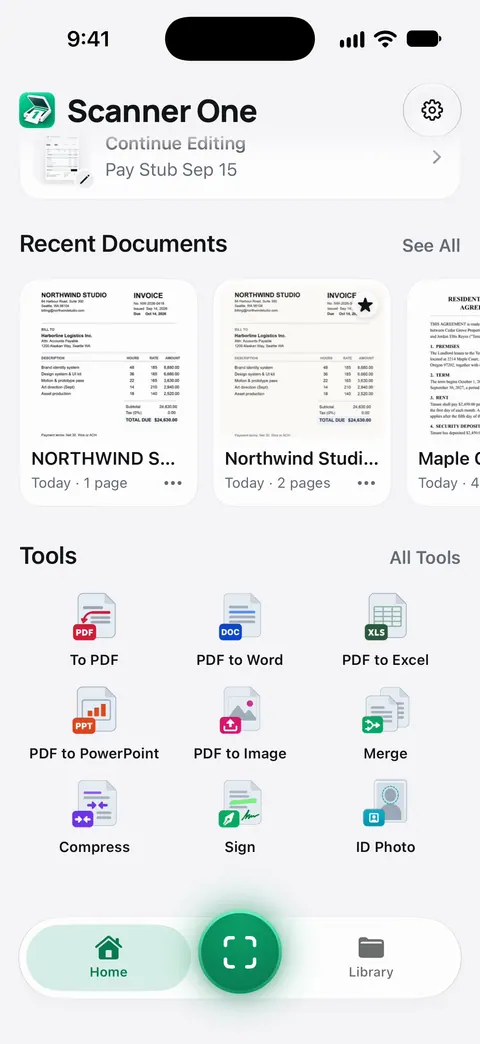
Scanner One helps when you’d rather not build slides one by one. The PDF to PowerPoint tool sits with the other convert tools on Home. Share & Export saves a document as a PDF, Word, Excel, PowerPoint, JPG, PNG, a long image, plain text, Markdown, Rich Text, a web page or CSV.
The limits:
- Free accounts can run the PDF tools and the Word, Excel and CSV exports 3 times a week, from one shared allowance.
- On a free account, pages you share, print or export carry a small “Scanned with Scanner One” label at the bottom right. Pro removes it.
- Open the .pptx before you present. Complex layouts, unusual fonts and scanned pages convert less cleanly than a PDF made from a presentation, in any app.
The other tools for working with PDFs are on the PDF tools page.
Questions and answers
Can I convert a PDF to PowerPoint on iPhone for free?
You can build one for free: export the PDF pages as images in Preview, place one image per slide in Keynote, and export the presentation as PowerPoint. The slides show the pages but the text can’t be edited.
Will the text in my slides be editable?
Not with the image workaround. Converter apps try to rebuild text boxes from the PDF; how well that works depends on the PDF, so open the .pptx and check before you rely on it.
Can Keynote open a PDF directly?
Apple’s Keynote guide describes adding images and files from Photos or iCloud to a slide, not turning a PDF into a presentation. Exporting the pages as images first is the dependable route.
Do I need PowerPoint to present a PDF?
No. A PDF opened full screen in Preview or Files and swiped page by page works as a simple slideshow, and it looks the same on every screen.
Sources
What this page says about Scanner One was checked against the app on .
- Apple iPhone User Guide, Export or compress PDFs and images in Preview on iPhone — exporting a PDF to JPEG or PNG, Size and, on iOS 27, Resolution; undated guide page, read 2026-11-13
- Keynote User Guide for iPhone, Add an image — Content Hub button, More Options, Choose Photo or Video or Choose File, resize with the blue dots; undated guide page, read 2026-11-13
- Keynote User Guide for iPhone, Export to PowerPoint or another file format — More, Export, PowerPoint (.pptx); the copy doesn’t change the original; passwords carry over; undated guide page, read 2026-11-13
- Apple iPhone User Guide, Add, delete, rotate, move, or crop PDF pages in Preview on iPhone — cropping and rotating pages before export; undated guide page, read 2026-11-13
- Scanner One on the App Store — the app’s own listing
Get Scanner One
Scanner One is free, with generous limits: scanning, clean PDFs and text search never stop.

Scanner OneScan, sign and ask anything
Scanner One is free, with generous limits: scanning, clean PDFs and text search never stop.