
Guide
Convert HEIC photos to a PDF on iPhone
Save the HEIC photo to the Files app (Share, then Save to Files), open it in the Preview app, tap the Actions Menu button next to the filename, tap Export, choose PDF and tap Save. The PDF opens anywhere, unlike HEIC, which many upload forms refuse. To put several HEIC photos in one PDF, open the new PDF, show the thumbnails, touch and hold one and tap Insert from File for each extra photo.

This page is about one specific snag: an iPhone photo saved as HEIC that you need as a PDF. For photos in general, including JPGs and screenshots, the broader guide to turning photos into a PDF covers more cases.
Why your iPhone photos are HEIC
Since iOS 11, the iPhone camera saves photos in HEIF, a format Apple describes as compressing better than JPEG while keeping the same visual quality. The files end in .heic, which is why people call them HEIC photos. They take less space on your phone, and Apple devices open them without a problem.
The trouble starts outside Apple’s world. Many upload forms (benefits portals, school sites, job applications, insurance claims) accept only PDF, JPG or PNG, and an older Windows computer may not open a HEIC file at all. Apple notes that when you share by AirDrop, Messages or email to a device that doesn’t support HEIF, the photo may be sent as JPEG instead, but a website upload button gives no such help. That is when a PDF is the safe choice: almost every form takes one.
For more on the format itself, see what a HEIC file is.
Convert one HEIC photo to PDF with Preview
Preview is Apple’s PDF and image app on iPhone from iOS 26. It opens images from the Files app, so start by putting a copy of the photo there.
- In Photos, open the photo, tap the Share button and choose Save to Files. Pick a folder you will remember, such as Downloads.
- Open the Preview app, tap Browse, and open the image.
- Tap the Actions Menu button next to the filename, then tap Export.
- Choose PDF as the format.
- On iOS 26, you can drag the slider to adjust the file size. On iOS 27 you get switches instead:
- Embed Text runs text recognition on the picture and makes the PDF searchable. Turn it on for a photo of a letter, a form or a receipt.
- Optimize Images for Screen lowers the picture’s resolution for a smaller file.
- Save Images as JPEG stores the picture as JPEG inside the PDF, also smaller.
- Tap the Done button, choose where to save, rename the file in the Save As field if you like, then tap Save.
The HEIC original stays in Photos untouched. The PDF is a new file in the folder you chose, ready to attach or upload.
Put several HEIC photos into one PDF
A form that wants “one file” for a multi-page document needs every photo in a single PDF. Preview builds one from the first PDF you made.
- Save all the photos you need to the same folder in Files.
- Convert the first one to PDF, as above, and open that PDF in Preview.
- Tap the Show Sidebar button to show the page thumbnails. If it doesn’t appear, tap the PDF.
- Touch and hold a thumbnail, tap Insert from File, and choose the next HEIC photo.
- Repeat for each photo.
- To change the order, touch and hold a thumbnail until the menu appears, then drag it above or below another one.
- Remove a wrong page by touching and holding its thumbnail and tapping Delete Page.
Insert from File accepts the HEIC photo directly; you don’t need to convert each one first. When you’re done, check the page count matches the number of photos.
Keep the PDF small enough to upload
iPhone photos carry a lot of detail, and a PDF of five or six of them can pass the limit on an upload form. Some ways to keep it down:
- On iOS 27, turn on Optimize Images for Screen and Save Images as JPEG when you export. Text in a photo of a page usually stays readable.
- On iOS 26, move the size slider to the left.
- Crop first. A photo of a page on a kitchen table is mostly table. Crop it in Photos before saving it to Files.
If the file is still too big, the guide to making a PDF fit a size limit has more ways to shrink it, and our free upload size checker tells you whether it will fit.
Stop the problem for new photos
If you send photos to websites often, you can have the camera save JPEG instead of HEIC.
- Open Settings and tap Camera.
- Tap Formats.
- Choose Most Compatible.
New photos are then saved as JPEG; switch back to High Efficiency whenever you like. Apple says the option only appears on iPhones that can capture HEIF, and High Efficiency uses less storage, so most people leave it on and convert when needed.
When you share a photo straight from Photos, you can also tap Options on the share sheet and choose Most Compatible, which may convert the file to JPEG for that one share. If you need a JPG rather than a PDF, the guide to converting HEIC to JPG on iPhone walks through it.
When the photo is of a paper document
A photo of a page is not the same as a scan. A photo keeps the angle, the shadow of your hand and the table around the page. If the paper is still in front of you, scanning it gives a cleaner PDF: the scanner finds the edges, straightens the page and evens out the light. See how to scan to PDF on iPhone for the built-in way with Notes and Files.
Where Scanner One helps, and where it doesn’t
For one or two photos, Preview does the job well and costs nothing. Use it.
Scanner One helps when the photos are part of a document you want to keep, find again and send more than once. From Home you can bring in pictures from Photos and files from the Files app, or scan an ID card. The To PDF tool turns files and photos into PDFs.
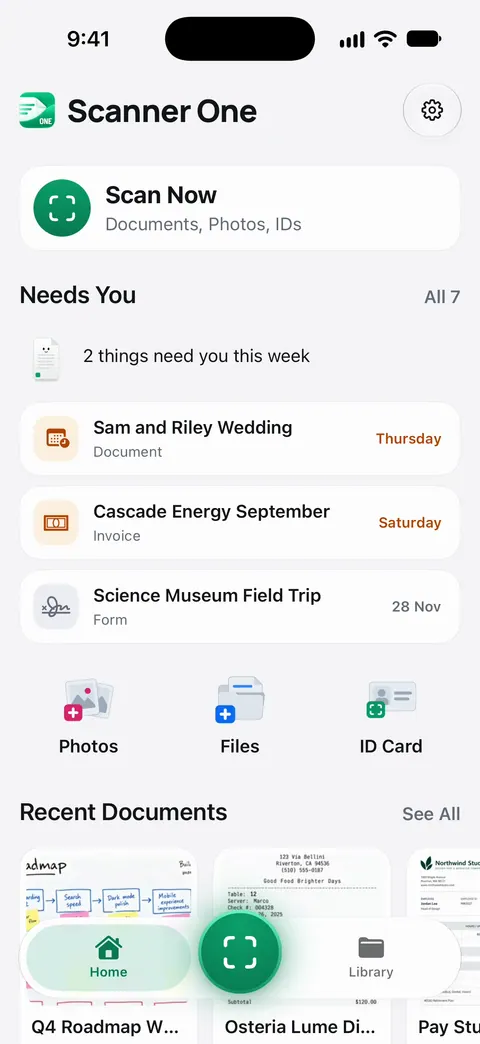
Text recognition runs on every page for everyone, free or Pro. Search looks inside the text of every document and shows the matching line and page. That matters when the photo is of a lease page or a receipt you will look for later.
What to know before you rely on it:
- On a free account, pages you share, print or export carry a small “Scanned with Scanner One” label at the bottom right. Pro removes it.
- Free accounts can run the PDF tools and the Word, Excel and CSV exports 3 times a week, from one shared allowance.
- If the paper is still in front of you, scanning it with the camera gives a cleaner page than converting an old photo, in any app.
Questions and answers
Why won’t the website accept my iPhone photo?
iPhones save photos as HEIC by default, and many upload forms accept only JPG, PNG or PDF. Export the photo as a PDF (or a JPG) in Preview and upload that file instead.
Can I convert HEIC to PDF on iPhone without an app?
Yes. On iOS 26 and later the built-in Preview app opens a HEIC image and exports it as a PDF. Copy the photo to the Files app first, since Preview opens files from there.
Does converting HEIC to PDF lower the quality?
Not by default. On iOS 27, the switches Optimize Images for Screen and Save Images as JPEG make the file smaller by lowering the picture’s resolution or compressing it, so leave them off if you need full detail.
How do I stop my iPhone from taking HEIC photos?
Go to Settings, tap Camera, tap Formats, then choose Most Compatible. New photos are saved as JPEG. Photos you already took stay HEIC.
Sources
What this page says about Scanner One was checked against the app on .
- Apple Support, Using HEIF or HEVC media on Apple devices (article 116944) — what HEIF is, the Camera Formats setting (High Efficiency, Most Compatible), conversion when sharing with devices that don’t support it; published 2025-12-05
- Apple iPhone User Guide, Export or compress PDFs and images in Preview on iPhone — exporting an image as PDF, the iOS 27 PDF switches (Embed Text, Optimize Images for Screen, Save Images as JPEG) and the iOS 26 size slider; undated guide page, read 2026-11-13
- Apple iPhone User Guide, Add, delete, rotate, move, or crop PDF pages in Preview on iPhone — Insert from File, moving and deleting pages; undated guide page, read 2026-11-13
- Apple iPhone User Guide, Share photos and videos on iPhone — the Share button and the Options screen (Automatic, Current, Most Compatible); undated guide page, read 2026-11-13
- Scanner One on the App Store — the app’s own listing
Get Scanner One
Scanner One is free, with generous limits: scanning, clean PDFs and text search never stop.

Scanner OneScan, sign and ask anything
Scanner One is free, with generous limits: scanning, clean PDFs and text search never stop.