
Guide
Turn a PDF into JPG images on iPhone
Open the PDF in the Preview app (iOS 26 and later), tap the Actions Menu button next to the filename, tap Export, choose JPEG or PNG, adjust the size, then save. On iOS 27 you can also set the resolution in pixels per inch. Preview is free and does the job for most uploads and messages; check the images you get before you send them.

Export a PDF as JPG or PNG with Preview
Preview is Apple’s PDF and image app on iPhone from iOS 26. It exports a PDF as an image without any other app.
- Open the Preview app and open the PDF. Recents shows files you opened lately; Browse finds the rest.
- Tap the Actions Menu button next to the filename, then tap Export.
- Choose JPEG or PNG. (HEIC and TIFF are also on the list.)
- Adjust the settings for the format:
- Size (JPEG and HEIC): drag the slider left for a smaller file or right for higher quality.
- Alpha (PNG, HEIC and TIFF): leave it on to keep transparency, turn it off to flatten it.
- Resolution (iOS 27, when exporting a PDF to an image): enter a value and choose pixels per inch or pixels per cm. Higher values give bigger, more detailed images.
- Tap the Done button, choose where to save, rename the file in Save As if you like, then tap Save.
On iOS 26 the export screen is simpler: you choose the format and, optionally, use the slider to adjust the file size. There is no resolution setting.
Apple’s page doesn’t say how a PDF with many pages is turned into images, so open the folder you saved to and check that every page you need is there. If a page is missing, the quickest fallback is a screenshot of that page, which is fine for viewing on a screen but low in resolution for printing.
JPG or PNG: which one
| Format | Best for | Trade-off |
|---|---|---|
| JPEG (.jpg) | Scans, photos, upload forms, messages | Smaller files; very fine text can blur at low quality |
| PNG | Pages of sharp text, diagrams, logos | Larger files; keeps edges crisp and can keep transparency |
| HEIC | Keeping a copy on Apple devices | Small and sharp, but some websites and older computers don’t accept it |
| TIFF | Print shops or archives that ask for it | Very large files |
When in doubt, use JPEG. It is the format almost every upload form accepts.
Pick a resolution and quality that fit the job
On iOS 27 you choose the resolution yourself. Some rough guides:
- For a screen or an upload form: around 150 pixels per inch. Text stays readable and the file stays small.
- For printing: around 300 pixels per inch.
- For small print you need to zoom into: go higher, and accept a larger file.
Many upload forms set a maximum file size, often a few megabytes. If yours does, start with a medium size setting, check the file size in Files, and export again if it’s over.
Tidy the page before you export
An image shows exactly what the page shows, so fix the page first.
- Crop away wide margins: scroll to the page, tap the Crop button, drag the blue handles, then tap Crop.
- Rotate a sideways page: show the thumbnails, tap the More button, then tap Rotate Left or Rotate Right. On iOS 27 the thumbnails open with the Show Sidebar button; on iOS 26, tap the page count.
- Remove pages you don’t need by touching and holding a thumbnail and tapping Delete Page. Do this on a copy if you want to keep the full PDF: Actions Menu, then Duplicate.
Why people need a JPG of a PDF
- Upload forms that accept only images, common on visa, school and job portals.
- Messages and social posts, where an image shows right in the conversation instead of as a file to open.
- Slides and documents where you want to place a page as a picture.
If the form accepts PDF, send the PDF: it keeps text sharp at any zoom and holds every page in one file. To go the other way, from pictures to a PDF, see how to turn photos into a PDF.
Check the images before you send them
- Open each image and zoom in on the smallest text. If you can’t read it, export again at a higher quality or resolution.
- Check the file sizes against any limit on the form.
- Make sure the pages are in the right order and the right way up.
- If an image is still too large, the guide to making a file small enough to email has more ways to shrink it.
Where Scanner One helps, and where it doesn’t
For a page or two now and then, Preview does this well and adds nothing to the image. Use it.
Scanner One helps when the PDF is one of your scans and you want it as images without moving it into another app. Share & Export saves a document as a PDF, Word, Excel, PowerPoint, JPG, PNG, a long image, plain text, Markdown, Rich Text, a web page or CSV.
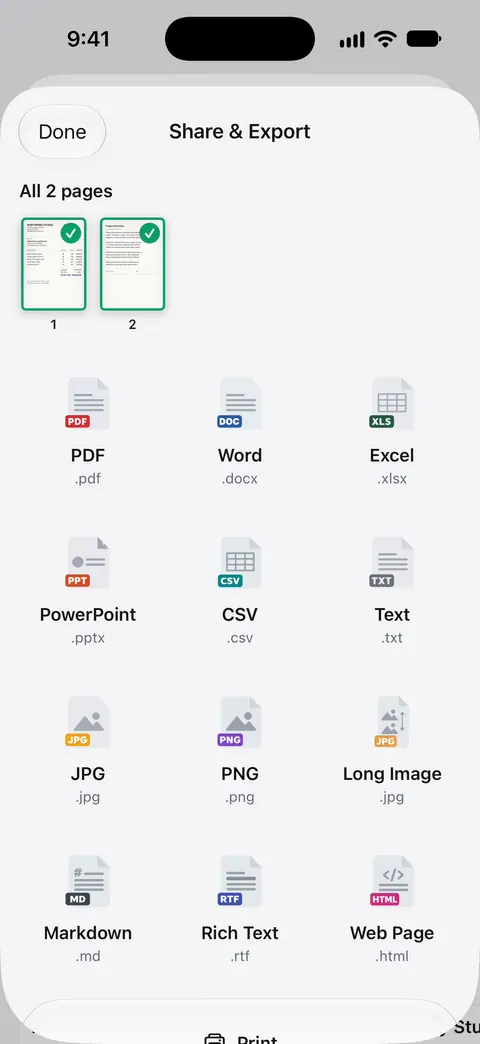
The long image option suits a receipt or a short document you want to show in a message as one picture.
The limits:
- On a free account, pages you share, print or export carry a small “Scanned with Scanner One” label at the bottom right. Pro removes it.
- If a form needs a specific pixel size or file size, check the exported image against it, whichever app made it.
When you’d rather send the PDF itself, this guide to sending a PDF from iPhone covers Mail, Messages and AirDrop.
Questions and answers
Can I convert a PDF to JPG on iPhone without an app?
Yes. On iOS 26 and later, open the PDF in Preview, tap the Actions Menu button, tap Export and choose JPEG. It is free and built in.
JPG or PNG: which should I choose?
JPG for scans and photos, because the files are smaller. PNG for pages that are mostly sharp text or line drawings, or when you need transparency. If a form names a format, use that one.
What resolution should I use?
On iOS 27 you can set it. Around 150 pixels per inch is plenty for viewing on a screen or for most upload forms; around 300 pixels per inch is the usual choice for printing. Higher numbers make bigger files.
My image is too big for the upload form. What now?
Export again with the Size slider further to the left, or with a lower resolution on iOS 27. Crop the page first if only part of it matters.
Sources
What this page says about Scanner One was checked against the app on .
- Apple iPhone User Guide, Export or compress PDFs and images in Preview on iPhone — export formats (HEIC, JPEG, PDF, PNG, TIFF), the Size slider, Alpha and, on iOS 27, Resolution; iOS 26 version checked for the differences; undated guide page, read 2026-11-13
- Apple iPhone User Guide, Open and view PDFs and images in Preview on iPhone — opening files in Preview from Recents and Browse; undated guide page for iOS 26 and 27, read 2026-11-13
- Apple iPhone User Guide, Add, delete, rotate, move, or crop PDF pages in Preview on iPhone — cropping and rotating a page before export; undated guide page for iOS 26 and 27, read 2026-11-13
- Apple iPhone User Guide, Save, rename, or move PDFs and images in Preview on iPhone — Actions Menu, then Duplicate, to keep a copy; undated guide page for iOS 26 and 27, read 2026-11-13
- Scanner One on the App Store — the app’s own listing
Get Scanner One
Scanner One is free, with generous limits: scanning, clean PDFs and text search never stop.

Scanner OneScan, sign and ask anything
Scanner One is free, with generous limits: scanning, clean PDFs and text search never stop.