
Guide
Send a PDF from your iPhone
In the Files app, touch and hold the PDF, tap Share, choose Mail, Messages or AirDrop, then tap Send. In Mail you can also start a message, tap the attachment button above the keyboard and tap Attach File. If the PDF is too big for your email account, Mail offers to send it with Mail Drop, which handles attachments up to 5 GB.

Send a PDF from the Files app
The Files app is where most PDFs on an iPhone live, and its Share button reaches every way of sending.
- Open the Files app and find the PDF.
- Touch and hold the file, then tap Share.
- Choose how to send it: AirDrop, Messages, Mail or another app.
- Add the person, then tap Send.
Apple’s tip for a smaller file is to tap Compress before you share. That makes a ZIP file, though, which the other person has to unzip, and a PDF of scanned pages rarely shrinks much inside a ZIP. To actually make the PDF smaller, see how to make a PDF small enough to email.
Attach a PDF to an email in Mail
- Open Mail and start a new message.
- Tap in the body where the attachment should go, then tap the Insert Attachment Actions button above the keyboard.
- Tap Attach File, then find the PDF under Recent, Shared or Browse.
- Address the email and send it.
If the file is larger than your email account allows, Mail shows instructions to send it with Mail Drop instead. If the paper isn’t scanned yet, tap Scan Document in step 3 to scan it straight into the email; the guide to scanning and emailing a document covers that.
How big a PDF can you email
| Account | Limit for one message | What happens above it |
|---|---|---|
| iCloud Mail | 20 MB | Up to 5 GB with Mail Drop turned on |
| Personal Gmail | 25 MB in attachments | Gmail adds a Google Drive link instead |
| Mail Drop | 5 GB | The recipient downloads from a link within 30 days |
| Work and school accounts | Set by the administrator | Ask your IT team |
Apple also warns that the recipient’s email app may have a smaller limit than yours, which can stop the attachment from arriving. A scan of a few pages is usually well under these limits; a PDF made from many full-size photos often isn’t.
Send a PDF by Messages
From the Files app, touch and hold the PDF, tap Share, then tap Messages and pick the person. The PDF arrives as a file they can tap to open. For someone who will need to save, print or forward the document, email is often the better choice, because it lands as a file in their inbox that they can find again.
AirDrop it to someone nearby
AirDrop sends a file to an iPhone, iPad or Mac in the same room, with no size worries and no email.
- Make sure both devices have Wi-Fi and Bluetooth on and are within about 30 feet (10 meters) of each other.
- The person receiving opens Control Center, touches and holds the top-left group of controls, taps AirDrop, and chooses Contacts Only or Everyone for 10 Minutes.
- You open the PDF, tap the Share button, tap AirDrop, then tap their name.
- They tap Accept.
With iOS 26.2 or later, if you are not in their contacts, they get an AirDrop code to share with you; you enter it to send. After that you can AirDrop each other for 30 days without a new code. If one of you walks out of range during a transfer, Apple says it continues over the internet.
Share from Preview, or collaborate on one copy
In the Preview app (iOS 26 and later), open the PDF and tap the Share button. You can send a copy, copy the file to paste into another app, or choose Collaborate. Collaborating shares one file instead of sending copies: you choose whether only invited people or anyone with the link can see it, and whether they can make changes or only view.
Before you send
A minute of checking prevents most awkward follow-up emails.
- The name. “Scan 14.pdf” tells the reader nothing. In Preview, tap the Actions Menu button, then Rename. Something like “Lease signed 2026-11-13.pdf” works.
- The version. Open the file once to make sure it’s the signed or filled-in copy, not the blank one.
- The pages. Check that every page is there and the right way up.
- The address. Mail fills in addresses as you type, and two people with the same first name are easy to mix up. Read the To line once before you tap Send.
- Personal details. For tax forms, ID scans or medical papers, ask whether the receiver has a secure upload page, and consider adding a password to the PDF, sending the password by a different route.
Where Scanner One helps, and where it doesn’t
Sending is built into iPhone, and the Files app, Mail and AirDrop do it well. For a PDF you already have, use them.
Scanner One helps when the PDF starts as paper: you scan, check and send from the same place. Share & Export saves a document as a PDF, Word, Excel, PowerPoint, JPG, PNG, a long image, plain text, Markdown, Rich Text, a web page or CSV. Share & Export can also print a document or email it to you.
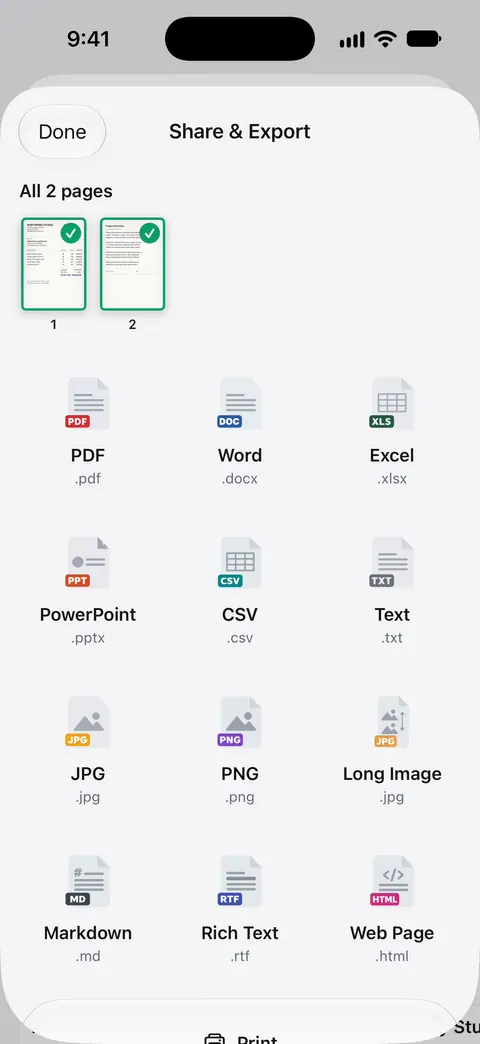
Documents stay on your iPhone unless you share them or turn on iCloud Sync. The PDF tools merge, split, compress, password-protect, add page numbers and watermarks, and extract text. Compress helps a large scan fit an email.
The limits:
- Free accounts can run the PDF tools and the Word, Excel and CSV exports 3 times a week, from one shared allowance. Pro removes every limit.
- On a free account, pages you share, print or export carry a small “Scanned with Scanner One” label at the bottom right. Pro removes it. If the label matters for a document you send, the Files app sends it without one.
Questions and answers
How big a PDF can I email from my iPhone?
It depends on the email account. Apple lists 20 MB for an iCloud Mail message, and Google lists 25 MB for personal Gmail. Above your account’s limit, Mail offers Mail Drop, which sends attachments up to 5 GB as a download link.
Why does my PDF arrive as a link instead of an attachment?
It was too big for a normal attachment, so Mail Drop (or, in Gmail, Google Drive) sent a link instead. Apple says Mail Drop recipients have 30 days to download the file.
Is AirDrop safe for sending personal documents?
Apple says AirDrop transfers are encrypted and the recipient can accept or decline each one. Check the name of the device before you tap it, so the file goes to the right person.
How do I send a PDF from my iPhone to my own computer?
To a Mac, AirDrop is quickest: with the same Apple Account on both, Apple says the file is accepted automatically. To a Windows PC, email it to yourself or save it to iCloud Drive and open it from there.
Sources
What this page says about Scanner One was checked against the app on .
- Apple iPhone User Guide, Send files from the Files app on iPhone — touch and hold, Share, then AirDrop, Messages or Mail; the Compress tip; undated guide page for iOS 26 and 27, read 2026-11-13
- Apple iPhone User Guide, Add email attachments in Mail on iPhone — Attach File, Scan Document, and Mail Drop when a file exceeds the account’s limit; undated guide page for iOS 26 and 27, read 2026-11-13
- Apple iPhone User Guide, Use AirDrop to send items to nearby Apple devices — range, Contacts Only and Everyone for 10 Minutes, AirDrop codes with iOS 26.2 and later; undated guide page for iOS 26 and 27, read 2026-11-13
- Apple Support, Mail Drop limits (article 108329) — attachments up to 5 GB, 30 days to download, the recipient’s own limit may be smaller; published March 18, 2025
- Apple Support, Mailbox size and message sending limits in iCloud (article 102198) — iCloud Mail messages up to 20 MB, up to 5 GB with Mail Drop turned on; published March 17, 2025
- Gmail Help, Send attachments with your Gmail message (iPhone and iPad) — 25 MB for personal Gmail accounts; larger attachments become a Google Drive link; undated help page, read 2026-11-13
- Apple iPhone User Guide, Share PDFs or images in Preview on iPhone — send a copy or collaborate, and who can view or edit; undated guide page for iOS 26 and 27, read 2026-11-13
- Scanner One on the App Store — the app’s own listing
Get Scanner One
Scanner One is free, with generous limits: scanning, clean PDFs and text search never stop.

Scanner OneScan, sign and ask anything
Scanner One is free, with generous limits: scanning, clean PDFs and text search never stop.