
Guide
Scan a document and email it
Open Mail and start a new message. Tap in the body, tap the Insert Attachment Actions button above the keyboard, then Scan Document. Hold the iPhone over each page, tap Keep Scan, and tap Save when you’re done: the pages are attached as one PDF. Add a subject that says what the document is, and send. For a scan you already made in Notes or Files, share it and pick Mail.

Scan straight into an email with Mail
The Mail app has the document scanner built in. When the only goal is “get this paper to that person”, it’s the fewest steps.
- Open Mail and tap the Compose button to start a new message (or reply to the email that asked for the document).
- Tap in the body of the message where the attachment should go.
- Tap the Insert Attachment Actions button above the keyboard, then tap Scan Document.
- Hold the iPhone so the page fills the screen. It captures the page automatically. To capture it yourself, tap the Take Picture button or press a volume button. To turn the flash on or off, tap the Show Flash Settings button.
- Tap Retake or Keep Scan, scan the other pages, then tap Save.
The pages are attached as a PDF. Before you send, tap the scan in the message to fix it: the Crop button, the Show Filters button, the Rotate button, or Delete Scan to start over.
Email a scan you already made
From Notes
- Open the note and tap the Menu button on the scan.
- Choose Share, then Mail.
Share the scan, not the whole note. Exporting a note as a PDF includes only the first page of a multipage scan, which is easy to miss.
From Files or Preview
- In Files, touch and hold the PDF, then tap Share. In Preview, open it and tap the Share button.
- Choose Mail, or Send Copy if Preview asks whether to collaborate.
A full walkthrough of the other ways to send, including Messages and AirDrop, is in sending a PDF from iPhone.
Write an email the other person can act on
The scan is only half of it. Offices, landlords and HR teams get dozens of attachments a day.
- Subject line: say what it is and whose it is. “Signed lease application, Jordan Rivera, Unit 4B” beats “Scan”.
- File name: if the name of the attachment matters, scan in Files or Preview first, rename the PDF, then attach it with Attach File from the same Insert Attachment Actions menu.
- One line in the body: what’s attached and how many pages. “Attached: the signed 4-page form and both sides of my ID.”
- One PDF per document unless they asked for a single file. A form and an ID in separate PDFs are easier for them to file.
If you need to sign before sending, see sending a signed form without a printer.
When the attachment is too big
Each page of a scan is an image, so a long or colorful document can be several megabytes. If your file is over your email account’s limit, Apple says Mail shows onscreen instructions to send it with Mail Drop, which sends a link rather than the file itself.
Some people can’t or won’t open a link. To keep it as a normal attachment, make the PDF smaller first:
- Save the scan to Files and open it in Preview.
- Tap the Actions menu next to the file name, then Export, and choose PDF.
- Turn on Optimize Images for Screen or Save Images as JPEG, tap Done, and save the smaller copy.
- Attach that copy.
A black-and-white filter also tends to shrink a scan. Files’ Compress option makes a ZIP file, which many offices and upload forms don’t accept. More ways are in making a PDF small enough to email.
Keep a copy of what you sent
A scan made inside Mail lives only in the email. Months later, when someone says they never got the signed form, you’ll want the exact file you sent and the date.
- Open the message in your Sent mailbox.
- Touch and hold the attachment, then choose Save to Files.
- Save it in a folder for that matter, such as “Lease 2026”, and rename it with the date you sent it.
If you can’t find the message, Mail can filter a mailbox to show only messages with attachments: tap the Toggle Filtering button, tap “Filtered by”, then turn on Only Mail with Attachments.
Before you tap Send
- Open the attachment and swipe through every page.
- Check the recipient’s address, especially for anything with your ID, bank details or Social Security number on it. Email is not a private channel; if they have a secure upload, use it.
- Check the size shown under the attachment, if your account has a low limit.
Where Scanner One helps, and where it doesn’t
Scanning in Mail is quick, but the only copy is the one in your Sent mailbox. Scanning in the app first keeps a copy you can find again. You scan the page and save it. Then it reads the text, names the document, tags it and puts it in the right folder. Search looks inside the text of every document and shows the matching line and page. Then you send it from the document. Share & Export saves a document as a PDF, Word, Excel, PowerPoint, JPG, PNG, a long image, plain text, Markdown, Rich Text, a web page or CSV. Share & Export can also print a document or email it to you. The Email to Me button sends the document to your own address.
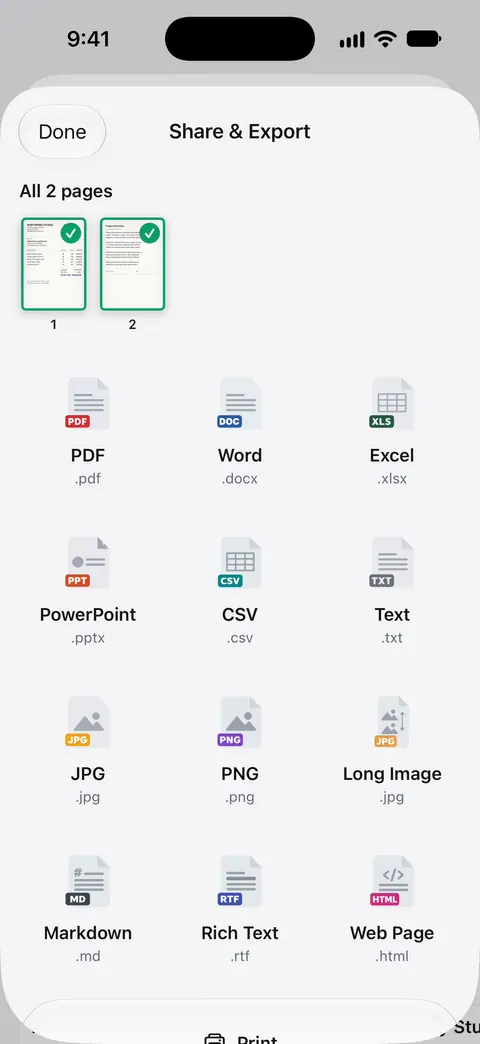
When the PDF is too big for an email, use Compress. The PDF tools merge, split, compress, password-protect, add page numbers and watermarks, and extract text. Compress shows the new size beside the old one before you send.
The limits that matter when you send: Free accounts can run the PDF tools and the Word, Excel and CSV exports 3 times a week, from one shared allowance. On a free account, pages you share, print or export carry a small “Scanned with Scanner One” label at the bottom right. Pro removes it. If you send scans to employers, landlords or agencies, that label is worth knowing about.
When the built-in way is enough: for a document you send once and won’t need again, Mail’s Scan Document is hard to beat. Use the app when you want to keep the scan as well as send it. Every tool is listed on the PDF tools page, and more guides are in Guides.
Questions and answers
Can I scan a document directly into an email on iPhone?
Yes. In Mail, tap in the message body, tap the Insert Attachment Actions button above the keyboard, then Scan Document. The scan is attached as a PDF.
Why won’t my scanned document send?
It’s probably over your email account’s size limit. Mail offers Mail Drop on screen when that happens, or you can make the PDF smaller in Preview before attaching it.
How do I email a scan from Notes?
Open the note, tap the Menu button on the scan, choose Share, then Mail. Share the scan itself, not the whole note, so every page goes.
Can I scan a document and email it to myself?
Yes: scan it in Mail and put your own address in the To field. It’s a simple way to get a copy onto a work computer that doesn’t share your Apple Account.
Sources
What this page says about Scanner One was checked against the app on .
- iPhone User Guide (iOS 27), Add email attachments in Mail — Scan Document from the Insert Attachment Actions button, editing the scan, and Mail Drop for large files; read 2026-11-13
- iPhone User Guide (iOS 27), Send files from the Files app — touch and hold a file, tap Share, choose Mail; the Compress tip; read 2026-11-13
- iPhone User Guide (iOS 27), Work with PDFs in Notes — the Menu button on a PDF in a note, to share it; read 2026-11-13
- iPhone User Guide (iOS 27), Export or compress PDFs and images in Preview — Optimize Images for Screen and Save Images as JPEG for a smaller PDF; read 2026-11-13
- iPhone User Guide (iOS 27), Download email attachments in Mail — touch and hold an attachment, then Save to Files; read 2026-11-13
- Scanner One on the App Store — the app’s own listing
Get Scanner One
Scanner One is free, with generous limits: scanning, clean PDFs and text search never stop.

Scanner OneScan, sign and ask anything
Scanner One is free, with generous limits: scanning, clean PDFs and text search never stop.