
Guide
Add page numbers to a PDF on iPhone
iPhone has no built-in tool that numbers the pages of a finished PDF. If you’re making the document yourself, add numbers in Pages first: tap More, then Document Options, Document Setup, tap a header or footer field and tap Page Numbers. Then export it as a PDF. For a short PDF you already have, type a number on each page with Markup. For long PDFs, use a page numbers tool.

Two different jobs
Adding page numbers on iPhone depends on where the document is in its life.
- You’re still writing it. If the document is a Pages file or a Word file you can open in Pages, the page numbers go in before it becomes a PDF. That’s built in and free.
- It’s already a PDF. A scan, a statement or a PDF someone sent you can’t be edited in Pages. Apple’s apps have no tool that numbers its pages for you, so you either type the numbers on by hand or use an app with a page numbers tool.
Add page numbers in Pages, then export a PDF
These steps come from Apple’s Pages for iPhone User Guide.
- Open the document in Pages.
- Tap the More button at the top of the screen, tap Document Options, then tap Document Setup.
- Make sure Headers or Footers are turned on, then tap More Options at the bottom of the controls. In a word-processing document, you may need to tap the Document tab first.
- In Document Setup, use two fingers to zoom, then tap the header or footer field where the number should go.
- Tap Page Numbers, then tap a numbering style.
- To change the number’s font, size, color or alignment, select the number, tap the Format button, and adjust it.
- Tap Done in the top-left corner.
The numbers adjust by themselves when pages are added or removed.
Start from a different number
For a document that continues another, set a new first number. In a word-processing document, tap a page in the section, tap the More button, tap Document Options, then Document Setup. Tap the Section tab, tap Page Numbering, tap Start at and set the number. In a page layout document, tap the corner of the page so nothing is selected, tap the Format button, and use Page Numbering there.
Export it as a PDF
- Tap the More button in the toolbar, then tap Export.
- Tap PDF.
- Choose how to send or save it, such as Mail or Save to Files.
The numbers are now part of the PDF, on every page that has them in Pages.
A Word file works too
Pages opens Word documents (.doc and .docx) and can save them as PDF. Open the Word file in Pages, add the numbers as above, then export a PDF. If a font is missing, Pages shows a warning at the top of the page; tap it to replace the font, and check that the layout hasn’t shifted. The guide to converting Word to PDF on iPhone covers the conversion itself.
Number a short PDF by hand with Markup
For a PDF of a few pages, typing the numbers on is quick enough.
- Open the PDF and show the Markup toolbar.
- Tap the Add button, then tap Add Text.
- Tap the text box and type the number, such as “1 of 4”.
- Use the tools to set the size, then drag the box to the bottom corner.
- Tap outside the box, go to the next page and repeat.
In Preview on iOS 26 and later, the same text box is under the Markup button: tap it, tap the Add button, then choose text.
Keep the position the same on every page; a number that wanders looks careless when printed. The guide to adding text to a PDF has more on text boxes. For a 30-page PDF this gets slow, which is where a tool helps.
Tips for page numbers that work
- Merge first, number second. If the PDF will be combined with others, merge the PDFs first so the numbers run through the whole file.
- “Page 3 of 12” beats “3”. When pages get separated or printed out of order, the total tells the reader something is missing.
- Mind the margins. Put numbers where nothing else is printed. On scans, the bottom corner is usually clear; check a few pages before you number all of them.
- Check before printing. Numbers too close to the edge can be cut off by some printers. The guide to printing a PDF from iPhone covers the print options.
- Formal numbering has its own rules. If a court or a lawyer asks for numbered exhibits or a particular format, ask them for it rather than guessing.
Where Scanner One helps, and where it doesn’t
If you’re writing the document, Pages adds the numbers for free and keeps them right as the document changes. Use it.
Scanner One helps when the document is already a PDF, especially a scan. The PDF tools merge, split, compress, password-protect, add page numbers and watermarks, and extract text. In the Page Numbers editor you choose a number format and a position, so a long scan doesn’t mean typing numbers page by page.
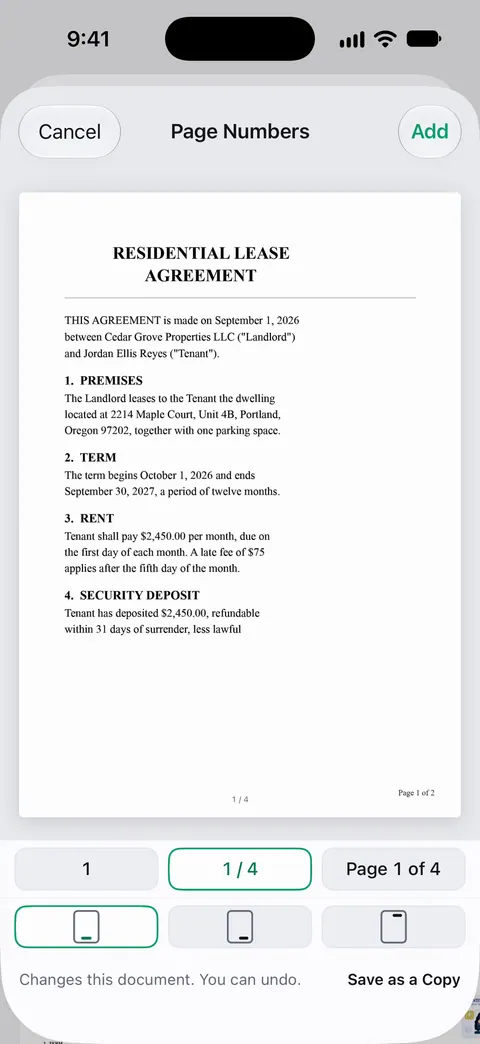
The limits, plainly:
- Free accounts can run the PDF tools and the Word, Excel and CSV exports 3 times a week, from one shared allowance.
- Pro removes every limit.
- On a free account, pages you share, print or export carry a small “Scanned with Scanner One” label at the bottom right. Pro removes it. If the document is going to a court, an office or a client, that label sits on every page next to your numbers.
- A finished PDF can’t go back into Pages for editing, so for a document you’re still writing, Pages is the better place.
The PDF tools page shows the other tools that work on finished PDFs.
Questions and answers
Can Preview on iPhone add page numbers to a PDF?
Apple’s Preview guide for iOS 26 and 27 lists no page numbering tool. You can type a number on each page with Markup’s Add Text, which is fine for a few pages.
Can I start numbering at a page other than 1?
In Pages, yes: open Document Setup, tap the Section tab, tap Page Numbering and set Start at.
Should I number pages before or after merging PDFs?
After. Merge first so the numbers run through the whole file in one sequence, then add the numbers to the merged PDF.
Is adding page numbers free in Scanner One?
Free accounts can run the PDF tools and the Word, Excel and CSV exports 3 times a week, from one shared allowance. Adding page numbers is one of those runs. Pro removes every limit.
Sources
What this page says about Scanner One was checked against the app on .
- Pages for iPhone User Guide, Add page numbers in Pages on iPhone — Document Setup, header and footer fields, Page Numbers and the starting number; undated guide page, read 2026-11-13
- Pages for iPhone User Guide, Convert to Word, PDF, or another file format in Pages on iPhone — exporting a Pages document as a PDF; undated guide page, read 2026-11-13
- Pages for iPhone User Guide, Open a document in Pages on iPhone — Pages opens Word files and saves them as PDF; missing font warnings; undated guide page, read 2026-11-13
- Apple iPhone User Guide, Add text, shapes, stickers, and more with Markup on iPhone — Add Text in the Markup toolbar; undated guide page for iOS 26 and 27, read 2026-11-13
- Apple iPhone User Guide, Annotate a PDF or image in Preview on iPhone — adding text to a PDF from Preview’s Markup and Add buttons; undated guide page for iOS 26 and 27, read 2026-11-13
- Scanner One on the App Store — the app’s own listing: the PDF tools, page numbers among them
Get Scanner One
Scanner One is free, with generous limits: scanning, clean PDFs and text search never stop.

Scanner OneScan, sign and ask anything
Scanner One is free, with generous limits: scanning, clean PDFs and text search never stop.