
Guide
Add a watermark to a PDF on iPhone
If you’re writing the document, add the watermark in Pages: tap Format, then More, Document Options, Document Setup, More Options, insert a text box or image, lower its opacity, lock it and tap Done. It appears on every page; then export a PDF. For a finished PDF of a few pages, type the word on each page with Markup’s Add Text. For long PDFs and scans, use a watermark tool.

Pick the right method
What you can do depends on whether you’re still writing the document or already have the PDF.
| Your document | Built-in way | Good for |
|---|---|---|
| A Pages or Word file you’re writing | Pages section layout object, then export PDF | Any length, on every page automatically |
| A finished PDF of a few pages | Markup, Add Text on each page | 1 to 5 pages |
| A long finished PDF or a scan | No built-in tool | A watermark tool in an app |
Add a watermark in Pages, then export a PDF
Pages calls a watermark a section layout object: text or an image that sits in the background of every page. These steps follow Apple’s Pages for iPhone User Guide.
- Open the document in Pages and tap in the corner of any page so nothing is selected, then tap the Format button. Zoom in with two fingers if that helps you avoid tapping text.
- Tap the More button, tap Document Options, tap Document Setup, then tap More Options.
- Tap the Insert button at the top of the screen and add your watermark:
- Text: tap the Shapes button, tap the Basic category (swipe right if you don’t see it), then tap Text, and type the word, such as DRAFT.
- An image or logo: tap the Media button and choose where the image is.
- Make it faint: tap the Format button, tap Style, then drag the Opacity slider to the left.
- Resize it and drag it where you want it, such as across the middle of the page.
- So it can’t be moved by accident, tap the Format button, tap Arrange, then tap Lock.
- Tap Done. The watermark now appears behind the content of every page.
To make the PDF, tap the More button in the toolbar, tap Export, then tap PDF and choose how to send or save it.
To change or remove the watermark later, go back to More Options, tap the object, tap the Format button and tap Unlock. Then edit it and lock it again, or tap Delete.
Stamp a finished PDF by hand with Markup
For a PDF that already exists, type the watermark on each page.
- Open the PDF and show the Markup toolbar (tap the Markup button if you don’t see it).
- Tap the Add button, then tap Add Text.
- Tap the text box and type the word, such as COPY or CONFIDENTIAL.
- Use the tools to make the text large and pick a light color, such as gray.
- Drag the box over the middle of the page, then tap outside it.
- Move to the next page and repeat.
In Preview on iOS 26 and later, the same text box is under the Markup button: tap it, tap the Add button, then choose text. For more on text boxes, see the guide to adding text to a PDF.
A watermark added this way is a markup annotation laid over the page, not part of the page itself. Court guidance on redaction makes the same point about boxes drawn with commenting tools: anyone can remove them and see what’s underneath. A Markup watermark labels the copy, but a person with a PDF editor can delete it.
What to write on a watermark
A good watermark says what the copy is for, so it is useless for anything else.
- Copies of ID. When a landlord, employer or agency asks for a copy of your passport or license, mark the copy with who it’s for, the purpose and the date: “For ABC Rentals, lease application, Nov 2026”. The guide to scanning an ID card front and back on one page covers making the copy itself.
- Drafts. DRAFT across a contract or report stops anyone treating an early version as final.
- Confidential papers. CONFIDENTIAL reminds the reader not to pass it on. If the content truly must stay private, password-protect the PDF as well; a watermark doesn’t stop anyone reading it.
- Samples. SAMPLE or PREVIEW on a document you’re showing but not handing over.
Keep it readable but light, so the content underneath can still be read and printed clearly.
Where Scanner One helps, and where it doesn’t
For a document you write in Pages, Pages adds a proper watermark on every page for free. For two or three pages of a PDF, Markup does it by hand.
Scanner One helps with finished PDFs and scans, where typing the word on every page gets slow. The PDF tools merge, split, compress, password-protect, add page numbers and watermarks, and extract text. You type the text once in the Watermark editor and it runs across the page, as in the example below, instead of being typed onto each page by hand.
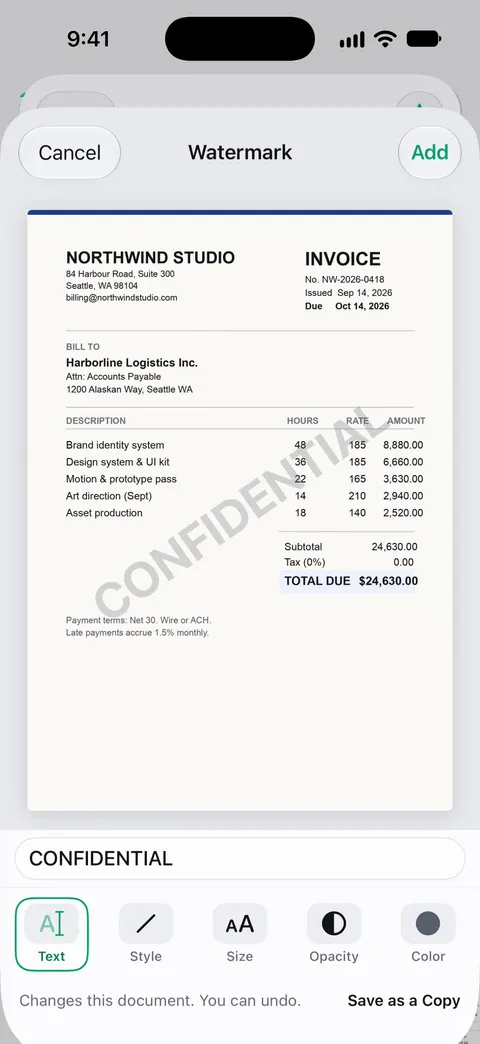
The limits, plainly:
- Free accounts can run the PDF tools and the Word, Excel and CSV exports 3 times a week, from one shared allowance.
- Pro removes every limit.
- The Watermark tool is not the same as the free label. On a free account, pages you share, print or export carry a small “Scanned with Scanner One” label at the bottom right. Pro removes it. So on a free account, a page you watermark and share carries your watermark and that small label. The comparison of scanner apps that don’t mark your scans covers which apps add their own mark.
- A watermark labels a copy; it doesn’t protect it. For that, use a password.
Questions and answers
Can I add a watermark to a PDF on iPhone for free?
Yes, in two ways. Pages adds a watermark to every page of a document you write, and Markup’s Add Text puts a word on any PDF page by hand. Neither adds anything else to the file.
What should a watermark on an ID copy say?
Who it’s for, what it’s for and the date, for example "Copy for ABC Rentals, lease application, Nov 2026". A copy marked that way is harder to reuse for anything else.
Can someone remove a watermark?
A determined person often can, especially one added as a markup annotation, which an editor can select and delete. A watermark labels a copy; it doesn’t lock it. For files that must stay private, add a password too.
Is the "Scanned with Scanner One" label a watermark I can turn off?
On a free account, pages you share, print or export carry a small "Scanned with Scanner One" label at the bottom right. Pro removes it. It is separate from the Watermark tool, which adds the text you choose.
Sources
What this page says about Scanner One was checked against the app on .
- Pages for iPhone User Guide, Add watermarks and background objects in Pages on iPhone — section layout objects: inserting text or an image, opacity, locking; undated guide page, read 2026-11-13
- Pages for iPhone User Guide, Convert to Word, PDF, or another file format in Pages on iPhone — exporting the watermarked document as a PDF; undated guide page, read 2026-11-13
- Apple iPhone User Guide, Add text, shapes, stickers, and more with Markup on iPhone — Add Text and its font, size and color tools; undated guide page for iOS 26 and 27, read 2026-11-13
- U.S. Court of Appeals for the D.C. Circuit, Guidance on Redacting Personal Data Identifiers in Electronically Filed Documents — marks added with graphic and commenting tools can be removed by anyone; undated PDF, read 2026-11-13
- Scanner One on the App Store — the app’s own listing: the PDF tools, watermarks among them
Get Scanner One
Scanner One is free, with generous limits: scanning, clean PDFs and text search never stop.

Scanner OneScan, sign and ask anything
Scanner One is free, with generous limits: scanning, clean PDFs and text search never stop.