
Guide
Password-protect a PDF on iPhone
Open the PDF in Preview (iOS 26 and later). To keep an unlocked copy, tap the Actions Menu button and tap Duplicate first. Then tap the Actions Menu button next to the filename, tap Lock, and enter the same password in the Password and Verify fields; on iOS 26, turn on Require Password first. Tap Done. Send the password separately from the file. Preview is enough for this.

Lock a PDF with Preview
Preview, Apple’s PDF app on iPhone from iOS 26, can put a password on a PDF. These steps come from Apple’s iPhone User Guide; iOS 26 and iOS 27 differ in one step.
On iOS 27
- Open the Preview app and open the PDF.
- If you want to keep a copy without a password, tap the Actions Menu button, then tap Duplicate. Lock one copy and keep the other for yourself.
- Tap the Actions Menu button next to the filename, then tap Lock.
- Enter the same password in the Password and Verify fields. The Require Password toggle turns on by itself.
- Tap the Done button. To back out instead, tap the Close button.
On iOS 26
- Open the Preview app and open the PDF.
- To keep an unlocked copy, tap the Actions Menu button, then tap Duplicate.
- Tap the Actions Menu button next to the filename, then tap Lock.
- Turn on Require Password, then enter the same password in the Password and Verify fields.
- Tap Done.
Apple describes the lock as a way to stop others from editing or deleting your work, and its illustration shows a locked PDF opening on a password field. Open the locked copy once yourself to check that it asks for the password.
Keep track of which copy is locked
After a Duplicate you have two files with nearly the same name, and it’s easy to send the wrong one. Rename the locked one straight away: tap the Actions Menu button next to the filename, tap Rename, add “locked” to the name, then tap Done on the keyboard. The copy you keep for yourself stays as it was, and you can tell them apart in Recents and in Files.
On an iPhone without Preview
Apple’s user guide covers Preview for iOS 26 and iOS 27. On an earlier version, the Pages route below still works for documents you write yourself; a scan or a PDF someone sent you needs a PDF app or a computer to lock.
Lock a document in Pages before you export it
If you’re writing the document in Pages, or you opened a Word file in Pages, you can lock it there. A password on a Pages document carries over to the copies you export as PDF or Word.
- Open the document in Pages.
- Tap the More button, then tap Document Options.
- Tap Set Password, enter the requested information, then tap Done. Apple notes that adding a password encrypts the file.
- To make the PDF, tap the More button, tap Export, then tap PDF and choose how to send or save it.
Apple’s warning for Pages is worth taking to heart for any file: there is no way to recover a forgotten password. Write it down somewhere safe.
Send the file and the password safely
A password does nothing if it travels in the same message as the file. A simple routine:
- Send the PDF one way, the password another. Email the PDF, then text the password, or tell it on a call. If one account is read by someone else, they still have only half.
- Use a password worth having. A long phrase is stronger than a short word with symbols. Avoid birthdays and the name of the document.
- Keep a record. If you lock several files with different passwords, note which password belongs to which file, in a place only you can open.
- Check the size first. Locking doesn’t make a file smaller. If it is large, the guide to sending a PDF from iPhone covers attachment limits and other ways to send.
- Ask what the recipient expects. Some offices and portals reject locked PDFs because their systems can’t open them. If a form says “no password-protected files”, send it unlocked through their secure upload.
What a password does and doesn’t do
A password keeps people without it from opening the file. It does not:
- Hide parts of a page from people who have the password. Anyone who opens the file sees everything. To remove an account number or a name before sharing, redact the PDF properly, then lock it if you like.
- Protect your other files. It covers that one PDF. To keep your documents private on your iPhone itself, see how to lock documents with Face ID.
- Mark the copy. If you want the copy to say who it’s for, add a watermark as well; the guide to adding a watermark shows how.
Where Scanner One helps, and where it doesn’t
For locking a PDF now and then, Preview on iOS 26 and later does it for free and adds nothing to the file. That is enough for most people.
Scanner One helps when the document is a scan you keep in it and lock often, like statements you send to an accountant. The PDF tools merge, split, compress, password-protect, add page numbers and watermarks, and extract text. Protect locks a copy of the PDF, so the document in your Library stays easy for you to open.
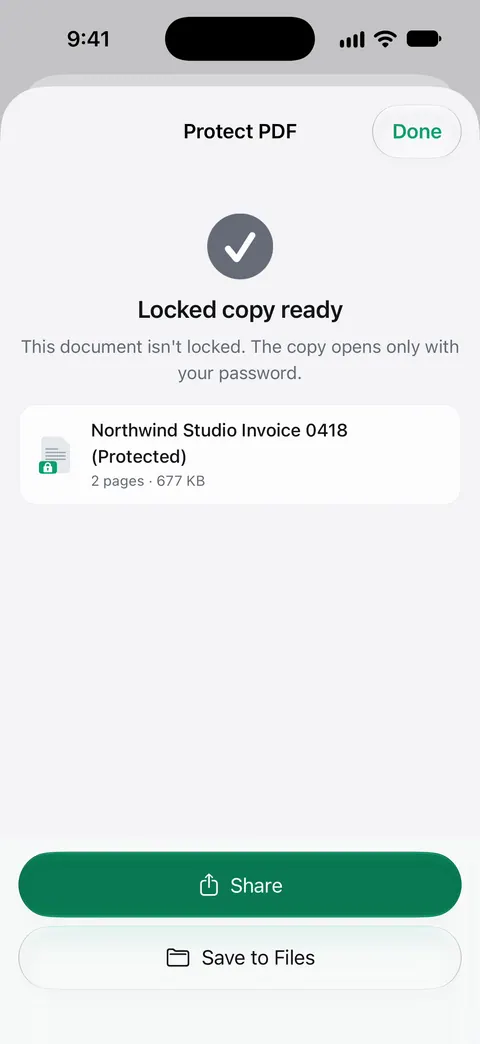
The limits, plainly:
- Free accounts can run the PDF tools and the Word, Excel and CSV exports 3 times a week, from one shared allowance.
- Pro removes every limit.
- On a free account, pages you share, print or export carry a small “Scanned with Scanner One” label at the bottom right. Pro removes it.
- A PDF password is not the app lock. You can lock the app with Face ID. Documents stay on your iPhone unless you share them or turn on iCloud Sync. The privacy page explains both.
Questions and answers
Can I password-protect a PDF on iPhone without an app?
Yes, on iOS 26 and later. In Preview, tap the Actions Menu button next to the filename, tap Lock and set a password. Pages can also lock a document it exports as a PDF.
Can the person I send it to open it on any device?
A password-protected PDF asks for the password when it opens, and common PDF readers on phones and computers support that. Send the password by a different route than the file.
What if I forget the password?
Apple warns, for Pages documents, that there’s no way to recover a forgotten password. Treat PDFs the same way: keep an unlocked copy for yourself (Duplicate before you lock) and store the password somewhere safe.
Is a password on a PDF the same as locking the app with Face ID?
No. A PDF password travels with the file wherever you send it. You can lock the app with Face ID. That keeps people out of the app on your phone, but files you share leave it.
Is Protect free in Scanner One?
Free accounts can run the PDF tools and the Word, Excel and CSV exports 3 times a week, from one shared allowance. Protecting a document is one of those runs. Pro removes every limit.
Sources
What this page says about Scanner One was checked against the app on .
- Apple iPhone User Guide, Lock PDFs in Preview on iPhone — the Lock steps and the Duplicate tip; the iOS 26 and iOS 27 versions differ on the Require Password toggle; undated guide page, read 2026-11-13
- Apple iPhone User Guide, Get started with Preview on iPhone — protecting a PDF with a password, and the locked PDF showing a password field; undated guide page for iOS 26 and 27, read 2026-11-13
- Pages for iPhone User Guide, Password-protect a Pages document on iPhone — Set Password, encryption, no password recovery; undated guide page, read 2026-11-13
- Pages for iPhone User Guide, Convert to Word, PDF, or another file format in Pages on iPhone — a document’s password applies to the PDF and Word copies you export; undated guide page, read 2026-11-13
- Scanner One on the App Store — the app’s own listing: the PDF tools, password protection among them
Get Scanner One
Scanner One is free, with generous limits: scanning, clean PDFs and text search never stop.

Scanner OneScan, sign and ask anything
Scanner One is free, with generous limits: scanning, clean PDFs and text search never stop.