
Guide
Redact a PDF for real, not just with a black box
A black box drawn with Markup, or text highlighted in black, only covers the words: they stay in the file, and anyone can delete the box or copy the text from under it. Real redaction removes the text and the picture beneath it. Apple’s iPhone apps have no redaction tool, so use an app that redacts, then check the result: search the PDF for a hidden word and try to select it. If it comes back, it isn’t redacted.

Why a black box is not redaction
A PDF page can hold three things at once: the page itself (text, or a picture of the paper), a hidden text layer when the page was scanned and read, and annotations on top, such as highlights, shapes, notes and signatures. When you draw a black rectangle with Markup or highlight a line in black, you add an annotation. It covers the words on screen. It doesn’t remove them.
So anyone who gets the file can do one of these:
- tap the box and delete or move it,
- select the text under it, copy it and paste it somewhere else,
- search the PDF for the hidden word and find it.
Two federal courts’ e-filing guides say the same in plain terms. The District of New Jersey’s e-filing guide: highlighting text in black or putting a black box over the data in Word or Acrobat “will not protect the data from being able to be seen,” and changing the text to white is “similarly ineffective.” The D.C. Circuit’s guide warns that the commenting tools that black out or cover text make edits that “can still be removed by anyone to reveal the text underneath.”
Scans are not safe by default either. A scanned page looks like a picture, but many scanner apps read the text and save it in an invisible layer so you can search the file. Preview on iOS 27 even has an Embed Text option that runs text recognition when you export a PDF. If you then draw a box over a number, the number is still in that layer.
The other places information hides
- The file name and title. “Smith-SSN-123-45.pdf” undoes a perfect redaction. Preview’s Info button shows a PDF’s file name and creation date.
- Repeats. An account number may appear on page 1 and again in a footer on page 6. The D.C. Circuit’s guide points out that partly hidden details are easier to work out when the same data repeats across a document.
- Earlier versions. Word files keep hidden revision history that can survive into a PDF, the D.C. Circuit warns, unless you start from clean text.
What real redaction does
A real redaction tool deletes what’s under the box: the text, the text layer and the part of the page image. It then draws the box as a marker of where something was removed. After that, there is nothing to copy, search or uncover.
When you wrote the document yourself, the New Jersey court gives the simplest method: leave the information out of the original document, then save the redacted version under a new name. On iPhone, that means editing the Pages or Word file, replacing the sensitive part with [REDACTED], and exporting a fresh PDF. That works with no special tool.
When all you have is a PDF or a scan, you need an app that redacts, not one that only draws.
Check a redacted PDF before you send it
Do this every time, whichever app you used. It takes two minutes.
- Open the redacted copy (not the original) in Preview.
- Tap the Search button and type a word or number you removed, such as the last four digits of an account. If Preview finds it, the redaction failed.
- Touch and hold just above the black box and drag across it, as if selecting text. If you can select and Copy text there, paste it into Notes to see what came along.
- Tap the box itself. If it lights up with handles and moves, it’s an annotation, not a redaction.
- Tap the Info button and read the file name. Rename the file if it gives anything away.
- Scroll every page, at full zoom, for repeats of the same detail.
Redacting paper before you scan it
Sometimes the easiest way is to cover the paper itself. Be careful how. The D.C. Circuit’s guide says ink-marking, or semi-translucent tape or paper, can still show enough for someone to read what was supposed to be hidden. Use something fully opaque, scan, then zoom in on the scan to make sure nothing shows through. Keep the original paper; you may need it later.
What people usually need to hide
This page is general information, not legal advice. Courts, agencies and employers set their own redaction rules, and rules change: follow the instructions of whoever asked for the document.
For US federal court filings, the D.C. Circuit’s guide lists the personal identifiers to redact: Social Security numbers and financial account numbers (show the last 4 digits only), names of minors (initials only), dates of birth (the year only) and, in criminal cases, home addresses (the city and state only).
Outside court, the same details are the ones worth hiding when you send papers to a landlord, an employer or a stranger: full Social Security numbers, bank and card numbers, dates of birth, and anything a bank statement shows that nobody asked for. When a landlord wants bank statements tonight, this page covers what to send and what to cover.
Where Scanner One helps, and where it doesn’t
Apple’s apps can draw a box but can’t remove what’s under it. That’s the gap Scanner One fills. Redaction is permanent. You mark the name, number or line and apply the redaction, as on the pay stub below.
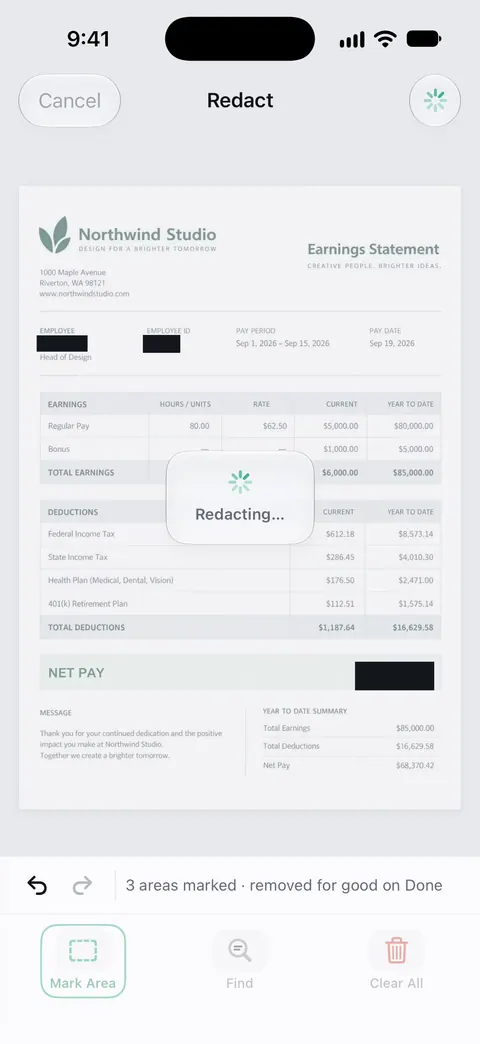
Scanner One makes searchable PDFs. Search looks inside the text of every document and shows the matching line and page. That helps with the check above: search the redacted copy for the detail you removed and make sure nothing comes back. The redaction feature page has more on how it works.
The limits, plainly:
- Redaction is part of Pro, not the free version. Pro adds redaction, the smart eraser, edit text, auto-export and five alternate app icons. See Free and Pro for what each includes.
- On a free account, pages you share, print or export carry a small “Scanned with Scanner One” label at the bottom right. Pro removes it.
- Redaction works on what’s on the page. Check the file name yourself, and run the check above on every file you send, whatever app made it.
- If you wrote the document, deleting the detail in the original and making a new PDF is free and just as safe.
Questions and answers
Can I redact a PDF on iPhone without an app?
Not properly. Markup in the Files app and Preview can draw a filled box or highlight in black, but those are marks on top of the page: the words stay underneath. For a document you wrote yourself, the reliable built-in way is to delete the information in the original and make a new PDF.
How can I tell if a PDF was redacted properly?
Search the PDF for a word or number that should be gone, and try to select text under the black box and copy it. If search finds it or the copied text appears when you paste, the redaction failed. Also try to tap and move the box.
Is blacking out with a marker before scanning safe?
Not always. The D.C. Circuit’s guide warns that ink and semi-translucent tape can still show enough for someone to read what’s underneath. Check the scan zoomed in, and cover the area with something fully opaque if you can.
Does a scanned PDF have text in it?
Often, yes. Many scanners and apps run text recognition and save an invisible text layer so the PDF is searchable. That layer can still hold the words you covered with a drawn box.
Is redaction free in Scanner One?
No. Pro adds redaction, the smart eraser, edit text, auto-export and five alternate app icons.
Sources
What this page says about Scanner One was checked against the app on .
- U.S. Court of Appeals for the D.C. Circuit, Guidance on Redacting Personal Data Identifiers in Electronically Filed Documents — common redaction errors: white text, hidden metadata, PDF commenting tools that black out text but can be removed to reveal it, ink and translucent tape that show through; the identifiers court filings must redact; undated PDF, read 2026-11-13
- U.S. District Court for the District of New Jersey, Personal-Identity and Metadata Redaction Techniques for E-Filing — black highlighting or a black box over data will not protect it; white text is similarly ineffective; the best method is to leave the information out of the original; undated, read 2026-11-13
- Apple iPhone User Guide, Open and view PDFs and images in Preview on iPhone — Preview’s Search button, used to check a redacted copy, and the Info button; undated guide page for iOS 26 and 27, read 2026-11-13
- Apple iPhone User Guide, Annotate a PDF or image in Preview on iPhone — Preview’s highlight, shapes and other annotations, which sit on top of the page; undated guide page for iOS 26 and 27, read 2026-11-13
- Scanner One on the App Store — the app’s own listing: permanent redaction, part of Pro
Get Scanner One
Scanner One is free, with generous limits: scanning, clean PDFs and text search never stop.

Scanner OneScan, sign and ask anything
Scanner One is free, with generous limits: scanning, clean PDFs and text search never stop.