
Guide
Save text messages as a PDF for your records or for court
iPhone has no export for a Messages conversation. Swipe left on a bubble so the times show, take screenshots from the first message to the last with a little overlap, then combine them into one PDF in Preview: export the first screenshot as a PDF and add the rest with Insert from File, in order. Number the pages, keep the phone and the original messages, and check your court’s rules on exhibits.

This page is general information about making a clear record of text messages. It is not legal advice. Courts set their own rules for evidence and exhibits, and those rules change: check your court’s own self-help page, or ask its self-help center, before your hearing.
You might need your texts as a record for a landlord dispute, a small claims case, a work complaint, a custody matter or an insurance claim. The goal is the same each time: every message, in order, with the date and time showing, in one file that prints cleanly. For the wider job of preparing a small claims case, see evidence for small claims court.
Before you start
- Don’t delete anything, even messages that seem irrelevant or unflattering. A gap in a conversation raises questions.
- Find the start. Scroll up to the first message that matters, so your record begins at the beginning of the story.
- Check the contact name. If the person is saved under a nickname, the screenshots will show it. Some people add the phone number to the contact card so it is clear who they are; tap the name at the top of the conversation to see the number.
Take the screenshots with the times showing
Apple’s own tip, on its page about forwarding messages, is that a screenshot shows the message bubbles and timestamps just as they appear in the conversation. Forwarding doesn’t.
- Open the conversation in Messages and scroll to the first message you need.
- Swipe left on a message bubble and keep your finger there. Apple says this shows the timestamps for all messages in the conversation.
- While holding, take a screenshot with your other hand: press the side button and the volume up button together (on iPhone SE, the Home button and the side button). If holding is awkward, take one screenshot with the times and one without for each screen.
- Scroll down so the last message or two of the previous screenshot is still visible at the top, and take the next one. That overlap shows nothing is missing between pages.
- Carry on to the last message.
Screenshots go to your photo library. In Photos, tap Collections, scroll to Media Types and tap Screenshots to see them in order.
Messages also shows a date heading above each new day’s messages. Make sure those headings appear in your screenshots as you scroll.
Combine the screenshots into one PDF
- In Photos, select the screenshots in order, tap the Share button and choose Save to Files. Put them in a new folder.
- Open the Preview app, tap Browse, and open the first screenshot.
- Tap the Actions Menu button, tap Export, choose PDF, tap the Done button, and save.
- Open that PDF and tap the Show Sidebar button to show the thumbnails.
- Touch and hold a thumbnail, tap Insert from File, and choose the next screenshot. Repeat until all are in.
- Drag thumbnails to fix the order if needed, and check the page count matches the number of screenshots.
The general version of these steps is in turning screenshots into a PDF.
Number and label the pages
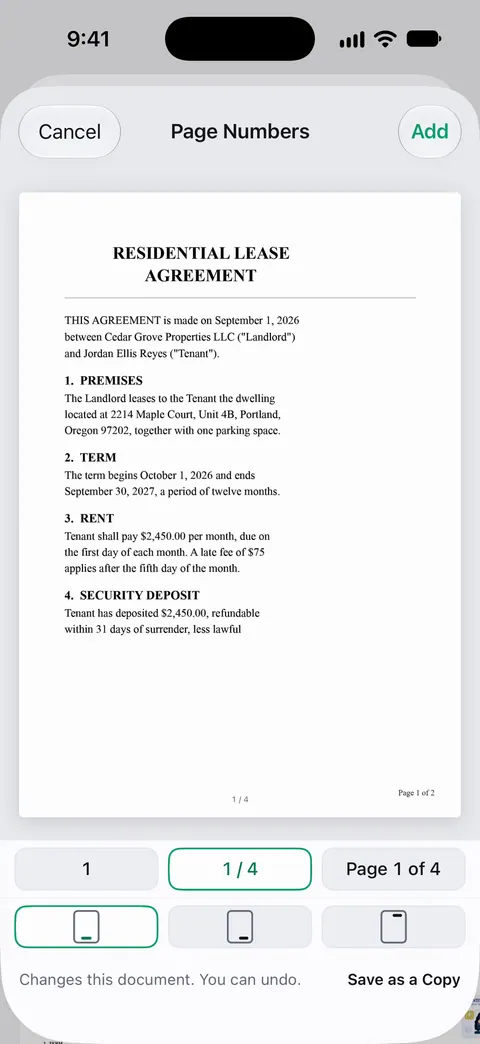
A judge, a lawyer or an insurer will refer to “page 4”. Give them page numbers. The guide to numbering pages for court or exhibits covers this in detail, and adding page numbers to a PDF shows the general steps.
Courts also ask you to list your exhibits. The Tulare County court’s trial guide, for example, asks for each exhibit to have its own number and a description of what it is, such as text messages, with details such as dates. A first page of your own helps: the names of the people in the conversation, the phone numbers, and the date range the screenshots cover.
Copies for court
Check your own court’s rules, which vary. As examples from two California courts:
- The Santa Cruz court’s small claims guide lists letters, emails and texts as evidence and says to bring 3 copies of everything: one for you, one for the judicial officer and one for the other party.
- The Tulare County court’s trial guide says to make a copy of your exhibits for the court, for you and for each other party, and to put them in the order you plan to introduce them.
Some courts also want exhibits shared with the other side before the hearing. Your court’s self-help page or clerk will tell you.
Keep the original
Bring the phone, charged, if you’re going to a hearing. If someone says the screenshots were edited, the conversation on the phone is your answer. Keep a backup of the phone too: a lost or broken phone takes the original with it.
Where Scanner One helps, and where it doesn’t
Screenshots, Preview and a careful hand are enough to make a clear record. Nothing here needs an app.
Scanner One helps with the two fiddly parts: putting many screenshots into one file and numbering the pages. From Home you can bring in pictures from Photos and files from the Files app, or scan an ID card. The To PDF tool turns files and photos into PDFs. The PDF tools merge, split, compress, password-protect, add page numbers and watermarks, and extract text.
The limits:
- On a free account, pages you share, print or export carry a small “Scanned with Scanner One” label at the bottom right. Pro removes it. For a court exhibit, consider whether that label belongs on your pages.
- Free accounts can run the PDF tools and the Word, Excel and CSV exports 3 times a week, from one shared allowance.
- Scanner One doesn’t read your Messages or export conversations. It works on the screenshots you bring into it.
- Nothing about the app makes a screenshot more acceptable as evidence. Your court’s rules decide that.
Questions and answers
Can I export a whole iMessage conversation as a PDF?
Not with Apple’s own apps. Messages can forward selected messages, but there’s no export. Screenshots combined into one PDF are the usual built-in way.
How do I show the time each text was sent?
Swipe left on a message bubble and hold. Apple says this shows the timestamps for all messages in the conversation. Take the screenshot while you hold.
Will a court accept screenshots of texts?
Courts do take text messages as evidence, but each court sets its own rules on how exhibits are prepared, numbered and shared. Check your court’s self-help pages and be ready to say the screenshots are accurate.
Should I delete the conversation after I make the PDF?
No. Keep the messages and the phone. If anyone questions the PDF, the original conversation is what backs it up.
Sources
What this page says about Scanner One was checked against the app on .
- Apple iPhone User Guide, Send and reply to messages on iPhone — swipe left on a message bubble to see timestamps for all messages in the conversation; undated guide page, read 2026-11-13
- Apple iPhone User Guide, Forward and share messages on iPhone — forwarding selected messages; Apple’s tip that a screenshot shows bubbles and timestamps as they appear; undated guide page, read 2026-11-13
- Apple iPhone User Guide, Take a screenshot on iPhone — taking, cropping and saving screenshots; the Screenshots album; undated guide page for iOS 27, read 2026-11-13
- Apple iPhone User Guide, Add, delete, rotate, move, or crop PDF pages in Preview on iPhone — Insert from File and moving pages; undated guide page, read 2026-11-13
- Superior Court of California, County of Santa Cruz, Self Help Center: Preparing for a Small Claims Trial (PDF) — letters, emails and texts count as evidence; bring 3 copies of everything; file modified 2026-02-28
- Superior Court of California, County of Tulare, Preparing for Trial: Witnesses and Exhibits (PDF) — text messages as exhibits, numbering and describing each exhibit with dates, copies for the court and each party, order of exhibits; revised 2024-12-20 (a trial guide for that court)
- Scanner One on the App Store — the app’s own listing
Get Scanner One
Scanner One is free, with generous limits: scanning, clean PDFs and text search never stop.

Scanner OneScan, sign and ask anything
Scanner One is free, with generous limits: scanning, clean PDFs and text search never stop.