
Guide
Turn screenshots into a PDF on iPhone
For a long web page, take a screenshot, tap the thumbnail, tap Full Page, then tap the Selected button and Save PDF to Files. To combine several screenshots into one PDF, save them to Files, open the first in Preview, export it as a PDF, then open that PDF, show the thumbnails, touch and hold one and tap Insert from File for each other screenshot, dragging them into order.

This page is about screenshots specifically: one long capture of a page, or a pile of screenshots that should become one tidy file. For photos in general, see turning photos into a PDF.
Save a full-page screenshot as a PDF
When what you need is longer than the screen (a web page, an order confirmation, an article), the iPhone can capture all of it as one PDF.
- Take a screenshot: quickly press and release the side button and the volume up button together. On an iPhone with a Home button, press the side button and the Home button.
- Tap the screenshot thumbnail in the lower-left corner.
- Tap Full Page. Drag your finger on the preview on the right to see the whole length.
- To keep only part of it, tap the Crop button and drag the handles.
- Tap the Selected button, tap Save PDF to Files, then choose a location.
Those are the steps in Apple’s iOS 26 guide. Apple’s iOS 27 page describes Full Page and cropping the same way and says to tap the Selected button “then choose an option”; look for the PDF option there.
Apple’s example of where Full Page works is a web page in Safari. When an app doesn’t offer it, the screenshot covers only what’s on screen, and you combine several instead.
Combine several screenshots into one PDF
A chat, a set of app screens or a booking spread over several screens needs many screenshots in one file. Preview does this.
- Take the screenshots in the order you want them.
- In Photos, select them, tap the Share button and choose Save to Files. Put them in one folder.
- Open the Preview app, tap Browse, and open the first screenshot.
- Tap the Actions Menu button next to the filename, tap Export, choose PDF, tap the Done button, and save.
- Open the new PDF, then tap the Show Sidebar button to see the thumbnails (if it doesn’t appear, tap the PDF).
- Touch and hold a thumbnail, tap Insert from File, and choose the next screenshot. Repeat for each one.
- To fix the order, touch and hold a thumbnail until the menu appears, then drag it above or below another.
- Delete a duplicate by touching and holding its thumbnail and tapping Delete Page.
At the end, count the pages and compare with the number of screenshots. If you’re joining existing PDFs rather than images, the guide to merging PDFs covers it.
Our free photos to PDF tool is another way: it puts images into one PDF in your browser.
Make screenshots that read well as pages
- Crop each one to the part that matters. Status bars and keyboards add nothing to a record.
- Keep the dates and times visible. For a conversation, a booking or a payment, the timestamp is often the point.
- Overlap a little when you scroll between screenshots, so no line falls between two pages.
- Turn the phone to portrait for chats and lists; the pages print better.
- Take them all before you build the PDF. Adding one later in the middle is easy, but it’s easier still to have them in order.
Common reasons to do this
- Proof of a conversation: texts with a landlord, a seller or an employer. The guide to saving text messages as a PDF covers that use, including page numbers and dates.
- Proof of an order or payment shown only in an app.
- A web page you want to keep as it looks today. For pages in Safari there’s a better route: saving a web page as a PDF keeps the text selectable.
- Instructions for someone else, a set of app screens in order.
Screenshots and file size
Each screenshot is a full-resolution image, so a PDF of 30 of them can get large. If it’s too big to email, see how to make a PDF smaller to email. On iOS 27, Preview’s PDF export also has Optimize Images for Screen and Save Images as JPEG, which make the file smaller.
Where Scanner One helps, and where it doesn’t
For one full-page screenshot, the iPhone’s own Save PDF to Files is all you need.
Scanner One helps when the screenshots are a record you’ll keep, search and send again, not a one-off. From Home you can bring in pictures from Photos and files from the Files app, or scan an ID card. The To PDF tool turns files and photos into PDFs.
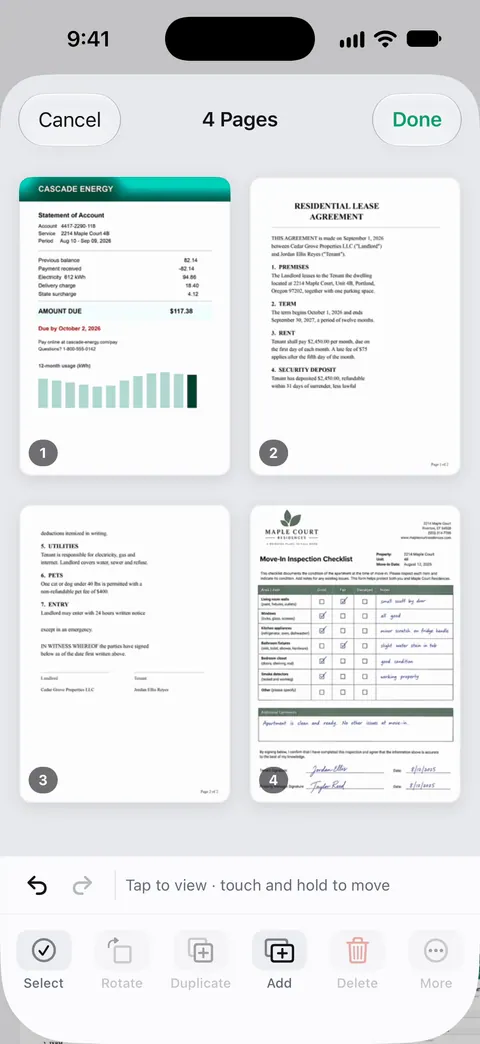
In the Pages sheet you drag a page to a new place. Text recognition runs on every page for everyone, free or Pro. So the words in your screenshots become searchable in your library. The PDF tools merge, split, compress, password-protect, add page numbers and watermarks, and extract text.
The limits:
- On a free account, pages you share, print or export carry a small “Scanned with Scanner One” label at the bottom right. Pro removes it.
- Free accounts can run the PDF tools and the Word, Excel and CSV exports 3 times a week, from one shared allowance.
- A screenshot shows what was on screen, nothing more. If you need the original file (an emailed PDF, a receipt from a website), save that instead.
Questions and answers
Can I save a screenshot as a PDF on iPhone?
Yes, when the screenshot offers Full Page, as it does in Safari. Tap the thumbnail, tap Full Page, then tap the Selected button and choose Save PDF to Files.
Why don’t I see Full Page?
Full Page only appears for content longer than the screen, such as a web page in Safari. For other apps, take several screenshots and combine them into one PDF.
How do I combine screenshots into one PDF in the right order?
Make a PDF from the first screenshot in Preview, then add the others with Insert from File. Drag the thumbnails to reorder them, and check the page count at the end.
Where do my screenshots go?
To your photo library. In Photos, tap Collections, scroll to Media Types and tap Screenshots to see them all.
Sources
What this page says about Scanner One was checked against the app on .
- Apple iPhone User Guide, Take a screenshot on iPhone (iOS 26) — Full Page, the Crop button, Save to Photos and Save PDF to Files from the Selected button; undated guide page, read 2026-11-13
- Apple iPhone User Guide, Take a screenshot on iPhone (iOS 27) — Full Page, cropping, saving with the Selected button; screenshots saved to Photos under Media Types; undated guide page, read 2026-11-13
- Apple iPhone User Guide, Export or compress PDFs and images in Preview on iPhone — exporting an image as a PDF; undated guide page, read 2026-11-13
- Apple iPhone User Guide, Add, delete, rotate, move, or crop PDF pages in Preview on iPhone — Show Sidebar, Insert from File, moving and deleting pages; undated guide page, read 2026-11-13
- Scanner One on the App Store — the app’s own listing
Get Scanner One
Scanner One is free, with generous limits: scanning, clean PDFs and text search never stop.

Scanner OneScan, sign and ask anything
Scanner One is free, with generous limits: scanning, clean PDFs and text search never stop.