
Guide
Save an email as a PDF on iPhone
In Mail, open the email, tap the Reply button, then tap Print. On the Print Options screen, tap the Share button at the top (if your iOS version shows it) and choose Save to Files: the email is saved as a PDF. If the receipt or ticket is an attachment, touch and hold it and choose Save to Files instead. Check that the sender, date and subject show at the top before you rely on it.

People save emails as PDFs to keep proof: an order confirmation, a booking, a refund promise, a letter from a landlord or an employer. A PDF stays readable after the account is closed or the email is deleted, and it can be attached, printed or filed with other papers.
Save an email as a PDF from Mail
The Mail app doesn’t have a “Save as PDF” command, but its print options turn the email into a PDF you can save.
- Open the email in Mail.
- Tap the Reply button, then tap Print. (If you don’t see Print, swipe up on the menu.)
- The Print Options screen shows a preview of the pages.
- Tap the Share button at the top of the Print Options screen, then choose Save to Files and pick a folder.
Apple’s printing pages describe steps 1 to 3 but not the Share button, which appears on Print Options in recent iOS versions. If your screen doesn’t have it, use the screenshot route below.
The PDF normally shows the email header (from, to, date and subject) above the message. Open it in Files and check. If someone needs to trust it as proof, those lines matter as much as the message.
When the receipt is an attachment
Many confirmations arrive as a PDF attached to a short email. In that case the attachment is the document to keep.
- Open the email in Mail.
- Touch and hold the attachment.
- Choose Save to Files (or Save Image if it’s a picture), and pick a folder.
To find old messages with attachments, tap the Toggle Filtering button in a mailbox, tap Filtered by, and turn on Only Mail with Attachments.
If you need it on paper as well
Some offices, courts and landlords still want a printed copy. The same Reply > Print route sends the email to a printer: tap No Printer Selected on Print Options and choose an AirPrint printer on the same Wi-Fi network. To print an attachment, tap it to view it, tap the actions button at the top, and choose Print. Print Center, in the App Switcher, shows the job and lets you cancel it.
Save the PDF first anyway. A paper copy can be lost, and you can always print the PDF again later.
If the attachment needs to be read alongside the email (“as discussed, attached is…”), save both: the email as a PDF and the attachment, with the same date in both names.
The screenshot route
If the Print Options screen has no Share button, a full-page screenshot is the fallback.
- Open the email and take a screenshot: press the side button and the volume up button together (side and Home on an iPhone with a Home button).
- Tap the thumbnail. If Full Page appears, tap it to capture the whole email.
- Tap the Selected button and choose Save PDF to Files.
Apple’s example of Full Page is Safari, and not every app offers it. When it’s missing, take several ordinary screenshots and combine them as in the guide to turning screenshots into a PDF. A screenshot can’t be searched as easily as text, so prefer the print route when you have it.
Make the PDF useful as proof
- Name it so you can find it: date first, then who and what, such as “2026-11-02 Airline refund confirmation”. The guide to naming scanned documents has a simple scheme.
- Keep the whole thread when the agreement is spread over several replies. Save the last email, which usually quotes the earlier ones, and check the quoted part is visible.
- Don’t edit it. A PDF that looks altered loses its value. If you need to point something out, write it in a separate note.
- Keep the original email too. Don’t delete it from Mail after saving the PDF. For disputes, the original message is the better evidence.
- Store it with the related papers: the receipt with the warranty, the booking with the travel documents.
For texts rather than emails, see saving text messages as a PDF. For a web page, like an online order status, see saving a web page as a PDF.
Where Scanner One helps, and where it doesn’t
Saving the PDF to Files is free and works. If you save an email as proof once in a while, that’s enough.
Scanner One helps when these PDFs pile up and you need to find one months later. From the same share sheet on Print Options, you can send the email to the app instead of to Files. Other apps can send a file to Scanner One with Save to Scanner One in their share sheet. Search looks inside the text of every document and shows the matching line and page. So you search for an order number or a name and land on the email that mentions it.
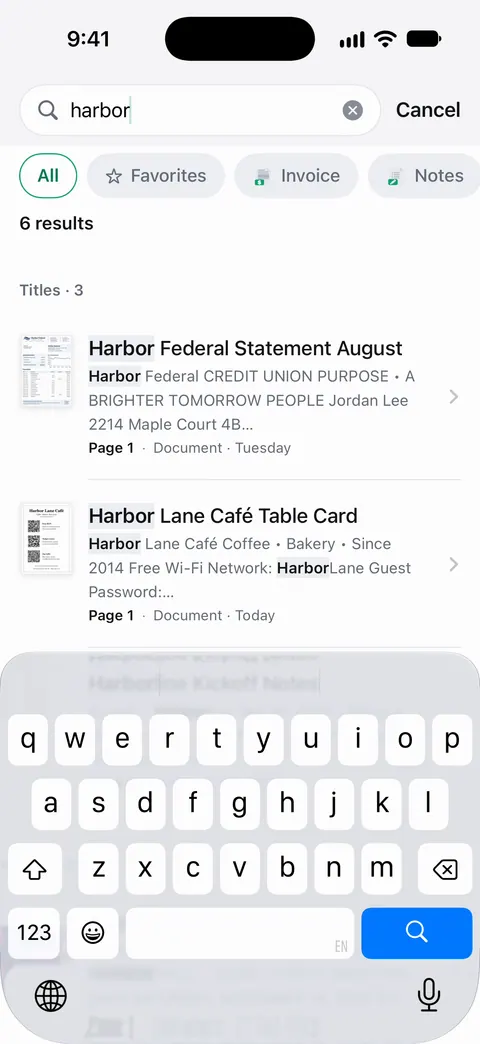
Then it reads the text, names the document, tags it and puts it in the right folder. That puts a refund confirmation next to the receipt you scanned for the same purchase. See finding a document by a word inside it.
The limits:
- Free accounts get smart filing for 10 documents a month.
- On a free account, pages you share, print or export carry a small “Scanned with Scanner One” label at the bottom right. Pro removes it. If the PDF is proof for someone else, keep that in mind before you share it.
- Scanner One doesn’t read your mailbox. You send it each email you want to keep.
Questions and answers
Is there a Save as PDF button in iPhone Mail?
Not by that name. The route is Reply, then Print, which opens Print Options. On recent iOS versions that screen has a Share button that passes the email on as a PDF; choose Save to Files there.
Can I save several emails into one PDF?
Save each one as a PDF, then combine them in Preview with Insert from File, or follow the guide to merging PDFs. Put them in date order so the thread reads naturally.
Will the PDF show who sent the email and when?
The print version of an email normally includes the header with the sender, recipient, date and subject. Open the PDF and check before you send it as proof.
Does saving as PDF keep the attachments?
No. The PDF shows the email’s text, not its attached files. Save each attachment separately: touch and hold it and choose Save to Files.
Sources
What this page says about Scanner One was checked against the app on .
- Apple iPhone User Guide, Print an email or attachment in Mail on iPhone — Reply button, then Print; printing an attachment; undated guide page, read 2026-11-13
- Apple iPhone User Guide, Print from iPhone — Print from the Share, More, Reply or Actions Menu button; swipe up if Print isn’t shown; Print Center; undated guide page, read 2026-11-13
- Apple iPhone User Guide, Download email attachments in Mail on iPhone — touch and hold an attachment: Save Image, Save to Files, or Share; the attachments mailbox and filter; undated guide page, read 2026-11-13
- Apple iPhone User Guide, Take a screenshot on iPhone (iOS 26) — Full Page and Save PDF to Files; undated guide page, read 2026-11-13
- Scanner One on the App Store — the app’s own listing
Get Scanner One
Scanner One is free, with generous limits: scanning, clean PDFs and text search never stop.

Scanner OneScan, sign and ask anything
Scanner One is free, with generous limits: scanning, clean PDFs and text search never stop.