
Guide
Scan a driver’s license, front and back
Lay the license on a dark surface, turn the flash off, and use Scan Documents in Notes, Files or Preview. Capture the front, flip the card in the same spot, capture the back, then tap Done to get one PDF with both sides. Keep it in color, check that the number and dates are sharp, write who the copy is for across a corner, and send it only to the person who asked. A copy rarely replaces the card itself at a counter.

This page is about one card and the requests that come with it: a landlord, an employer, a rental form or an insurance company asking for “a copy of your driver’s license”. If a form wants both sides printed on a single sheet, that layout has its own guide: scanning both sides of an ID card onto one page.
Before you scan: what are they asking for?
A copy of a driver’s license usually does one of three jobs, and each needs something slightly different.
- Proof of identity for a file. A landlord or employer wants to see your name, photo and date of birth match the application. Both sides in color, readable, is the safe default.
- Proof of a valid license. A rental form, a car-sharing service or an insurer wants the license number, the class and the expiry date. Check that those are sharp on the scan.
- Proof of address. Some offices use the address on the license. If yours is out of date, the copy will not help, and a utility bill may be better. See proving your address.
Where you show ID in person, such as a rental counter or a bank, a scan on your phone is usually not accepted in place of the card. Apple says the same of its own digital IDs: an ID in Apple Wallet is not a replacement for a physical ID that may still be needed. Wallet IDs exist only for licenses from participating states, and they are something you present, not a file you can send.
Scan both sides into one PDF
- Lay the license on a plain, dark surface, such as a dark table or a folder. A light card on a dark background gives the scanner a clear edge.
- Start a scan. In Notes, open a note, tap the Attachments button, then Scan Documents. In Files, tap the More button, then Scan Documents. In Preview (iOS 26 and later), tap Scan Documents.
- Turn the flash off. On iOS 26 and later the flash and filter options are on the scanning screen.
- Capture the front. A wallet-sized card can be too small for Auto mode to lock on, so switch to manual capture: in Preview tap Auto so it reads Manual, then tap the Shutter button. Drag the corners onto the card’s corners and tap Keep Scan.
- Flip the card over in the same spot and capture the back the same way.
- Tap the Done button. In Files, pick a folder and tap Save.
You now have a 2-page PDF: front first, back second. Give it a name that says what it is and who it is for, such as “Driver’s license, front and back, for Elm Street lease”.
Check it before you send it
Zoom in on the scan, not the card. You should be able to read:
- the license number, every digit;
- the issue and expiry dates;
- your name and address exactly as printed;
- any restriction or endorsement codes on the back.
If one of these is blurred or covered by a white patch, tilt the card slightly, or move away from the lamp, and scan that side again. Tap the thumbnail to recrop or retake one page without starting over.
Keep it in color
The colors, the background pattern and the photo are part of what makes a license look genuine. A black-and-white copy is more likely to be questioned. Leave the filter on color or the original.
Mark the copy for one use
A clean, unmarked license copy is useful to anyone who gets it. The FTC lists what thieves do with personal information, from opening accounts in your name to getting medical care, and a license copy carries your full name, date of birth, address and signature. A short label makes the copy less useful for anything else.
- Open the PDF in Preview.
- Tap the Markup button, tap the Add button, then choose text.
- Type something like “Copy for Elm Street lease application, Nov 2026” and drag it across a corner of the card. Don’t cover the photo, the number or the dates they need.
The full method, including a watermark that runs across the whole page, is in watermarking a copy of your ID. Our free watermark an ID copy tool does it in your browser.
Hide what they don’t need
If the person only needs to see your name and photo, they may not need the license number or your full address. Ask. When they agree, cover those parts before sending. A black box drawn in Markup can sometimes be removed from a PDF, so use real redaction. Redacting a driver’s license or passport copy explains what is safe to hide and how.
Send it, then tidy up
- Use their upload form if they have one. It is usually better than email.
- Lock the PDF if it will sit in an inbox. In Preview, tap the Actions menu next to the file name, tap Lock, enter the same password in both fields and tap Done. Apple suggests making a duplicate first if you want to keep an unlocked copy. Tell them the password by phone or text, not in the same email.
- Delete what you don’t need. If you photographed the card with the Camera instead of scanning, delete those photos from your library and from Recently Deleted.
For a rental application, the license is one paper among many: see the documents to rent an apartment. If your wallet was stolen and the license is gone, a scan you kept helps with the report: start with what to do when your IDs and cards are stolen, and report misuse at IdentityTheft.gov, as the FTC advises.
Where Scanner One helps, and where it doesn’t
The built-in scanners make one page per side. ID cards and passports are scanned with both sides on one printable page. That is the layout landlords and HR offices often ask for when they say “both sides on one page”. From Home you can bring in pictures from Photos and files from the Files app, or scan an ID card.
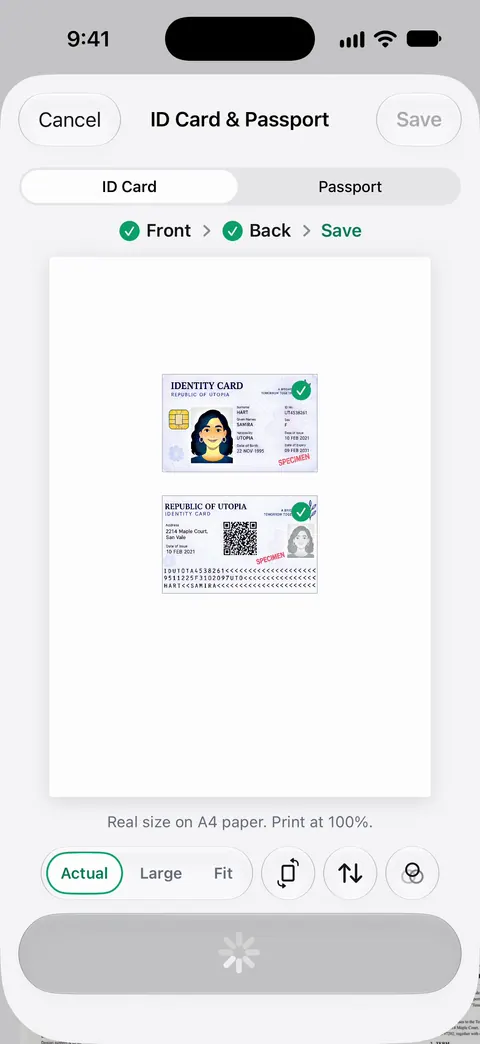
For marking and trimming the copy: The PDF tools merge, split, compress, password-protect, add page numbers and watermarks, and extract text. A watermark such as “Copy for lease application” goes across the whole page. Redaction is permanent. Pro adds redaction, the smart eraser, edit text, auto-export and five alternate app icons. So hiding the license number with redaction needs Pro.
The limits: Free accounts can run the PDF tools and the Word, Excel and CSV exports 3 times a week, from one shared allowance. On a free account, pages you share, print or export carry a small “Scanned with Scanner One” label at the bottom right. Pro removes it. Documents stay on your iPhone unless you share them or turn on iCloud Sync. You can lock the app with Face ID.
What it doesn’t do: it doesn’t make a scan into an ID you can show at a counter, and it can’t tell you whether a landlord or office will accept a copy. When the built-in way is enough: if a 2-page PDF is fine and you send a license copy once a year, Notes, Files or Preview does the job well. More on the card mode in ID cards and passports.
Questions and answers
How do I scan the front and back of my driver’s license on iPhone?
Open Notes, Files or Preview and start Scan Documents. Capture the front, flip the card in the same place, capture the back, then tap Done. You get one PDF with the front on page 1 and the back on page 2.
Is a scan of my driver’s license the same as the license?
No. A scan is a copy for someone’s file, such as a landlord or an online form. Where you have to show ID in person, they usually want the card itself, and Apple notes that even an ID in Wallet does not replace the physical card.
Should I send a copy of my driver’s license by email?
Only to someone who really needs it, and through their secure upload if they have one. Write who the copy is for and the date across a corner, and lock the PDF with a password if it will sit in an inbox.
Why is there a white spot on my license scan?
The flash or an overhead lamp is reflecting off the laminate. Turn the flash off, move to soft daylight, and tilt the card a few degrees until the spot moves off the photo and the numbers.
Do I need the back of my driver’s license?
Often, yes. The back usually carries the barcode, endorsements or restrictions, and many forms ask for both sides. If the request only says front, send the front only.
Sources
What this page says about Scanner One was checked against the app on .
- Apple Support, Scan documents on your iPhone or iPad (article 108963) — Notes and Files scanning steps, Auto mode, Keep Scan, flash and filters on iOS 26; page dated 2026-02-13
- iPhone User Guide (iOS 27), Scan text and documents in Preview — Preview scanning, Auto to Manual, adjusting a scan from its thumbnail; read 2026-11-13
- iPhone User Guide (iOS 27), Annotate a PDF or image in Preview — adding text to a PDF in Preview; read 2026-11-13
- iPhone User Guide (iOS 27), Lock PDFs in Preview — locking a PDF with a password and keeping an unlocked duplicate; read 2026-11-13
- Apple Support, Add your driver’s license to Apple Wallet (article 111803) — ID in Wallet is in select states and is not a replacement for a physical ID; published 2026-10-26
- FTC Consumer Advice, What to know about identity theft — what thieves do with personal information and reporting at IdentityTheft.gov; dated September 2024
- Scanner One on the App Store — the app’s own listing
Get Scanner One
Scanner One is free, with generous limits: scanning, clean PDFs and text search never stop.

Scanner OneScan, sign and ask anything
Scanner One is free, with generous limits: scanning, clean PDFs and text search never stop.