
Guide
Watermark a copy of your ID before you send it
Scan your ID, then write across the copy who it’s for, what it’s for and the date, for example "Copy for Oak Street Rentals, rental application only, 13 Nov 2026." On iPhone, open the scan in Files or Preview, tap the Add button, choose Add Text, type the line, make it large and semi-transparent in a light color, and drag it across the card without hiding the photo or name the recipient needs. The Dutch government recommends the same: mark it as a copy, its purpose and the date.

Landlords, employers, hotels, car rental desks and online services ask for a copy of your passport or driver’s license. Once you send it, you can’t control where it ends up. A watermark makes that copy less useful to anyone else: it says who it was for and when. This page is about watermarking an ID copy. For watermarking other documents, see the guide to adding a watermark to a PDF.
What to write on the copy
The Dutch government’s advice on ID copies is one of the clearest official sources on this. It suggests writing on the copy:
- That it is a copy.
- Which organization or purpose it’s for, such as a rental application or a job.
- The date you issue the copy.
A good watermark line puts all three together:
COPY for Oak Street Rentals, rental application only, 13 Nov 2026
The same page advises covering details the recipient doesn’t need, such as your photo, signature or national ID number, when they aren’t required. That’s a separate step from watermarking, covered in the guide on what to black out on an ID copy.
Step 1: Make a clean scan
Start with a sharp, straight copy:
- Scan the card flat on a dark surface so the edges stand out.
- For a driver’s license, put front and back on one page; the guide to scanning an ID front and back shows how.
- For a passport, scan the photo page. The guide to scanning a passport covers glare on the laminate.
Then make a copy to watermark, so you keep a clean original for yourself. In Preview, tap the Actions Menu button next to the filename and tap Duplicate. Rename the duplicate with Rename from the same menu, such as “Passport copy for Oak Street.”
Step 2: Add the watermark with Markup
- Open the duplicate in Files or Preview, and tap the Markup button.
- Tap the Add button, then tap Add Text.
- Type your line: COPY, who it’s for, what for, and the date.
- Use the text tools to make it large and pick a color that contrasts with the card but doesn’t hide it, such as mid-gray or light red.
- Drag the text so it runs across the card. Pinch open to zoom in while you place it.
- For more coverage, tap the text box, tap the More button, tap Duplicate, and drag the copy to another part of the card.
A handwritten line instead
If you’d rather draw it, tap the marker, tap it again and drag the opacity slider down so the mark is see-through, then write across the card. Typed text is easier to read, but a handwritten line is harder to edit out neatly.
Where to put it
The point is that the mark can’t be cropped off without spoiling the copy.
- Across the card, not in the margin. A watermark on the white space around the card can simply be cut away.
- Over part of the photo or the edge of the details, but light enough that the recipient can still read your name, the photo and the document number if they need them.
- Not over the expiry date or the face so heavily that the copy can’t do its job.
If the recipient can’t read what they need, they’ll ask again, and you’ll end up sending a second copy. That second copy is one more file you don’t control.
Step 3: Send it
- An image can be safer than a PDF. Text added with Markup to a PDF can sometimes be selected and removed in a PDF editor. Exporting the watermarked copy as a JPG or PNG makes the mark part of the picture. The guide to converting a PDF to JPG has the steps.
- Send it through the channel the organization asked for, such as their upload portal, rather than a loose email if you can.
- Should you email it at all? The page on whether to email a copy of your passport weighs it up.
Our free ID copy watermark tool does the same job in your browser.
When not to watermark
Some organizations need the copy exactly as issued, such as a government agency or a bank checking your identity under its own rules. If the instructions say so, follow them, and ask what they’ll do with the copy and how long they’ll keep it. For everyday requests, a watermark is a sensible habit.
Where Scanner One helps, and where it doesn’t
Markup in Files or Preview is enough to watermark one ID copy, and it’s free.
Scanner One puts the scan and the watermark in one place. ID cards and passports are scanned with both sides on one printable page. Then the Watermark tool writes your words across the page. The PDF tools merge, split, compress, password-protect, add page numbers and watermarks, and extract text.
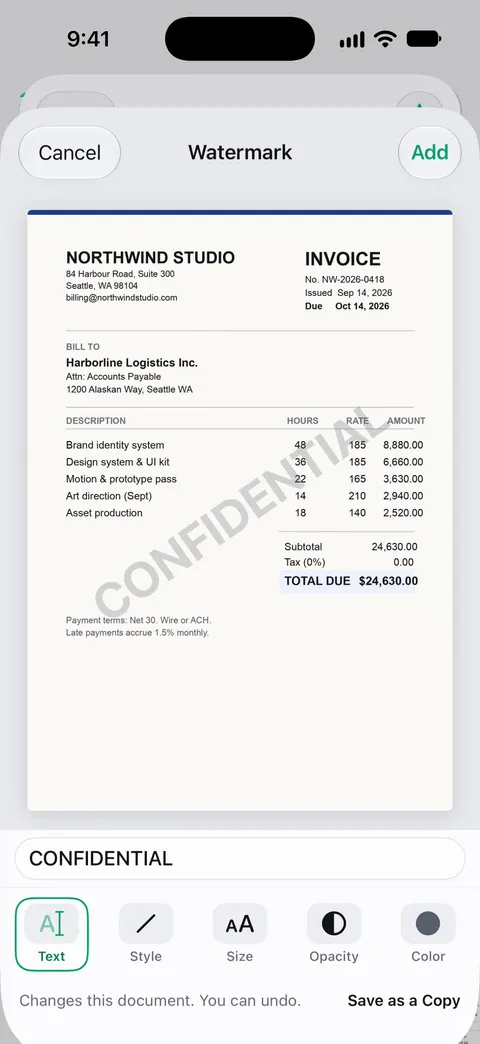
You can then send the copy as an image or a PDF. Share & Export saves a document as a PDF, Word, Excel, PowerPoint, JPG, PNG, a long image, plain text, Markdown, Rich Text, a web page or CSV.
The limits, plainly:
- Free accounts can run the PDF tools and the Word, Excel and CSV exports 3 times a week, from one shared allowance. Pro removes every limit.
- On a free account, pages you share, print or export carry a small “Scanned with Scanner One” label at the bottom right. Pro removes it. That label is separate from your own watermark.
- To hide details rather than mark the copy, you need redaction. Redaction is permanent. Pro adds redaction, the smart eraser, edit text, auto-export and five alternate app icons.
Questions and answers
What should I write on a copy of my ID?
Who it’s for, what it’s for and the date. For example: "Copy for Oak Street Rentals, rental application only, 13 Nov 2026." That’s the same information the Dutch government suggests: that it’s a copy, its purpose and the date.
Will a watermark make my ID copy unacceptable?
For most landlords, employers and hotels, no, as long as the photo, name and the details they need are still readable. If the organization says it needs an unaltered copy, ask what it will be used for before you send one.
Does a watermark stop someone from using my ID?
Not completely. It makes a copy less useful to anyone else, because it shows who it was for and when, and a cropped or edited copy looks suspicious. Hiding details they don’t need, and not sending a copy at all when you can avoid it, matter more.
Can the watermark be removed?
Text added with Markup can sometimes be selected and deleted by someone with a PDF editor. Sending an image (JPG or PNG) rather than a PDF makes the mark part of the picture.
Is the Watermark tool free in Scanner One?
Free accounts can run the PDF tools and the Word, Excel and CSV exports 3 times a week, from one shared allowance. Pro removes every limit.
Sources
What this page says about Scanner One was checked against the app on .
- Government of the Netherlands, How do I prevent a copy of my ID being used for fraudulent activities? — write on the copy that it is a copy, which authority or product it is for and the date you issue it; cover details the recipient doesn’t need; undated, read 2026-11-13
- Government of the Netherlands, How do I make a secure copy of my ID using the KopieID app? — a watermark stating the purpose and date of the copy makes a leaked copy harder to misuse; undated, read 2026-11-13
- Apple iPhone User Guide, Add text, shapes, stickers, and more with Markup on iPhone — Add Text with font, size, style and color tools; the More button to duplicate; zooming; undated, read 2026-11-13
- Apple iPhone User Guide, Draw and handwrite with Markup on iPhone — changing a drawing tool’s opacity with the slider and its color with the Color Picker; undated, read 2026-11-13
- Apple iPhone User Guide, Save, rename, or move PDFs and images in Preview on iPhone — Duplicate and Rename from the Actions Menu button; undated, read 2026-11-13
- Scanner One on the App Store — the app’s own listing: the PDF tools, watermarks among them; ID cards on one page
Get Scanner One
Scanner One is free, with generous limits: scanning, clean PDFs and text search never stop.

Scanner OneScan, sign and ask anything
Scanner One is free, with generous limits: scanning, clean PDFs and text search never stop.