
Guide
Upload a resume or cover letter from your iPhone
Save your resume to the Files app as a PDF (or Word, if the job asks for it), with a clear name like "Maria Lopez Resume.pdf". On the application, tap the upload button, choose Choose Files, find the file and tap it. On LinkedIn, tap Easy Apply and add it under Resume; LinkedIn recommends Word or PDF under 2 MB. If your resume is in Pages, tap the More button, Export, then PDF first.

Most job applications today end with the same box: “Upload resume”. On an iPhone that box works fine, as long as your resume is a real file in the right place before you start. This guide covers getting it there and attaching it, plus the scanned papers some applications ask for. For the documents an employer asks for after the offer, see new job paperwork.
Get your resume into Files
The upload box can only reach files on your iPhone or in a cloud drive. Where your resume lives decides the first step.
| Where it is now | What to do |
|---|---|
| A PDF someone emailed you, or you emailed yourself | Open the attachment, tap Share, choose Save to Files |
| A Pages document | Export it as PDF or Word (below) |
| A Word or Google Docs file | Export or download it as PDF from that app, into Files |
| On your computer | Save it to iCloud Drive or another cloud drive you use on the iPhone |
| Paper only | Scan it to PDF (see the last section) |
Make a folder called “Job applications” in iCloud Drive or On My iPhone, and keep the current version of your resume and cover letter there.
Export from Pages
Apple’s steps for Pages on iPhone:
- Open the resume in Pages.
- Tap the More button in the toolbar, tap Export, then tap PDF (or Word, if the posting asks for it).
- Choose Save to Files from the sending options, pick your job folder, and save.
Apple notes that if your Pages document has a password, the exported PDF and Word copies get the same password. Remove it first: a recruiter’s system can’t open a locked resume. If you write in Word, the Word to PDF guide covers it.
Name it like a professional
The file name is the first thing a recruiter sees.
- Good: “Maria Lopez Resume.pdf”, “Maria Lopez Cover Letter Acme.pdf”
- Not good: “resume final FINAL 3.pdf”, “IMG_4412.pdf”, “Document.pdf”
Keep it to letters, numbers and spaces. Some application systems choke on unusual symbols.
Attach it to an application
On a company’s website
- Tap the upload button (it may say Upload, Attach, Browse or Choose File).
- Tap Choose Files. Apple lists three choices on a phone: Photo Library, Choose Files and Take Photo or Video. Photo Library only shows photos, so your PDF won’t be there.
- Tap Browse if you need to, open your job folder and tap the resume.
- Wait for the file name to appear on the form before you go on.
If the site offers to fill in the form from your resume, check every field it filled. These systems misread layouts with columns or tables, and fixing it now is quicker than explaining later.
On LinkedIn
LinkedIn’s help says to open the job and tap Easy Apply, then add your resume under the optional Resume section. LinkedIn recommends a file size under 2 MB, in Word or PDF. If the job shows Apply instead of Easy Apply, you’re sent to the company’s own website or job board: use the steps above.
If the upload fails
- “File too large.” Usually a photo or a large logo in the resume. Remove it, or export a smaller copy in Preview (Actions Menu, Export, PDF, turn on Optimize Images for Screen). Check it still looks sharp.
- “Unsupported file type.” The site wants Word, PDF or plain text. Export again in the right format.
- The page doesn’t react after you pick the file. You may be in a browser inside another app, like a job alert email. Open the link in Safari and try again.
- Your layout looks wrong in the preview. A PDF keeps your layout; a Word file can shift on the employer’s computer if they don’t have your fonts.
Scanned papers some applications ask for
Some postings want more than a resume: a certificate, a license, a signed reference form, a transcript. These are usually on paper, so scan them:
- Open Files, go to your job folder, tap the More button, then Scan Documents.
- Capture each page, tap Done, then Save.
- Name it clearly: “Maria Lopez Forklift Certificate.pdf”.
Upload it the same way as your resume. For a diploma or certificate, see scanning a diploma or certificate. When an application asks for a whole set of papers at once, the situation guide job application asks for documents walks through it.
Where Scanner One helps, and where it doesn’t
For the resume itself, Pages, Word or Google Docs plus the Files app are all you need. Scanner One isn’t a resume editor.
It helps with the paper and the file formats around it. The To PDF tool turns files and photos into PDFs. So a Word resume someone sent you, or a photo of a certificate, becomes a PDF you can upload. Scanner One exports to Word, keeping headings, lists and tables, and to Excel and CSV. That helps when an employer asks for a Word copy of something you only have as a PDF.
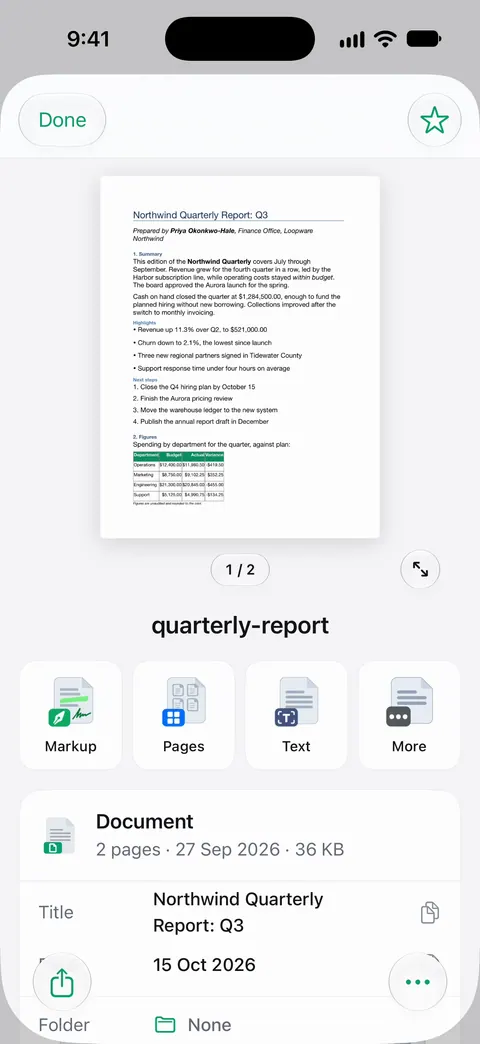
Point your camera at any piece of paper. Scanner One finds the edges, straightens the page, cleans it up and saves a real PDF.
The limits, plainly:
- On a free account, pages you share, print or export carry a small “Scanned with Scanner One” label at the bottom right. Pro removes it. For a resume, a converted file from a free account carries that label, so export resumes from your writing app instead, or use Pro.
- Free accounts can run the PDF tools and the Word, Excel and CSV exports 3 times a week, from one shared allowance. Pro removes every limit.
- It doesn’t write, format or check your resume, and it doesn’t apply to jobs for you.
More guides on papers and applications are in Guides.
Questions and answers
Should I upload my resume as a PDF or a Word file?
Use what the posting asks for. If it doesn’t say, a PDF keeps your layout exactly as you made it. Some application systems read Word files more reliably, so if a site offers to fill in the form from your resume and gets it wrong, try the Word version.
Why can’t I find my resume when I tap upload on my iPhone?
You may have opened Photo Library, which only shows photos. Tap Choose Files instead. If the resume is attached to an email, save it to Files first: open the attachment, tap Share and choose Save to Files.
How big can my resume file be?
LinkedIn recommends under 2 MB, and many job sites set similar limits. A text resume exported from Pages or Word is usually far smaller. If yours is large, a big photo or logo is usually the cause.
Can I apply for jobs only from my phone?
For most postings, yes. Keep your resume and a cover letter as files in Files, and you can attach them from any job site or app. Long forms are easier on a computer, but they aren’t required.
Sources
What this page says about Scanner One was checked against the app on .
- LinkedIn Help, Upload your resume to LinkedIn — recommends a file under 2MB, Microsoft Word or PDF; Easy Apply and the Resume section; Apply buttons go to the company’s site; read 2026-11-13
- Pages for iPhone User Guide, Convert to Word, PDF, or another file format — Export as PDF or Word (.docx); a password on the original applies to exported copies; undated guide page, read 2026-11-13
- iCloud User Guide, Upload and download files from iCloud Drive on iCloud.com — on a phone, a web upload offers Photo Library, Choose Files or Take Photo or Video; undated guide page, read 2026-11-13
- iPhone User Guide, Export or compress PDFs and images in Preview on iPhone — export a smaller PDF with Optimize Images for Screen; undated guide page, read 2026-11-13
- Scanner One on the App Store — the app’s own listing: To PDF and the Word export
Get Scanner One
Scanner One is free, with generous limits: scanning, clean PDFs and text search never stop.

Scanner OneScan, sign and ask anything
Scanner One is free, with generous limits: scanning, clean PDFs and text search never stop.