
Guide
Convert a Word file to PDF on iPhone
Open the Word file in Pages, tap the More button, tap Export, then tap PDF and choose where to save or send it. Pages opens .doc and .docx files, and the original stays as it is. If you have the Microsoft Word app, tap File, then Export, then PDF. Either way is enough for most documents; check the PDF once before you send it.

Convert a Word file to PDF with Pages
Pages is Apple’s word processor, and it opens Microsoft Word files (.doc and .docx) on iPhone. Exporting to PDF makes a new file; the Word document stays as it was.
- Open the Files app, touch and hold the Word file, tap Open With, then choose Pages. Or open Pages and find the file under Browse or Recents.
- If a missing-font notice appears at the top, tap it, tap Resolve Font Warnings, then tap Resolve. This picks a replacement font for the PDF.
- Tap the More button in the toolbar, tap Export, then tap PDF. In current versions Apple describes the same step as the Share button, then Export and Send, then PDF.
- If the document has comments or smart annotations and you want them in the PDF, turn on that option, then tap Export.
- Choose what to do with the copy: Save to Files to keep it, or Mail or Messages to send it.
Documents you receive may open in reading view. You don’t need to switch to editing to export, but you do if you want to change anything first: tap Edit at the top of the screen.
Convert with the Microsoft Word app
If you have Microsoft Word on your iPhone, it exports PDF directly. Microsoft’s steps for iOS:
- Open the document in Word.
- Tap the File button at the top left.
- Tap Export, then tap PDF.
If a document looks different in Pages than the sender described, for example a heavily formatted template or a form built with Word’s own features, try Word’s export and compare the two PDFs.
If the file won’t open or looks wrong
- The file is dimmed in Pages. Apple says a dimmed file isn’t in a format that app can open. Check that it really is a .doc or .docx file, not a different format with a similar icon.
- It opens but you can’t change anything. Documents you receive may open in reading view. Tap Edit at the top of the screen.
- The fonts are wrong. Pages shows a missing-font notice and swaps in a font you have. Apple notes you can download fonts from the App Store and install them on your iPhone, or you can accept the swap and check the layout.
- It came as a link, not a file. A document shared from OneDrive or Google Drive may open in a browser. Download it to Files first, then open it in Pages or Word.
Check the PDF before you send it
Converting is quick. Checking takes a minute and saves a resend.
- Fonts: if Pages swapped a font, line and page breaks may have moved. A signature line can end up alone at the top of a page.
- Tables: look for columns that run off the edge or rows split across pages.
- Headers and footers: make sure page numbers and the date in the footer are right. To add numbers to a PDF that has none, see how to add page numbers to a PDF.
- Comments and tracked changes: decide whether the reader should see them. In Pages they go into the PDF only if you turn the option on.
- Images: check that logos and photos came through and aren’t cropped.
Open the PDF in Files or Preview and scroll through every page once.
Other files you can turn into a PDF
The same idea works for more than Word files:
- A Pages document: the steps above, starting from step 3.
- A note: in Notes, tap the Share button, then Markup, then Done to save the note as a PDF. Apple notes that a multi-page PDF or scan inside the note exports only its first page.
- Photos: see how to turn photos into a PDF.
- Paper: scan it. The guide to scanning to PDF has the steps for Notes, Files and Preview.
After the PDF: protect, shrink, sign
A PDF is usually headed somewhere. Three things people do next:
- Add a password when the document holds personal details: password-protect a PDF. A password set on the Pages document carries over to its PDF.
- Make it smaller if it has photos and has to go by email: make a PDF small enough to email.
- Sign it if it’s a form or a letter: sign a PDF on iPhone.
Where Scanner One helps, and where it doesn’t
If you have Pages or Word, use them: they handle Word files faithfully, cost nothing and add nothing to the page.
Scanner One is useful when the Word file is one of several things you’re putting together, such as a cover letter that goes in front of scanned pages. The To PDF tool turns files and photos into PDFs. Other apps can send a file to Scanner One with Save to Scanner One in their share sheet.
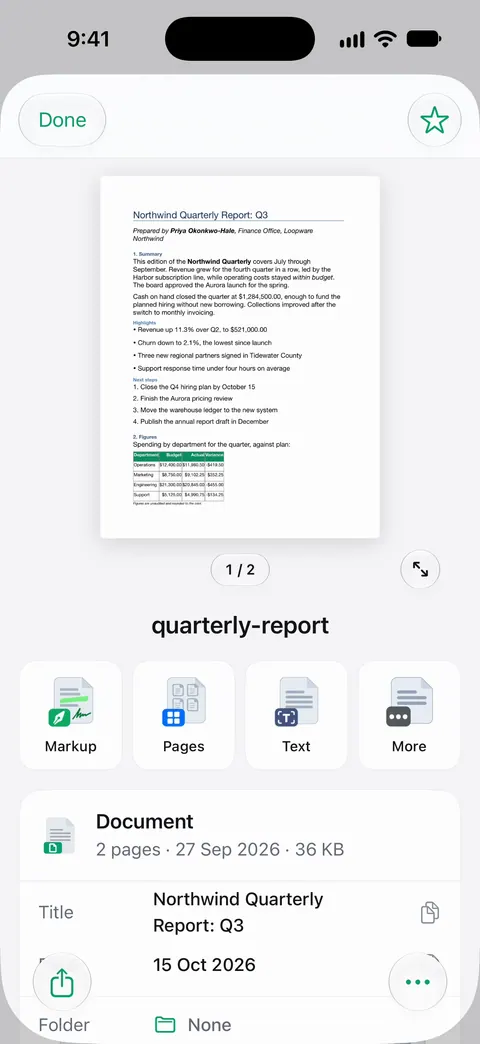
Once the PDF is in the app, the PDF tools work on it. The PDF tools merge, split, compress, password-protect, add page numbers and watermarks, and extract text.
The limits:
- Free accounts can run the PDF tools and the Word, Excel and CSV exports 3 times a week, from one shared allowance. Pro removes every limit.
- On a free account, pages you share, print or export carry a small “Scanned with Scanner One” label at the bottom right. Pro removes it.
- When a document depends on fonts or Word features, compare the PDF with the original before you send it, whichever app made it.
The PDF tools feature page shows what else you can do with the file.
Questions and answers
Can I convert Word to PDF on iPhone without Microsoft Word?
Yes. Apple’s Pages app opens .doc and .docx files and exports them as PDF. It changes nothing in the original Word file: the PDF is a new copy.
Why does my PDF look different from the Word file?
Usually a font. If the Word file uses a font your iPhone doesn’t have, Pages warns you and swaps it, which can move line and page breaks. Resolve the font warning, or check the PDF page by page before sending.
Will comments and tracked changes show in the PDF?
In Pages, comments and smart annotations go into the PDF only if you turn on that option when you export. Leave it off for a clean copy.
Does a password on the document carry over to the PDF?
In Pages, yes: Apple says a password on the original applies to copies exported as PDF and Word. To protect a PDF that has no password, see the guide to password-protecting a PDF.
Sources
What this page says about Scanner One was checked against the app on .
- Apple Pages User Guide for iPhone, Open a document in Pages on iPhone — Pages opens .doc and .docx files and can save them as PDF; reading view and missing-font warnings; undated guide page, read 2026-11-13
- Apple Pages User Guide for iPhone, Convert to Word, PDF, or another file format in Pages on iPhone — More, Export, PDF; comments and smart annotations; a password carries over to the PDF; undated guide page, read 2026-11-13
- Apple Support, Convert Pages, Numbers, or Keynote files to Microsoft Word, Excel, PowerPoint, PDF, and more (article 105050) — the Share button, then Export and Send, then Save to Files; a dimmed file is not in a format the app can open; published January 28, 2026
- Microsoft Support, Save or convert to PDF or XPS in Office Desktop apps — on iOS, tap File, then Export, then PDF; undated page, read 2026-11-13
- Apple iPhone User Guide, Find and view files and folders in Files on iPhone — touch and hold a file, then Open With; undated guide page for iOS 26 and 27, read 2026-11-13
- Apple iPhone User Guide, Export or print notes on iPhone — exporting a note as a PDF through Markup; undated guide page for iOS 26 and 27, read 2026-11-13
- Scanner One on the App Store — the app’s own listing
Get Scanner One
Scanner One is free, with generous limits: scanning, clean PDFs and text search never stop.

Scanner OneScan, sign and ask anything
Scanner One is free, with generous limits: scanning, clean PDFs and text search never stop.