
Guide
Draw on and mark up a PDF on iPhone
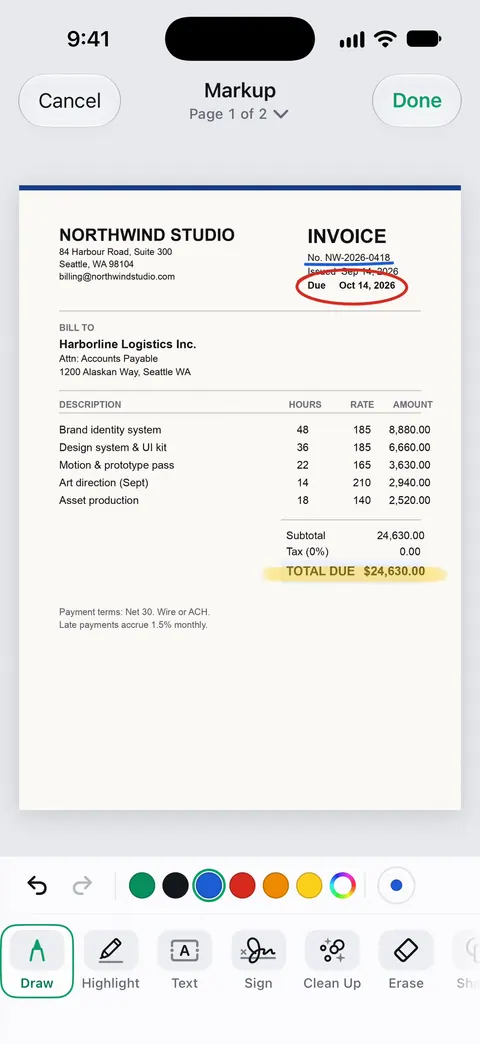
Open the PDF and tap the Markup button. In the Markup toolbar, tap the pen, marker or pencil and draw or write with your finger. Tap the Add button for text, shapes, a signature or a sticker. The ruler draws straight lines, the eraser removes strokes, and the lasso moves them. Markup works on PDFs in Files, Preview, Mail, Notes and Books, and it’s free.

Annotating means adding your own marks on top of a PDF: handwriting, arrows, circles, typed notes. It’s how you give feedback on a draft, point out the line on a bill that’s wrong, or mark homework. iPhone does all of this with Markup, which is built in. If what you want is to highlight existing text, the guide to highlighting a PDF is more specific.
Open Markup on a PDF
Markup appears in several Apple apps. Open the PDF, then:
- Files: tap the PDF to open it, then tap the Markup button.
- Preview (iOS 26 and later): open the PDF and tap the Markup button.
- Mail: tap the attachment in the message, then tap the Markup button.
- Notes: with a PDF in a note, tap the Handwriting Tools button.
- Books: open the PDF, tap the page, then tap the Markup button.
If you don’t see the toolbar, tap Markup. If it’s minimized, tap the small version to open it.
Draw and write by hand
- In the Markup toolbar, tap the pen, marker or pencil.
- Draw or write with your finger. On iPhone Duo you can also use Apple Pencil (USB-C).
- To change how it looks, tap the selected tool again: pick a line weight, or drag the slider to change the opacity.
- To change the color, tap the Color Picker button, choose Grid, Spectrum or Sliders, then pick a color.
The pen is for writing, the marker is wide and see-through for highlighting, and the pencil has a lighter, sketchy line.
Straight lines and clean shapes
- Ruler: tap the Ruler tool, drag it into place with one finger, rotate it with two, and draw along its edge. Tap the tool again to hide it.
- Snapped shapes: draw a circle, arrow, line or box in one stroke and pause. Markup replaces it with a clean version. Tap the Undo button to keep your freehand shape instead.
Fix or move what you drew
- Erase: tap the eraser and scrub over a mark. Tap the eraser again to switch between Pixel Eraser and Object Eraser, which removes a whole stroke with one touch.
- Move: tap the Lasso tool (between the eraser and the ruler), circle the strokes, then touch and hold until they lift up and drag them.
- Recolor or copy: after lassoing, tap Set Fill to change the color, or the More button for Cut, Copy and Duplicate.
Add typed notes, arrows and shapes
Handwriting on a phone screen can be hard to read. For notes someone else will read, typed text is clearer.
- Tap the Add button, then tap Add Text.
- Tap the text box and type your note.
- Use the tools to change the font, size, style or color.
- Tap outside the box when you’re done.
To point at something, tap the Add button, then Add Shape, and pick an arrow, a box or a circle. Drag the dots to resize it, drag a green dot to change its direction, and use the toolbar to change the border, fill and opacity.
Pinch open to zoom in while you place notes, drag two fingers to move around, and pinch closed to zoom back out. The guide to adding text to a PDF covers fonts and sizing in more detail.
Highlight, underline and strike through in Preview
When the PDF has real text, Preview can mark it neatly without drawing:
- Open the PDF in Preview.
- Touch and hold the first word, move the grab points to select the text, then tap Highlight.
- Choose a highlight color, or tap the underline or strike-through button.
To undo, tap the More button, then Undo. On a scan, text won’t select; use the marker instead.
Mark up an email attachment and send it back
Mail can mark up a PDF without saving it first:
- In the message, tap the attachment, then tap the Markup button.
- Draw, write or add text.
- Tap Done, then choose to reply to the sender, start a new message, save the marked-up file to Files, or discard it.
The guide to signing an email attachment uses the same steps for signatures.
Annotations that people understand
- One color for your marks. Red or blue stands out on a black-and-white page. Use a second color only if it means something.
- Number your notes if there are several, and refer to them in your email (“see note 3 on page 2”).
- Circle, don’t scribble. A circle and an arrow to a typed note reads better than handwriting squeezed into a margin.
- Send a copy, keep the original. Marks are saved into the file. Duplicate the PDF first if you need a clean version.
- Don’t use a black marker to hide private details. The text underneath can often still be copied. The guide to redacting a PDF properly explains real redaction.
Where Scanner One helps, and where it doesn’t
For marking up a PDF, Apple’s Markup is complete, free and adds nothing to the page but your marks. Most people never need more.
Scanner One helps when the document is one you scanned or keep in its Library. You can sign and annotate documents. Its Markup has a highlighter and pen, and shape tools for arrows and circles, so you can mark up an invoice or a letter where it’s filed.
The limits, plainly:
- Free accounts can sign and mark up 3 documents a month. Pro removes every limit.
- On a free account, pages you share, print or export carry a small “Scanned with Scanner One” label at the bottom right. Pro removes it. If that label matters, Apple’s Markup adds none.
- Changing the existing words on a page is a different tool, Edit Text. Pro adds redaction, the smart eraser, edit text, auto-export and five alternate app icons.
To compare full PDF editors, including Scanner One, see the PDF editor apps for iPhone.
Questions and answers
How do I write on a PDF on my iPhone?
Open it in Files or Preview and tap the Markup button. Tap the pen or pencil and write with your finger, or tap the Add button and choose Add Text to type. Tap Done when you’re finished.
Can I add comments to a PDF on iPhone like sticky notes?
Apple’s Markup has no sticky-note comment tool. Add a text box next to the passage, with an arrow from Add Shape pointing at it. That reads clearly in any PDF viewer.
How do I erase something I drew on a PDF?
Tap the eraser in the Markup toolbar and scrub over it, or tap the eraser again and choose Object Eraser to remove a whole stroke with one touch. Undo also works right after a mistake.
Will my drawings show up on a computer?
Yes. Markup saves your drawings into the PDF, so they appear in Preview on a Mac, Adobe Acrobat and other viewers. Some editors let the reader select or move them.
Is marking up free in Scanner One?
Free accounts can sign and mark up 3 documents a month. Pro removes every limit.
Sources
What this page says about Scanner One was checked against the app on .
- Apple iPhone User Guide, Draw and handwrite with Markup on iPhone — showing the toolbar, pen, marker and pencil, line weight, opacity, Color Picker, Ruler, Lasso, Pixel Eraser and Object Eraser; undated, read 2026-11-13
- Apple iPhone User Guide, Add text, shapes, stickers, and more with Markup on iPhone — Add Text, Add Shape, drawing a shape that snaps into place, Add Sticker, the More button, zooming and panning; undated, read 2026-11-13
- Apple iPhone User Guide, Annotate a PDF or image in Preview on iPhone — highlight, underline or strike through selected text; the Markup and Add buttons; Undo in the More menu; undated, read 2026-11-13
- Apple iPhone User Guide, Annotate email attachments on iPhone — marking up a PDF attachment in Mail, then replying, starting a new message or saving to Files; undated, read 2026-11-13
- Apple iPhone User Guide, Read PDF documents in the Books app on iPhone — marking up a PDF in Books with the Markup button; undated, read 2026-11-13
- Scanner One on the App Store — the app’s own listing: signing and annotating documents
Get Scanner One
Scanner One is free, with generous limits: scanning, clean PDFs and text search never stop.

Scanner OneScan, sign and ask anything
Scanner One is free, with generous limits: scanning, clean PDFs and text search never stop.