
Guide
Add today’s date to a PDF on iPhone
If the form has a date field, open it in Preview, tap the Form Filling button, tap the date field and type the date. If it has no field, open the PDF in the Files app, tap the Add button, then Add Text Form Box, drag the box next to the signature line and type the date. Use the format the form asks for (US forms usually want MM/DD/YYYY), and duplicate the box if the date is needed on more than one page.

A signature on its own often isn’t enough: forms want the date beside it, leases want it on the last page, and tax and job forms have a date box right beside the signature line. This page is about getting that date onto a PDF neatly. For the signature itself, see the guide to signing a PDF on iPhone.
First, look for a date field
Tap the blank date line.
- A box lights up and the keyboard appears: the form has a date field. Type into it (steps below).
- Nothing happens: the form is flat (often a scan), so you’ll place a text box on the line. The guide to filling a PDF with no fields explains why some forms are like this.
Type into a date field in Preview
Preview is Apple’s PDF app on iPhone from iOS 26.
- Open the Preview app and open the form.
- Tap the Form Filling button.
- Tap the date field and type the date.
- Tap the signature field to sign, or tap the Add button to add a signature where there’s no field.
In the Files app, the steps are almost the same: open the PDF (if prompted, open it in Files and tap Save), tap the AutoFill button, tap the date field and type. On iOS 27, AutoFill suggestions appear above the keyboard as you type, but a date is usually quicker to type yourself.
Add a date where there’s no field
On a flat form, a text box does the job. Apple’s steps in the Files app:
- Open the PDF. If you’re prompted, open it in the Files app, then tap Save.
- Tap the Add button, then tap Add Text Form Box.
- Drag the box onto the date line, next to where you’ll sign.
- Type the date. Use the formatting tools to make the text a similar size to the form’s own print.
- When you’re done, tap the Menu button, then tap Export, Print or the Share button. Tap the Back button to save.
In Preview, tap the Markup button, tap the Add button, choose text, type the date and drag it into place.
Pinch open on the page before you place the box. The date should sit on the line, not float above it or cover the label underneath.
The same date on several pages
Contracts often want a date on every page you initial, or on both the signature page and an addendum. Don’t retype it each time:
- Tap the date text box to select it.
- Tap the More button, then tap Duplicate.
- Drag the copy to the next page’s date line.
Copy works too: tap More, tap Copy, go to the next page and paste. The guide to initialing every page covers the initials that usually go with it.
Write the date so it can’t be misread
“03/04/2026” is March 4 in the US and 3 April in most other countries. A wrong reading can matter on a lease start date or a deadline.
| Situation | What to write |
|---|---|
| The form prints a format under the line, like MM/DD/YYYY | Exactly that format: 11/13/2026 |
| A US form with no format shown | 11/13/2026, or November 13, 2026 |
| A form going to another country | The month as a word: 13 November 2026 |
| A form with separate boxes for month, day and year | One text box per box, or one box with spaces, lined up carefully |
Some rules of thumb:
- Use the date you sign. Not the date the form was sent to you, and not the date it’s due.
- Read the label. “Date of birth,” “effective date” and “date of hire” are not the signing date.
- Use four digits for the year. It’s clearer and some systems reject two.
Dating a form you received by email
If the PDF came as an email attachment with fields, you can stay in Mail. Apple’s steps: tap the attachment, tap the AutoFill button, then Form Filling, tap a blank field and type. Tap Done, then tap Reply to and the sender’s name. The guide to signing an email attachment covers forms without fields too.
Before you send
- Open the copy you’re sending and zoom in on every date.
- Check that the date matches the signature. A signature dated before the form was issued looks odd.
- Keep a copy with the date as sent. If anyone later asks when you signed, that copy is your answer.
Where Scanner One helps, and where it doesn’t
Typing a date takes seconds in Preview or the Files app, and it’s free. For a single form, use them.
Scanner One helps when the form is on paper or already one of your scans. Fill Form lets you type into the fields of a PDF form. On a flat or scanned page, the Markup text tool puts the date where you need it. You can sign and annotate documents.
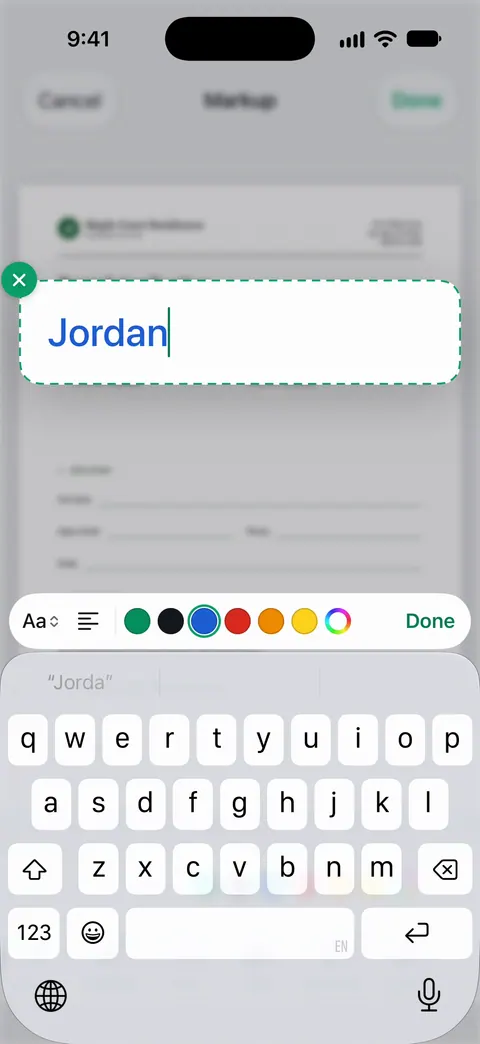
Filling a form from your own papers. Fill Form fills a form from your own documents and shows where each answer came from.
The limits, plainly:
- Free accounts can sign and mark up 3 documents a month. Pro removes every limit.
- On a free account, pages you share, print or export carry a small “Scanned with Scanner One” label at the bottom right. Pro removes it. If the label matters on a signed form, the built-in way adds none.
Questions and answers
What date do I put next to my signature?
Usually the day you actually sign. Don’t backdate a signature, and don’t put a future date unless the form tells you to. If the form says "date of birth" or "effective date", that’s a different date: read the label.
What format should the date be in on a US form?
Follow the form. Many US government forms print MM/DD/YYYY under the line. If there’s no hint, writing the month as a word, like "November 13, 2026", can’t be misread.
Does iPhone have a date stamp for PDFs?
Not as a separate tool. You type the date in a field or a text box. Once typed, you can duplicate the text box from the More button and drag the copy onto other pages.
Can I add the date in the Mail app without saving the PDF?
Yes, for a form with fields. Tap the attachment, tap the AutoFill button, then Form Filling, tap the date field and type. Then tap Done and Reply to send it back.
Can Scanner One type into a date field?
Fill Form lets you type into the fields of a PDF form. On a page with no fields, you type the date with the markup text tool.
Sources
What this page says about Scanner One was checked against the app on .
- Apple iPhone User Guide, Fill out forms, sign documents, and create signatures on iPhone — AutoFill and blank fields, Add Text Form Box, Add Signature, Export, Print or Share; AutoFill suggestions above the keyboard in iOS 27; undated, read 2026-11-13
- Apple iPhone User Guide, Fill out and sign PDF forms in Preview on iPhone — the Form Filling button, tapping a field and typing, the Add button for a text form box; undated, read 2026-11-13
- Apple iPhone User Guide, Add text, shapes, stickers, and more with Markup on iPhone — Add Text, font and size tools, and the More button to cut, copy, duplicate or delete a text box; zooming; undated, read 2026-11-13
- Apple iPhone User Guide, Download email attachments in Mail on iPhone — filling a form attachment in Mail with the AutoFill button and Form Filling, then Reply; undated, read 2026-11-13
- Scanner One on the App Store — the app’s own listing: Fill Form, signing and annotating
Get Scanner One
Scanner One is free, with generous limits: scanning, clean PDFs and text search never stop.

Scanner OneScan, sign and ask anything
Scanner One is free, with generous limits: scanning, clean PDFs and text search never stop.