
Situation
Someone still wants a fax: your options from a phone
Your iPhone has no built-in fax feature, and Scanner One does not fax either. First ask whether email, an upload portal or a secure message will do: an office that lists a fax number often accepts a PDF too. If it really must be a fax, scan the pages to a PDF and send it through an online fax service or app, or take the pages to a print or shipping shop that offers faxing. Confirm the fax number with the recipient before you send.

First, ask for another way
An office that lists a fax number will often take something easier. Before you look for a fax machine, ask:
“I don’t have a fax. Can I email it, upload it to your portal, or send it through your secure message system instead?”
Often the answer is yes. Some examples of where an upload has replaced the fax:
- The IRS. If you are answering an IRS notice or letter, the IRS Document Upload Tool takes scans or photos as JPG, PNG or PDF files. It is not for tax returns.
- Doctors and hospitals. Many have a patient portal that takes uploads and messages.
- Employers and HR. A PDF by email is usually fine.
- Banks and insurers. Many have an app or a secure upload page.
If they say yes, our guide to scanning a document and emailing it has the steps. If they say a fax is the only way, read on.
Your options when it has to be a fax
| Option | What you need | Good for |
|---|---|---|
| An online fax service or app | The pages as a PDF, the fax number, an account | Faxing from home, today, from your phone |
| A print or shipping shop that faxes | The paper, or the PDF on your phone or in your email | One-off faxes, if you’d rather hand it to someone |
| A fax at work or a library | Ask whether you may use it | Occasional faxes, if one is available to you |
We don’t recommend a particular service. Fax services and their prices change often, so compare a few and read how each one stores the documents you send: you are handing your pages to a third party.
Prepare the pages so the fax is readable
A fax is black and white and low in detail. A page that looks fine on your screen can arrive as a gray smudge. To avoid that:
- Scan in black and white, or with a high-contrast filter. Our guide to scanning in black and white shows how to get the photocopy look.
- Sign with a dark pen, and avoid colored highlighting, which can turn into gray or black blocks.
- One PDF, pages in order, with the cover sheet first.
- Check small print and numbers on the scan before you send. If you can’t read them on screen, the recipient won’t either.
With the built-in scanner: in Notes, tap the Attachment button and choose Scan Documents; in Files, tap the More button and choose Scan Documents. In iOS 26 and later you can choose an image filter as you scan.
A cover sheet
Many fax services make one for you. If not, add a page with:
- The recipient’s name and department
- Your name, phone number and email
- The number of pages, including the cover
- One line on what it is, such as “Signed authorization form for account 1234”
Sending through an online fax service
The steps are much the same in each:
- Open the service’s app or website and sign in.
- Add the PDF from your Files app.
- Enter the fax number with the area code, and the country code if it is abroad.
- Add or fill in the cover sheet.
- Send, and wait for the confirmation that it went through.
- Save the confirmation with your copy of the document.
At a print or shipping shop
Bring the pages on paper, or have the PDF ready on your phone or in your email so they can print it. Ask for the confirmation sheet when it has gone through, and keep it.
After you send
Call or email the recipient to check it arrived complete and readable. A confirmation page says the fax machine answered, not that the right person has the pages.
Sensitive documents
Faxes often land on a shared machine. For anything personal, such as medical or financial papers:
- Confirm the fax number with the recipient, by phone, before you send.
- Put “Confidential” and the recipient’s name on the cover sheet.
- Ask whether they would accept a password-protected PDF by email instead; see password-protecting a PDF.
Where Scanner One helps, and where it doesn’t
Plainly: Scanner One does not fax. It can’t send to a fax number and it can’t receive faxes.
What it does is the step before: a clean, readable PDF that a fax service or a print shop can send. Point your camera at any piece of paper. Scanner One finds the edges, straightens the page, cleans it up and saves a real PDF. Scans come with Auto Clean, Color, Grayscale and Receipt filters. For a fax, pick the one that gives the darkest, cleanest text.
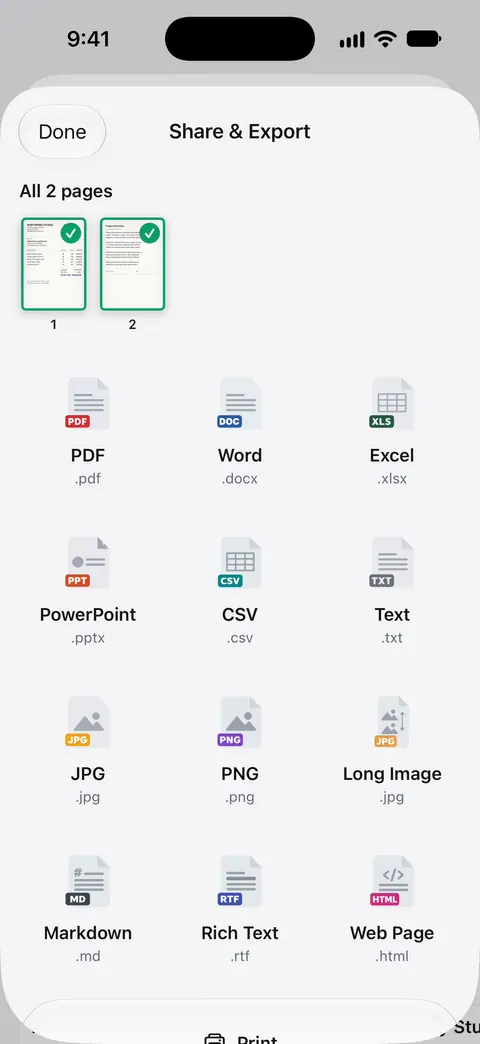
Share & Export saves a document as a PDF, Word, Excel, PowerPoint, JPG, PNG, a long image, plain text, Markdown, Rich Text, a web page or CSV. Share & Export can also print a document or email it to you. So you can save the PDF to Files for the fax service, or print it for the shop.
On a free account, pages you share, print or export carry a small “Scanned with Scanner One” label at the bottom right. Pro removes it. That label goes through a fax too. If it matters, scan with the Notes or Files scanner instead, which add nothing to the page.
If the recipient will take email after all, signing and sending a form without a printer covers the rest.
Questions and answers
Can an iPhone send a fax?
Not by itself: there is no fax feature in iOS. You can scan the document to a PDF on the iPhone and send that PDF through an online fax service or app, or take it to a shop that sends faxes.
Does Scanner One send faxes?
No. Scanner One scans, cleans up and exports documents as PDFs and other formats, but it does not fax. You can use the PDF it makes with a fax service of your choice.
How do I fax a signed document from my phone?
Sign it first: in the Files app or Preview, tap the markup button and Add Signature, or sign the paper and scan it. Then send the signed PDF through an online fax service, or ask whether the recipient will take it by email.
How do I receive a fax on my iPhone?
Your iPhone can’t receive a fax directly. Some online fax services give you a fax number and deliver incoming faxes as PDFs by email or in their app. Or ask the sender to email the document.
Do I need a cover sheet?
It is good practice. Put the recipient’s name, your name and phone number, the number of pages and a short note of what it is. It helps the document reach the right person in a busy office.
Sources
What this page says about Scanner One was checked against the app on .
- Apple Support, How to scan documents on your iPhone or iPad (article 108963) — Scan Documents in Notes and Files, and the filters available while scanning in iOS 26; published 2026-02-13
- IRS, IRS Document Upload Tool — an example of an upload in place of mail or fax: respond to an IRS notice or letter with scans or photos as JPG, PNG or PDF, not for tax returns; page last reviewed 2026-08-27
- Scanner One on the App Store — the app’s own listing: scanning, filters, Share & Export
Get Scanner One
Scanner One is free, with generous limits: scanning, clean PDFs and text search never stop.

Scanner OneScan, sign and ask anything
Scanner One is free, with generous limits: scanning, clean PDFs and text search never stop.