
Guide
Print a PDF or a scan from your iPhone
Put your iPhone on the same Wi-Fi network as an AirPrint printer. Open the PDF in Files, Preview, Mail or Books, tap the Share, More or Actions Menu button, then tap Print. The first time, tap No Printer Selected and choose the printer, then tap Print. To check or cancel the job, open the App Switcher and tap Print Center. No app or driver is needed.

Before you print: AirPrint and Wi-Fi
iPhone prints with AirPrint, which Apple says is built into most popular printer models. You don’t install a driver or an app for it.
- Check the printer supports AirPrint. Apple’s About AirPrint page links to a search by brand, model or category. If your printer isn’t listed, check with the maker.
- Connect the printer to your Wi-Fi network. Follow the printer’s own setup for this; it’s usually on its screen or in its manual.
- Put your iPhone on the same Wi-Fi network. This is the step that most often goes wrong at home and in offices with more than one network.
Printers listed as USB-only print without drivers only from a Mac over a cable, not from an iPhone.
Print a PDF from Files, Mail or almost any app
The steps are the same in most apps; only the button’s name changes.
- Open the PDF in the app you have it in: Files, Mail, Safari, Messages.
- Tap the Share button, the More button, the Reply button or the Actions Menu button, depending on the app.
- Tap Print. If you don’t see it, swipe up on the list.
- The first time, tap No Printer Selected and choose your AirPrint printer.
- Choose the printer’s other options, such as the number of copies, then tap Print.
Print settings worth a look
What the print screen offers depends on the printer, so not every option appears for every model. Before you tap Print, check:
- Copies: set the number, especially for forms you need to hand in twice.
- Range: print only the pages you need, such as the signature page of a long contract.
- Double-sided: if the printer can, it halves the paper.
- Black and white: saves color ink on text documents.
- Paper size: Letter in the US, A4 in most other countries. A form made for one and printed on the other can lose its edges.
A PDF someone emailed you
Open the email in Mail and tap the attachment to open it. Tap the Share button, then Print. If you want the whole email with the attachment, tap the Reply button in the message and look for Print in the list instead.
Print from Preview on iOS 26 and later
- Open the Preview app and open the PDF.
- Tap the Actions Menu button next to the filename, then tap Print.
- Select a printer, then tap the Print button.
Preview is also where you fix a page before printing: crop wide margins, rotate a sideways page, or delete pages you don’t need. The guide to deleting or reordering PDF pages has those steps.
Print from the Books app
If you keep manuals, tickets or forms in Books:
- Open Books and tap Library.
- Tap the More button below the PDF.
- Tap the Share button, then tap Print.
To put a PDF into Books in the first place, tap the PDF attachment in Mail or Messages to open it, tap the Share button, then tap Books. Apple notes that Books isn’t available in all countries or regions.
Check or cancel a print job
- Open the App Switcher.
- Tap Print Center. The badge shows how many documents are waiting.
- To stop one, select it and tap Cancel Printing.
When nothing prints
Work down this list. Most problems end at step 2.
- Wake the printer. A sleeping printer may not show up in the list.
- Check the Wi-Fi on both. Same network name on the iPhone and the printer. Guest networks and some office networks keep devices from seeing each other.
- Look for the printer in Apple’s AirPrint list. No AirPrint, no printing from the Print button; the printer maker may offer its own app instead.
- Restart the printer and the iPhone.
- Try a different app. If a PDF prints from Files but not from a website, save it to Files and print from there.
Printing a paper you just scanned
Printing a scan is the iPhone version of a photocopy. Scan the page with Notes, Files or Preview (the guide to scanning to PDF has the steps), then print the scan the same way as any PDF.
Two tips that save ink and paper:
- Print in black and white when color doesn’t matter. A scan that is already black and white prints cleaner and faster; the guide to black-and-white scans explains how to make one.
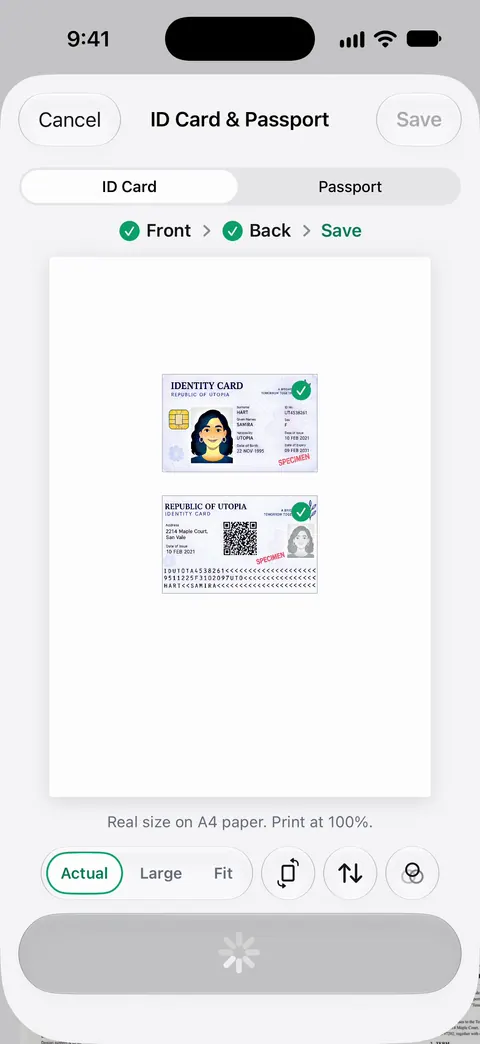
- Put both sides of an ID on one page when an office asks for a copy, instead of printing two pages.
If you have no printer at all and the paper is due today, this step-by-step page shows how to sign and send it without printing.
Where Scanner One helps, and where it doesn’t
Printing itself is built into iPhone. Any app with a Print button does it, and for a PDF you already have, Files or Preview is all you need.
Scanner One helps with what you print. Share & Export can also print a document or email it to you. Scans come with Auto Clean, Color, Grayscale and Receipt filters. ID cards and passports are scanned with both sides on one printable page.
The limits:
- On a free account, pages you share, print or export carry a small “Scanned with Scanner One” label at the bottom right. Pro removes it. The label appears on paper too.
- If a printer doesn’t print from Files, fix that first with the checklist above. The printer and the Wi-Fi are the same whichever app you print from.
Questions and answers
Do I need to install an app or driver to print from iPhone?
Not for an AirPrint printer. Apple says AirPrint needs no extra drivers or software: put the printer and the iPhone on the same Wi-Fi network and choose the printer in the app’s print screen.
Why doesn’t my printer show up?
Usually the iPhone and the printer are on different networks, or the printer doesn’t support AirPrint. Check both are on the same Wi-Fi, wake the printer, and look your model up in Apple’s AirPrint printer search.
How do I cancel something I sent to the printer?
Open the App Switcher, tap Print Center, select the job, then tap Cancel Printing.
Can I print from iPhone to a printer without Wi-Fi?
Apple says printers listed as USB-only support driverless printing only from a Mac over USB. For anything else, check the printer maker’s own app or instructions.
Sources
What this page says about Scanner One was checked against the app on .
- Apple iPhone User Guide, Print from iPhone — choosing an AirPrint printer, printing, and Print Center; undated guide page for iOS 26 and 27, read 2026-11-13
- Apple Support, About AirPrint (article 102895) — AirPrint needs no drivers, the printer and iPhone on the same Wi-Fi, the printer search, USB-only printers; published March 17, 2026
- Apple iPhone User Guide, Print PDFs or images in Preview on iPhone — Actions Menu, then Print, in Preview; undated guide page for iOS 26 and 27, read 2026-11-13
- Apple iPhone User Guide, Read PDF documents in the Books app on iPhone — saving a PDF to Books and printing it from the Library; undated guide page for iOS 26 and 27, read 2026-11-13
- Apple iPhone User Guide, Export or print notes on iPhone — printing a note and choosing the printer and other options; undated guide page for iOS 26 and 27, read 2026-11-13
- Scanner One on the App Store — the app’s own listing
Get Scanner One
Scanner One is free, with generous limits: scanning, clean PDFs and text search never stop.

Scanner OneScan, sign and ask anything
Scanner One is free, with generous limits: scanning, clean PDFs and text search never stop.