
Tool
Split a PDF or pull out pages
Choose a PDF, then pick what to make: one PDF of the pages you list (for example 1-3, 5), one PDF for each range, or every page on its own. Tap Split and each new file gets its own download button. The PDF is opened by this page on your own device: nothing is uploaded or kept. Password-protected PDFs can’t be opened here.

Split a PDF or pull out pages
This tool runs in your browser, and its page is not allowed to open a single network connection, so nothing you add is sent anywhere. Nothing is saved: closing the tab forgets everything.
or drop it here.
Separate pages and ranges with commas. "8-" means page 8 to the end.
No PDF yet.
How to use it
- Tap Choose a PDF, or drop one onto the box. The page count appears in the status line.
- Pick What to make:
- One PDF of the pages I list: the pages you type, in the order you type them, in one new file. Use it to pull out the signature page, or to drop pages you don’t need.
- One PDF for each range I list: “1-4, 5-9” makes two files.
- Every page on its own: one file per page, named with its page number.
- Type the pages, for example 1-3, 5. “8-” means page 8 to the end.
- Tap Split. A single file downloads straight away; several files each get a Download button, with their page count and size.
Each new file is named after the original plus its pages, such as “Lease pages 1-3.pdf”, so you can tell them apart in Downloads.
What happens to your file
Your browser reads the PDF into memory on your device. A PDF library on this page, pdf-lib, opens it and copies the pages you asked for into new PDFs, exactly as they are, without redrawing or compressing them. Each new file is held in memory until you download it.
The page is sent with a security rule that forbids it from opening any connection, so the file could not leave even if the code tried. When you close the tab or tap Start over, everything is gone from the page.
What it can’t do
- Password-protected PDFs can’t be opened. Remove the password first in an app where you know it, and add one back to the pieces if they need it.
- Bookmarks are not carried into the new files, and form fields may stop being fillable in some apps.
- Very large files, such as a few hundred scanned pages, may be slow, and “every page on its own” makes one button per page.
- Smaller files: splitting does not compress. To fit an upload limit, make the PDF smaller.
On an iPhone with iOS 26 or later, Preview can delete the pages you don’t need from a duplicate of the file, with no website: show the thumbnails, touch and hold a page, then tap Delete Page. The steps for that and the other built-in ways are in how to split a PDF on iPhone. To put pieces back together, use the merge PDF tool.
Where Scanner One helps, and where it doesn’t
This page cuts up a PDF you already have. Scanner One keeps the documents themselves and does the same work there: The PDF tools merge, split, compress, password-protect, add page numbers and watermarks, and extract text. A scan can have many pages, and you can reorder them.
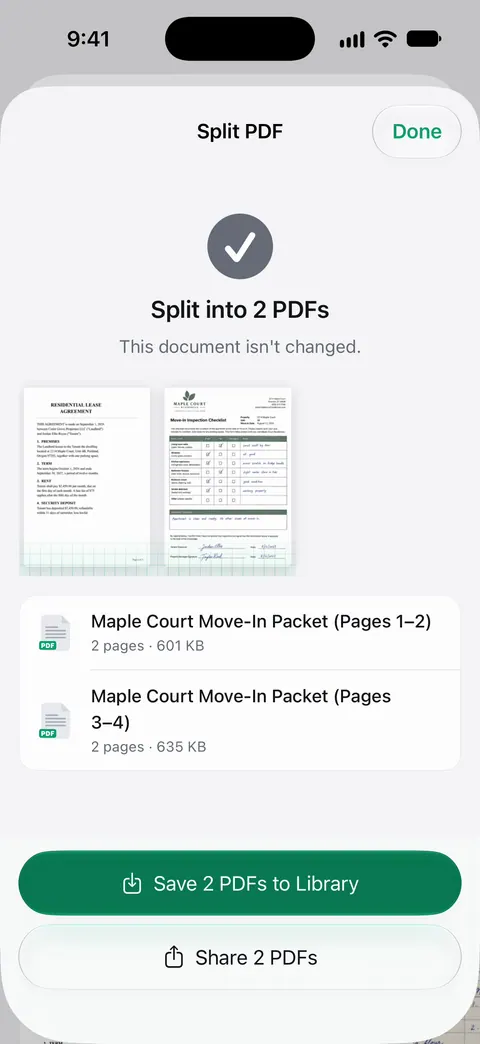
Free accounts can run the PDF tools and the Word, Excel and CSV exports 3 times a week, from one shared allowance. On a free account, pages you share, print or export carry a small “Scanned with Scanner One” label at the bottom right. Pro removes it. Scanner One is free, with generous limits: scanning, clean PDFs and text search never stop.
Scanner One runs on iPhone and iPad only. To split one PDF on any computer or phone, this free page is enough.
Questions and answers
Is my PDF uploaded anywhere?
No. This tool runs in your browser, and its page is not allowed to open a single network connection, so nothing you add is sent anywhere. Nothing is saved: closing the tab forgets everything.
How do I write the pages I want?
List pages and ranges separated by commas: 1-3, 5 means pages 1, 2, 3 and 5. A range with no end, like 8-, runs to the last page. Pages are counted from the first page of the file, whatever numbers are printed on them.
Does splitting make the pages blurry or smaller?
No. The pages are copied as they are, not redrawn, so text stays sharp and scans keep their quality. A small part of a big file can still be large if its pages are high-resolution scans.
Can I split a PDF on my iPhone with this?
Yes. Open this page in Safari, choose the PDF from Files, and tap each download button; Safari saves the files to Downloads in the Files app. Several downloads in a row may each ask for a tap.
Sources
What this page says about Scanner One was checked against the app on .
- pdf-lib, Create and modify PDF documents in any JavaScript environment — the open-source library this page uses to open the PDF and copy the chosen pages into new files, in the browser; this site bundles version 1.17.1; read 2026-11-13
- MDN Web Docs, Content-Security-Policy: connect-src — the rule this page is sent with ('none'), which stops a script from opening any connection; read 2026-11-13
- Apple iPhone User Guide, Add, delete, rotate, move, or crop PDF pages in Preview on iPhone — the built-in way on iPhone: show thumbnails, touch and hold a page, Delete Page; undated guide page, read 2026-11-13
- Scanner One on the App Store — the app’s own listing: the PDF tools, Split among them
Get Scanner One
Scanner One is free, with generous limits: scanning, clean PDFs and text search never stop.

Scanner OneScan, sign and ask anything
Scanner One is free, with generous limits: scanning, clean PDFs and text search never stop.