
Comparison
Scan vs photo of a document: what’s the difference?
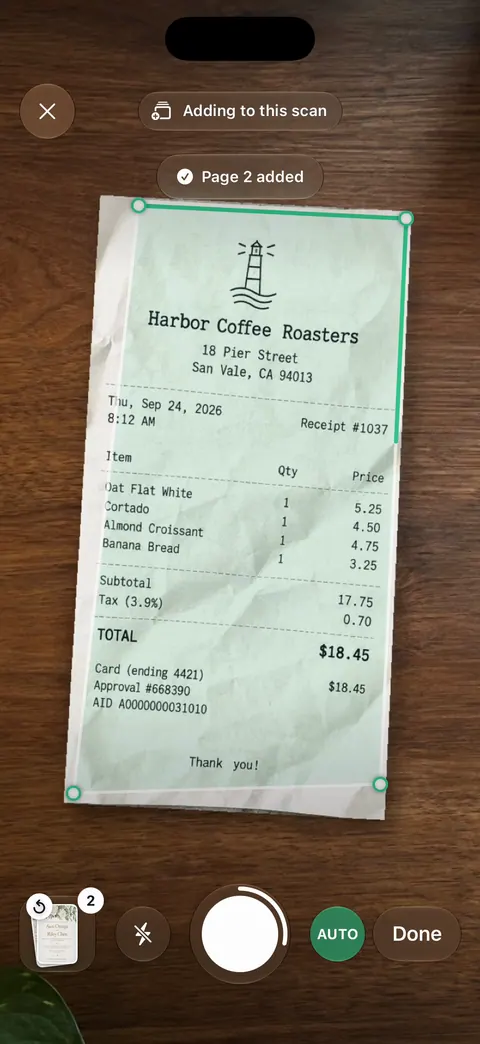
A photo shows the page as your camera saw it: tilted, with the table around it, shadows and a color cast, one picture per page. A scan finds the page’s edges, straightens it, evens out the paper and saves every page in one PDF. Many portals accept either if it’s clear: USCIS says to use a scanner or photograph each document, as PDF or JPG. A scan just gets there more reliably. On iPhone, Notes and Files make a scan for free with Scan Documents.

This page explains the difference and why it matters when you send papers. For the steps to make a scan on your iPhone, see how to scan documents on iPhone.
The difference in one table
| A photo of a document | A scan of a document | |
|---|---|---|
| What’s in the frame | The page plus the table, your fingers, the edge of the sofa | Only the page, cropped to its edges |
| Shape | Tilted or a trapezoid, unless you held the phone perfectly square | Straightened into a rectangle |
| Paper | Gray or yellow, with shadows | Evened out, often white |
| Pages | One picture per page | Every page in one document |
| File | An image, saved in your photo library | Usually a PDF, saved where you choose |
| Words | A picture of words | Often searchable text too, if the app reads it |
Neither is wrong. A scan is a photo that has been tidied up and packaged for sending.
Why photos get sent back
Offices rarely reject a photo for being a photo. They reject it because of what photos tend to look like. USCIS, for example, says files must be clear and all text readable, and that you can “use a scanner or photograph each document.” The problems that cause trouble:
- Something is cut off. A corner, a date, the signature line. A scan crops to the page’s own edges, so the whole page is always in.
- The text is hard to read. Shadows, glare or a dark room. A scan’s cleanup evens out the paper so dark text stands out.
- The page is skewed. A tilted photo can look careless and may be harder for software to read. A scan straightens it.
- It arrives in pieces. A 6-page lease sent as 6 photos is easy to misorder or lose. A scan puts all 6 pages in one PDF.
- The file is wrong. Portals list the types they take: USCIS generally asks for PDF, JPG or JPEG up to 12MB and no password protection; the IRS upload tool takes JPEG, PNG or PDF up to 15 MB per file. A photo saved in another format, or a huge original, may not upload.
If you need to upload, our guide to uploading a scanned document to a website covers file size and naming, and PDF or JPG helps you choose the format.
How to make a real scan with the iPhone’s own apps
You don’t need an app for a basic scan. Apple’s steps:
- Open Notes and start a note, tap the Attachment button, then tap Scan Documents. Or in Files, tap the More button, then Scan Documents.
- Point the camera at the page. On iOS 26 you can choose flash or an image filter.
- In Auto mode the page is captured when it’s steady; in Manual mode tap the Shutter button.
- Drag the corners to fit the page, then tap Keep Scan. Add more pages.
- Tap Done. In Files, choose a location and tap Save.
Notes saves the result as a PDF in the note, and Apple’s guide says Notes search finds text in scanned documents. For most letters, forms and IDs, that is a scan any office will take. If the camera won’t find the page, see the iPhone won’t detect the document.
Check it before you send it
Whether you send a scan or a photo, a 30-second check saves a rejected application:
- Zoom in on the smallest print, such as a date, a policy number or the fine print under a signature. If you have to guess a digit, so will the person reading it.
- Count the pages. Front and back of an ID, every page of a lease, including the blank-looking ones with initials.
- Look at the corners. All four should show paper, with a little margin.
- Check the size and type against the portal’s list before you start the upload, not after it fails.
- Name the file so a stranger knows what it is: “Lease 2026 signed” beats “IMG_4821”.
Our guide to naming scanned documents has a simple pattern that works for most offices.
When a plain photo is fine
- A quick reference for yourself, like a parking ticket you’ll pay tonight.
- Something that isn’t flat paper: a label on a box, a serial number on an appliance.
- When the office asks for a photo, such as a passport-style picture.
Already took photos? Turn them into a scan
Crop each photo to the page in the Photos app, then combine them into one PDF. Our free photos to PDF tool does this in your browser. For official uploads, read scanning documents for USCIS online filing too.
Where Scanner One helps, and where it doesn’t
Scanner One is our app. Where it helps: Scanner One finds the edges of the page automatically and corrects the perspective. Scans come with Auto Clean, Color, Grayscale and Receipt filters. A scan can have many pages, and you can reorder them. Scanner One makes searchable PDFs. If you already have photos, From Home you can bring in pictures from Photos and files from the Files app, or scan an ID card. The To PDF tool turns files and photos into PDFs.
Where it doesn’t: for one clear page now and then, Notes or Files makes a scan that’s just as acceptable, for free. On a free account, pages you share, print or export carry a small “Scanned with Scanner One” label at the bottom right. Pro removes it. If you send scans to an office from a free account, that label will be on the pages, so Notes or Files may suit a one-off better. Scanner One runs on iPhone and iPad.
Questions and answers
Can I send a photo instead of a scan?
Often, yes, if it’s clear. USCIS says to use a scanner or photograph each document, and the IRS upload tool takes JPEG, PNG or PDF files. What gets rejected is a photo that’s blurry, cut off, too dark or in a file type the portal doesn’t list.
Why was my photo of a document rejected?
The usual reasons: text that isn’t readable, part of the page cut off, glare or a shadow across a line, a file over the size limit, or several loose photos when one document was asked for. A scan fixes most of these at once.
Is a scan from my phone a real scan?
Yes. A scan is about what happens to the picture, not the machine: the page is cropped to its edges, straightened and cleaned, then saved as a document. Notes, Files and scanner apps do that on the iPhone.
How do I turn a photo I already took into a scan?
Crop it to the page edges in Photos, then make it a PDF. Our free photos to PDF tool runs in your browser. The To PDF tool turns files and photos into PDFs.
Sources
What this page says about Scanner One was checked against the app on .
- USCIS, Tips for Filing Forms Online — scanner or photograph, PDF, JPG or JPEG up to 12MB, clear images with readable text, no passwords; last reviewed October 7, 2026
- IRS, Fact sheet FS-2023-05 on the Documentation Upload Tool — JPEG, PNG or PDF, 15 MB per file, up to 40 files, PDFs limited to 120 pages; dated February 2023
- Apple Support, Scan documents on your iPhone or iPad (article 108963) — the Notes and Files scanning steps, Keep Scan, filters on iOS 26; published February 13, 2026
- Apple iPhone User Guide, Search through your notes — Notes search finds text in scanned documents; guide for iOS 27, read 2026-11-13
- Scanner One on the App Store — the app’s own listing
Get Scanner One
Scanner One is free, with generous limits: scanning, clean PDFs and text search never stop.

Scanner OneScan, sign and ask anything
Scanner One is free, with generous limits: scanning, clean PDFs and text search never stop.