
Feature
Clean Up: the smart eraser
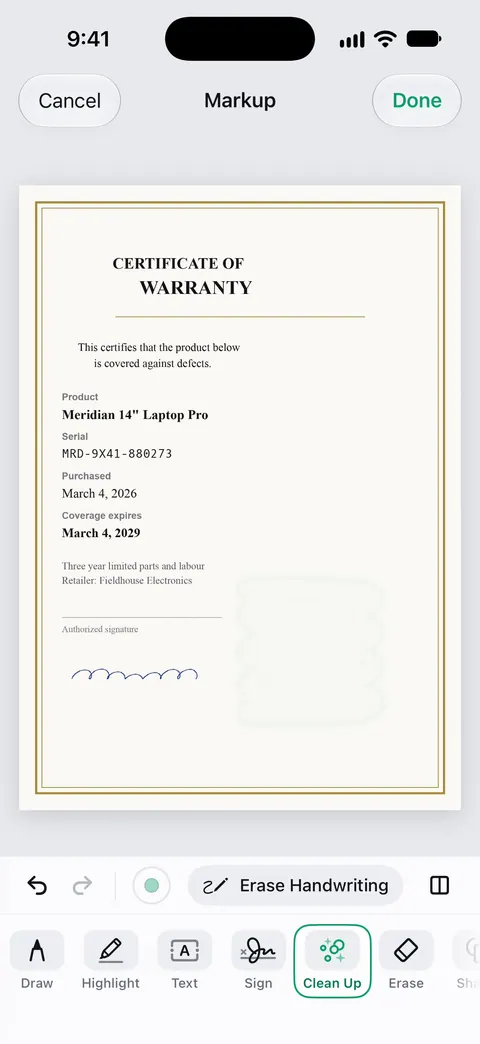
Clean Up is Scanner One’s smart eraser. Open the scanned document in Markup, pick Clean Up and brush over the mark you want gone, such as a coffee ring, a stray pen line or a smudge. Free accounts can use Clean Up, the smart eraser, on 3 documents a month. Pro removes every limit. To hide private information instead, use redaction, not an eraser.

What Clean Up does
Clean Up is the smart eraser in Scanner One. You brush over a mark on a scanned page to erase it. The marks people most often want gone got onto the paper by accident:
- a coffee ring or a water stain
- a stray pen line or a doodle in a margin
- a smudge, a fingerprint or a crease shadow
- a sticky-note outline or a staple mark
How to use it
- Open the scanned document and go to Markup.
- Pick Clean Up from the Markup tools.
- Brush over the mark. Cover all of it, a little past its edge.
- Look at the result at full size. If a trace is left, brush over it again.
- Save the page.
Getting good results
- Small marks clean best. A ring in a margin is an easy job. A stain over half the page is a much bigger guess.
- Brush the mark, not the words around it. Keep the brush on the stain and off the text next to it.
- Check the text next to it. After erasing a mark close to a line of text, zoom in and read that line again.
- Shadows and dull paper are a different problem. A gray cast over the whole page is something the scan filters and better light handle. See Auto Clean and the filters and getting rid of shadows on scans.
- Handwriting. Our guide to removing handwriting or marks from a scan goes through the options, including when to look for a clean copy instead.
What Clean Up is not for
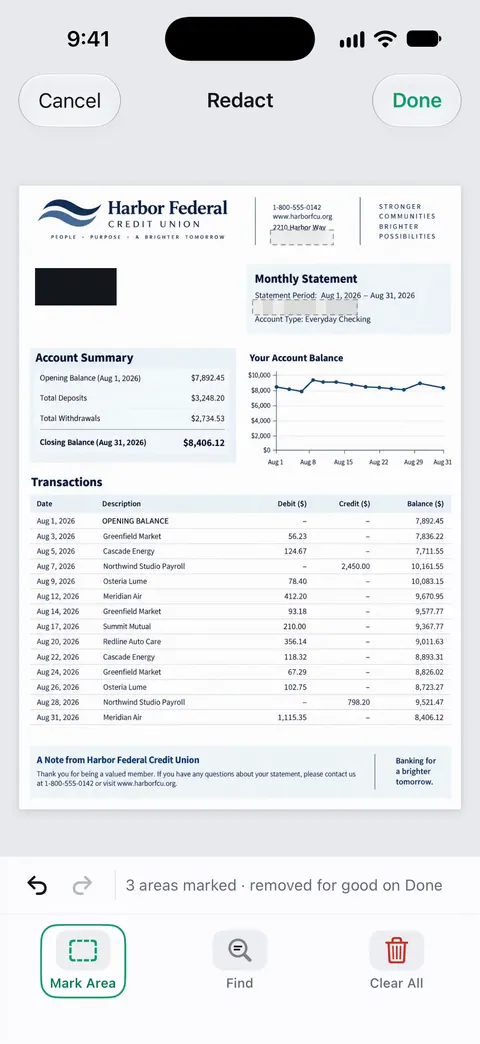
It is not for hiding information. If you want a name, an address or an account number gone before you send a document, use redaction. Redaction is permanent. Our guide to redacting a PDF properly explains why drawing a box over text is not enough in many PDFs, and the redaction feature page shows how Scanner One does it.
It does not bring back what was under the mark. If a stain covers a word, erasing the stain leaves paper where the stain was, not the word. Retake the page or find another copy.
It does not change printed text. To change the words on a page, see editing text in a scanned document.
Be careful with records. A receipt, a contract or an official record should show the paper as it really is. Clean up your own copies, keep the original, and leave alone anything someone else would expect to see, like a signature, a stamp or a handwritten correction.
Where Scanner One helps, and where it doesn’t
The simplest fix for a mark is often physical: take off the sticky note, wipe the smudge, flatten the crease and scan the page again. If the mark is on the paper for good, an eraser helps.
Free accounts can use Clean Up, the smart eraser, on 3 documents a month. Pro removes every limit. On a free account, pages you share, print or export carry a small “Scanned with Scanner One” label at the bottom right. Pro removes it. For the other things you can do in Markup, like signing and highlighting, see sign and mark up.
Questions and answers
How many times can I use Clean Up for free?
Free accounts can use Clean Up, the smart eraser, on 3 documents a month. Pro removes every limit.
Can Clean Up remove handwriting from a printed form?
You can brush over handwriting as you would over any other mark. Check the page closely afterwards, and keep in mind that whatever was under the ink is not brought back. For a blank copy of a form, the issuer’s own PDF is usually the better source.
Is Clean Up the same as redaction?
No. Clean Up is for marks you don’t want to see, like stains and smudges. To hide a name, an account number or anything private before you share a document, use redaction. Redaction is permanent.
Should I erase marks from an official document?
Be careful. A scan of an official record, a signed contract or a receipt should show the paper as it is. Clean marks from your own copies, keep the original, and never remove anything someone else would expect to see.
Sources
What this page says about Scanner One was checked against the app on .
- Scanner One on the App Store — the app’s own listing: the smart eraser, and what Pro adds
Get Scanner One
Scanner One is free, with generous limits: scanning, clean PDFs and text search never stop.

Scanner OneScan, sign and ask anything
Scanner One is free, with generous limits: scanning, clean PDFs and text search never stop.