
Feature
Sign and mark up
You can sign and annotate documents. Open a document, go to Markup and tap Sign: write your signature on the pad, tap Use, then drag it into place and resize it. Markup also highlights, underlines, adds typed text and draws shapes. Free accounts can sign and mark up 3 documents a month. Pro removes every limit. The iPhone’s own Markup can sign a PDF too.

What it does
You can sign and annotate documents. Markup is where that happens:
- Sign: write your signature on a pad, then place it on the page, move it and resize it.
- Highlight, pen and underline: mark the total, circle a date, underline a reference number.
- Text: type words onto the page, such as a date next to your signature or a note in a margin.
- Shapes: a rectangle, an ellipse, a line or an arrow, to point at what matters.
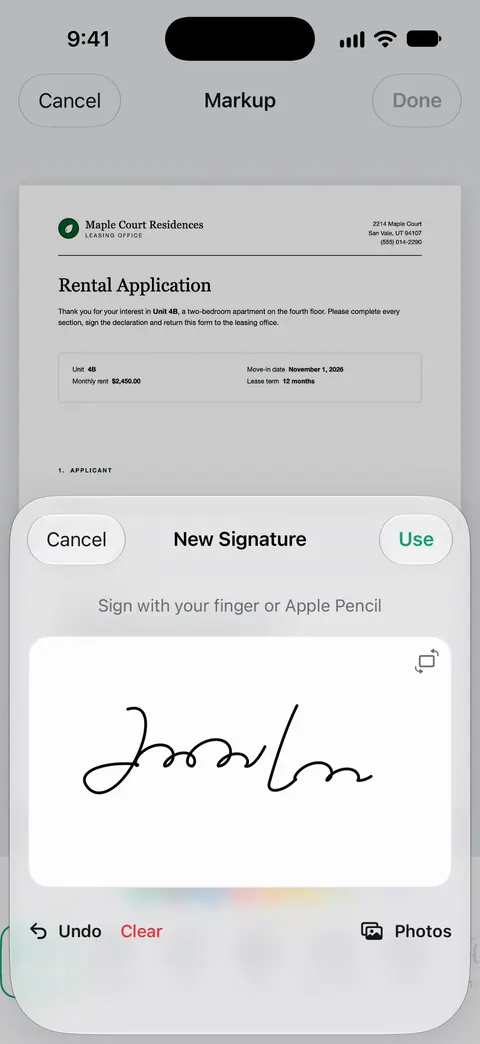
How to sign a document
- Open the document in Scanner One. A PDF from an email can be sent in with the share sheet: Other apps can send a file to Scanner One with Save to Scanner One in their share sheet.
- If it is a form with fields, fill them first. Fill Form lets you type into the fields of a PDF form.
- Go to Markup and tap Sign.
- Write your signature on the pad with your finger, then tap Use.
- Drag the signature onto the line and resize it so it fits.
- Add the date with the Text tool if the form asks for it.
- Save, then share. Share & Export can also print a document or email it to you.
If the paper is in front of you, scan it first and sign the scan. Our situation guide for sending a signed form today without a printer goes through the whole thing, start to finish.
How to mark up a document
- Open the document and go to Markup.
- Pick a tool: highlighter, pen, Text or Shapes.
- Draw or type on the page. A new shape stays selected, with handles to adjust it.
- Save the page.
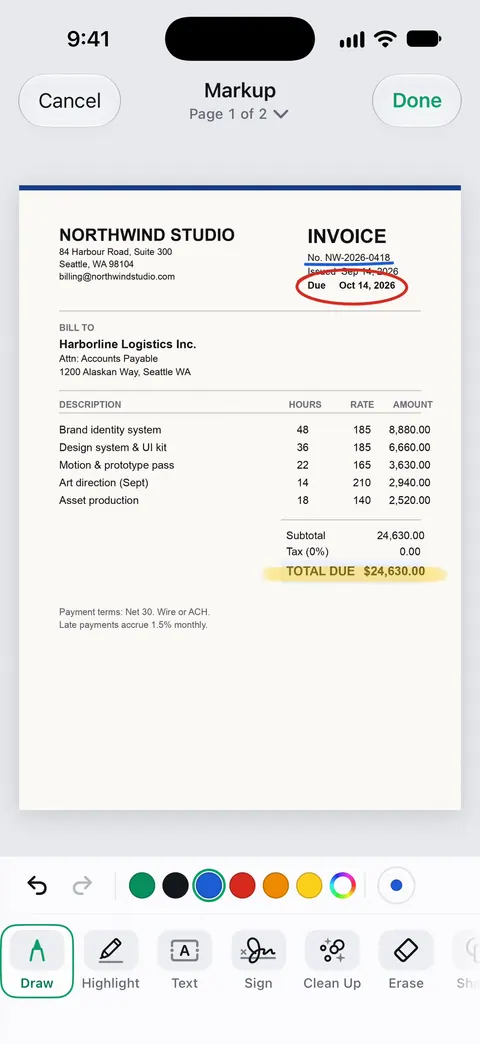
Good uses: highlighting what you dispute on a bill before you call, circling the dates on a lease, marking up a draft for someone else, or ticking items on a checklist you scanned. For more, see highlighting text in a PDF and adding text to a PDF.
Signing well
- Sign on the line, at a normal size. A huge signature looks pasted; a tiny one looks smudged.
- Date it. Most forms want a date next to the signature.
- Check every page. Some contracts want initials on each page as well as a signature at the end.
- Keep a signed copy. Save the signed version in your Library before you send it.
- Send it where it was asked for. Upload pages and email addresses given on the form are better than a reply to an old thread.
What Markup can’t do
- It doesn’t change printed words. To change text that is already on the page, see editing text in a scanned document. Pro adds redaction, the smart eraser, edit text, auto-export and five alternate app icons.
- It doesn’t hide information. A black box drawn in Markup is a drawing. To remove information for good, use redaction. Redaction is permanent.
- It doesn’t erase stains. That is Clean Up.
- It isn’t a certified e-signature service. Some documents need one; the person asking will say so.
Where Scanner One helps, and where it doesn’t
Your iPhone signs PDFs on its own. Apple’s steps: open the document (in the Files app if you are asked), tap the markup button, tap Add Signature, sign with your finger, tap Done, and drag the signature where you want it. The iPhone saves your signature for next time. For a few signatures a year, that is enough; our guide to signing a PDF on iPhone has the full steps.
Scanner One helps when the paper arrives as paper, because scanning, signing and sending happen in one place, and when you sign or annotate often. Free accounts can sign and mark up 3 documents a month. Pro removes every limit. On a free account, pages you share, print or export carry a small “Scanned with Scanner One” label at the bottom right. Pro removes it. To compare signing apps, see the apps to sign documents on iPhone, which discloses that Scanner One is ours.
Questions and answers
How many documents can I sign for free?
Free accounts can sign and mark up 3 documents a month. Pro removes every limit.
Can I sign a PDF on iPhone without an app?
Yes. Open the PDF in the Files app, tap the markup button, then Add Signature; sign with your finger, tap Done and drag the signature into place. For an occasional signature that is enough.
Is a signature drawn on my phone legally valid?
Often, but it depends on the document and on who is asking. Many offices, landlords and employers accept a signed PDF; some documents need a wet signature, a notary or a specific e-signature service. Ask the person who wants it.
Will the signed document have a watermark?
On a free account, pages you share, print or export carry a small "Scanned with Scanner One" label at the bottom right. Pro removes it.
Can I fill in the form fields too?
Yes. Fill Form lets you type into the fields of a PDF form. Fill the fields first, then sign.
Sources
What this page says about Scanner One was checked against the app on .
- Apple Support, Fill out forms, sign documents, and create signatures on iPhone (iPhone User Guide, iOS 27) — the built-in way: Add Signature in Markup, filling form fields, saved signatures; read 2026-11-13
- Scanner One on the App Store — the app’s own listing: sign and annotate
Get Scanner One
Scanner One is free, with generous limits: scanning, clean PDFs and text search never stop.

Scanner OneScan, sign and ask anything
Scanner One is free, with generous limits: scanning, clean PDFs and text search never stop.