
Guide
Edit text in a scanned document
A scanned page is a picture, so no Apple app lets you click into a word and retype it. You have three ways: copy the text out with Live Text, paste it into Pages, edit it and export a new PDF; cover the old words with a white box and type new ones with Markup, which hides them but doesn’t remove them; or use an app that edits the text of a PDF in place. Pick by whether the layout or the words matter more.

Why you can’t just tap and type
A scan is a photo of paper. Even when the PDF is searchable, the words you see are pixels, and the searchable text is a hidden copy behind them. To change what the page says, something has to either replace those pixels or rebuild the page from the text.
Before you start, decide what matters more:
- The words (you need the content in an editable form, and the layout can change): copy the text out and edit it.
- The look of the page (it must still look like the original, with one line changed): cover and retype, or edit in place with an app made for it.
One honest caution: edit only documents you wrote or are entitled to change. Changing a statement, a pay stub or a certificate that someone else issued, and sending it as theirs, is not a small correction.
Way 1: copy the text out and edit it in Pages
This rebuilds the document from its text. The layout is lost, but every word becomes editable.
- Open the scan in Preview (iOS 26 and later).
- Select the text. In a searchable PDF, touch and hold the first word, then drag the grab points. In an image of a page, select the text the same way and Live Text picks it up.
- Tap Copy.
- Open Pages, create a blank document and paste.
- Fix the text. Recognition errors show up here, such as a 0 read as an O, so read every number.
- Rebuild the layout you need: headings, a table, a signature line.
- Tap the More button, tap Export, then tap PDF (or Word if someone needs to edit it next).
If the scan has no text to select, make it searchable first: the guide to making a scanned PDF searchable has the steps, and the guide to copying text from a photo covers Live Text from the Camera and Photos.
This is the right way when you’re reusing the content: turning an old printed letter into a template, updating a price list, or quoting a paragraph. For a document with tables, converting it to Word keeps more of the structure; see PDF to Word on iPhone.
Way 2: cover the old words and type over them
This keeps the page as it is and changes one detail on top. It works in the Files app (Markup) and in Preview.
- Open the PDF and show the Markup tools: tap the Markup button.
- Tap the Add button, then tap Add Shape, and pick the rectangle.
- Drag the rectangle over the words you want to change, and resize it with the dots on its outline.
- In the Markup toolbar, set the shape’s fill color to white (or the color of the paper) and its border to match, so the box disappears into the page.
- Tap the Add button again, then tap Add Text. Type the new words, then use the text tools to set the font, size and color.
- Drag the text onto the white box. Pinch open on the page to line it up with the text around it.
- Save or share the page.
Two things to know. First, the old words are still in the file under the white box: anyone can move the box or copy the text out. That’s fine for fixing your own typo, and wrong for anything you need to hide; for that, use real redaction. Second, typed text looks cleaner than scanned text. A dark gray and a font close to the original help it blend in.
To add new text rather than replace old text, the guide to adding text to a PDF covers text boxes in more detail.
Way 3: edit the text in place
Some PDF apps read the lines of a scan and let you retype a line where it sits, matching its position. This is the only way that both keeps the layout and actually replaces the words. Apple’s apps don’t do it, so it means an app.
When you use one, check the result the same way as above: zoom in on the edited line, make sure the rest of the page didn’t move, and search for the old wording to confirm it’s gone.
When it’s easier to start again
If more than a few lines need changing, or the page is a form you’re filling in, editing the scan is the long way round.
- For a form with fields, type into the fields: see fill out a PDF form.
- If you have the original Word or Pages file, edit that and export a new PDF. It will look better than any edited scan.
- For a short letter, retyping it in Pages is often faster than fixing a scan line by line.
Where Scanner One helps, and where it doesn’t
For a quick fix to your own document, cover-and-retype in Markup is enough, and copying text into Pages is free.
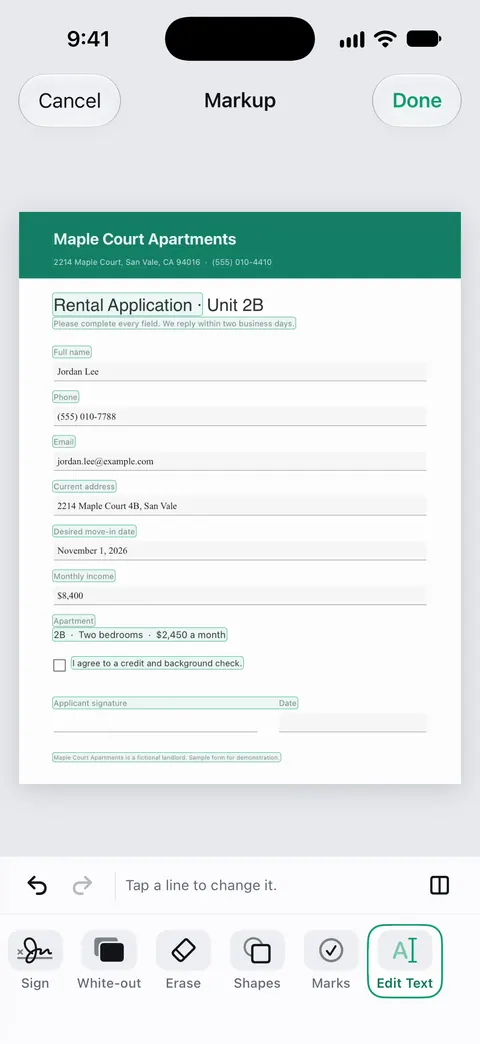
Scanner One adds editing in place. Edit Text outlines each line of the page and lets you retype a line where it sits, such as a title.
It also reads the scan first. Text recognition runs on every page for everyone, free or Pro. Scanner One exports to Word, keeping headings, lists and tables, and to Excel and CSV. That’s the other route: export the scan to Word and edit it there.
The limits, plainly:
- Edit Text is part of Pro. Pro adds redaction, the smart eraser, edit text, auto-export and five alternate app icons.
- Free accounts can run the PDF tools and the Word, Excel and CSV exports 3 times a week, from one shared allowance. That allowance covers the Word export.
- On a free account, pages you share, print or export carry a small “Scanned with Scanner One” label at the bottom right. Pro removes it.
- Edited lines are only as good as the recognition behind them: a blurry or handwritten line is hard to edit cleanly, so rescan it if you can.
Questions and answers
Can I edit a scanned PDF on iPhone for free?
You can change what it says for free, but not in place. Copy the text with Live Text into Pages and edit it there, or cover words with a white box and type over them with Markup. Editing the words where they sit on the page needs an app with a text editing tool.
Why can’t I select the text in my scan?
The PDF has no text layer: it’s only a picture of the page. Open the page as an image in Preview and use Live Text, or make the PDF searchable first. The guide to making a scanned PDF searchable explains how.
Does covering text with a white box delete it?
No. The box is a mark on top of the page, so the old words are still in the file and can be uncovered or copied. If the old text must not be seen, use real redaction instead.
Will the edited text match the rest of the page?
Rarely exactly. A scan’s letters are slightly blurred and tinted by the paper, while typed text is crisp. Pick a similar font and size and a dark gray rather than pure black, and keep changes short.
Sources
What this page says about Scanner One was checked against the app on .
- Apple iPhone User Guide, Interact with text in an image in Preview on iPhone — Live Text in Preview: select and copy text in an image of a page; undated guide page for iOS 26 and 27, read 2026-11-13
- Apple iPhone User Guide, Annotate a PDF or image in Preview on iPhone — selecting and copying text in a PDF in Preview; adding shapes and text; undated guide page for iOS 26 and 27, read 2026-11-13
- Apple iPhone User Guide, Add text, shapes, stickers, and more with Markup on iPhone — Add Text and Add Shape, with the shape’s border color, fill color and opacity; undated guide page for iOS 26 and 27, read 2026-11-13
- Pages User Guide for iPhone, Convert to Word, PDF, or another file format in Pages on iPhone — exporting a Pages document as a PDF or Word file; undated, read 2026-11-13
- Scanner One on the App Store — the app’s own listing: edit text (Pro), Word export, text recognition
Get Scanner One
Scanner One is free, with generous limits: scanning, clean PDFs and text search never stop.

Scanner OneScan, sign and ask anything
Scanner One is free, with generous limits: scanning, clean PDFs and text search never stop.