
Guide
Remove handwriting or marks from a scan
On an iPhone with Apple Intelligence, take a photo or image of the page, open it in Photos, tap Edit, then Tools, then Clean Up, and brush over the handwriting or stain. Photos fills in the paper behind it. Then turn the cleaned image back into a PDF. Markup’s eraser only removes marks you drew in Markup, not ink that’s part of the scan. A white box hides a mark but doesn’t remove it.

First, the easy wins before you scan
If you still have the paper, a few minutes here save a lot of editing.
- Erase pencil on the paper. A soft eraser removes pencil notes cleanly, and the scan never sees them.
- Scan the blank copy. If you’ll fill a form many times, scan it once before anyone writes on it and keep that as your master.
- Cover sticky notes and tabs. Remove them, or scan the page without them and add the note as a separate page.
- Try a black-and-white or grayscale scan. These filters push paper toward white and print toward black. Light pencil and pale highlighter sometimes fade away. Faint print can fade too, so check. The black-and-white scanning guide shows the settings.
When the marks are already in the scan, the steps below remove them.
Remove handwriting with Clean Up in Photos
Clean Up is an Apple Intelligence tool in the Photos app that removes objects and fills in the background. On a page, the “background” is paper, so it can lift out a pen note, a coffee ring or a stray mark.
It needs a supported iPhone. Apple lists iPhone 16 models, iPhone 15 Pro and iPhone 15 Pro Max with iOS 18.1 or later. Its iOS 27 guide names Apple Intelligence-enabled models from iPhone 15 Pro on, and it isn’t available in all languages or regions.
- Get the page into Photos as an image. If you have a scan as a PDF, open it in Preview and export the page as JPEG or PNG (Actions Menu, then Export), or take a screenshot of the page at full size.
- Open the image in Photos and tap the Edit button.
- Tap Tools, then tap Clean Up.
- Tap, brush, or circle the handwriting you want to remove. Photos may highlight some items for you to remove with a tap.
- Pinch to zoom in for small marks. Tap the Undo button to bring something back.
- If you’re using High Quality processing, tap Clean Up. Then tap the Done button, then Done again.
- Turn the cleaned image back into a PDF. In Preview, open the image, tap the Actions Menu, tap Export, and choose PDF. For several pages, see photos to PDF on iPhone.
You can choose how Photos processes Clean Up (Auto, Fast or High Quality) by tapping Auto while you work. To undo it later, open the photo, tap Edit, Tools, Clean Up, then Reset.
Where Clean Up does well, and where it doesn’t
- Usually fine: notes in the margin, a scribble on blank paper, a stain or ring, a punched hole, a fold shadow.
- Hard: handwriting written over printed text. Clean Up can’t know which pixels are print and which are pen, so it may blur or erase the words under the note. Brush in small strokes and zoom in after each one.
- Hard: large areas. Filling half a page tends to look smudged. Remove marks in pieces.
What Markup’s eraser can and can’t do
Markup has an eraser, and it’s easy to assume it erases the page. It doesn’t. Apple’s guide describes it as erasing part or all of your drawing: the pixel eraser scrubs away strokes you drew in Markup, and the object eraser removes a whole stroke group. Ink that was on the paper when you scanned it is part of the page image, and the Markup eraser leaves it alone.
So Markup is the right tool to undo your own annotations, and the wrong tool for someone’s pen notes on a scan.
Covering a mark with a white box
When you only need the page to look clean, you can hide a mark: in Markup, tap the Add button, tap Add Shape, place a rectangle over the mark, and set its fill and border to white. On a bright, clean scan it disappears.
It’s a cover, not a removal. The mark is still in the file under the box, and anyone can move the box. That’s fine for tidying a page you’ll print. It’s not fine for anything private; for that, see how to redact a PDF properly.
Keep the original
Whatever method you use, keep the untouched scan. Cleaning can remove more than you meant to, and for anything official, such as a contract with someone’s initials, a receipt or a medical record, the original with its marks may be the one that counts. Name the cleaned copy so it’s clear which is which, such as “Lease (clean copy)”.
Where Scanner One helps, and where it doesn’t
If your iPhone has Clean Up in Photos and you have one page to fix, that’s enough. Scanner One helps when the page is a document and you want to fix it where it lives, without exporting images and rebuilding a PDF.
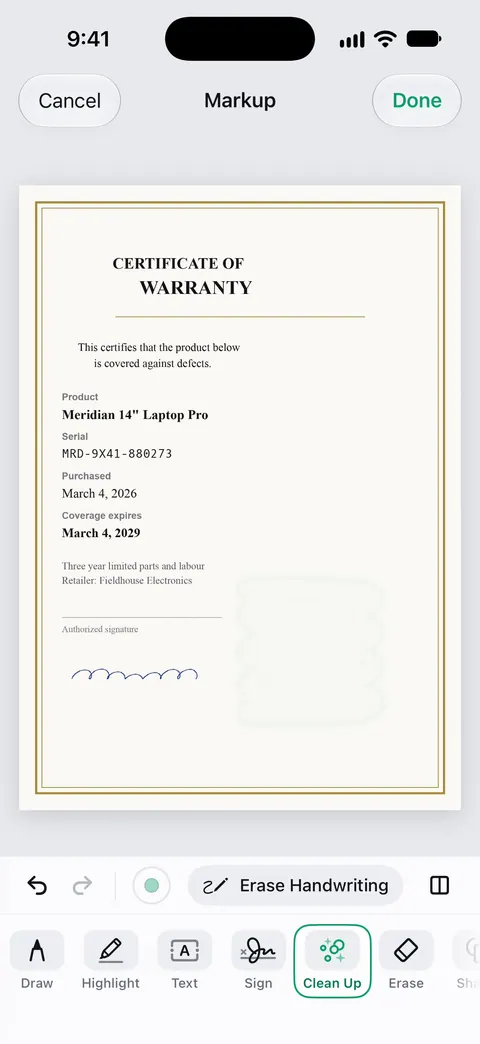
Clean Up in Scanner One is a smart eraser that works on the scan itself: you brush over the mark, as with the coffee ring below.
At the scanning step: Scans come with Auto Clean, Color, Grayscale and Receipt filters. On a page with light pencil, try Grayscale and check that the print stays dark. For shadows rather than marks, see removing shadows from scans.
The limits, plainly:
- Free accounts can use Clean Up, the smart eraser, on 3 documents a month. Pro removes every limit.
- On a free account, pages you share, print or export carry a small “Scanned with Scanner One” label at the bottom right. Pro removes it.
- Handwriting on top of print is hard for any eraser, this one included. Brush in small strokes and check the words underneath.
- The Clean Up feature page has more examples.
Questions and answers
Can I erase pen from a scanned PDF on iPhone?
Not directly in the PDF with Apple’s apps. Markup’s eraser only removes what you drew in Markup. Turn the page into an image, use Clean Up in Photos if your iPhone supports Apple Intelligence, then make a PDF again, or use an app with a smart eraser that works on the scan.
Which iPhones have Clean Up in Photos?
Apple lists iPhone 16 models, iPhone 15 Pro and iPhone 15 Pro Max with iOS 18.1 or later, and its iOS 27 guide names Apple Intelligence-enabled models from iPhone 15 Pro on. It isn’t available in every language or region.
How do I remove highlighter from a scanned page?
Highlighter sits on top of the words, so erasing it can erase the text too. Brush lightly and in small strokes, and check the letters underneath. A grayscale or black-and-white filter sometimes makes light highlighter much fainter.
Is it OK to remove marks from a document?
Removing your own notes from your own papers, or a stain from an old letter, is fine. Removing a signature, a stamp or a correction from a document someone else issued, and passing it on as the original, is not.
Is Clean Up free in Scanner One?
Free accounts can use Clean Up, the smart eraser, on 3 documents a month. Pro removes every limit.
Sources
What this page says about Scanner One was checked against the app on .
- Apple iPhone User Guide, Clean up, extend, and reframe photos on iPhone — the Clean Up steps in Photos, processing options, Reset, and the Apple Intelligence models it needs; iOS 27 guide page, undated, read 2026-11-13
- Apple Support, Requirements to use Clean Up in Photos (article 121429) — Clean Up needs an iPhone 16 model, iPhone 15 Pro or iPhone 15 Pro Max and iOS 18.1 or later, with regional limits; published 2025-04-14
- Apple iPhone User Guide, Draw and handwrite with Markup on iPhone — Markup’s pixel and object erasers remove your own drawing; undated guide page for iOS 26 and 27, read 2026-11-13
- Apple iPhone User Guide, Export or compress PDFs and images in Preview on iPhone — exporting an image as a PDF in Preview; undated guide page for iOS 26 and 27, read 2026-11-13
- Scanner One on the App Store — the app’s own listing: Clean Up, the smart eraser, and the scan filters
Get Scanner One
Scanner One is free, with generous limits: scanning, clean PDFs and text search never stop.

Scanner OneScan, sign and ask anything
Scanner One is free, with generous limits: scanning, clean PDFs and text search never stop.