
Guide
Read a QR code or barcode from a photo or a PDF
The Camera app and the Scan Code control read QR codes that are in front of the lens, and Apple’s guides don’t describe reading one from a saved photo. The dependable workaround: show the photo or PDF on another screen, or print it, and point the Camera at it, then check the link before you tap. A scanner app that looks for codes in images and PDFs reads them straight from the file, including barcodes.

Scan a QR code that’s in front of you
For a code on a poster, a menu or a screen, the iPhone needs no app.
- Open the Camera in Photo mode.
- Hold the iPhone so the QR code is in the frame.
- A link appears at the bottom of the screen. Read it, then tap it to open.
You can also use Code Scanner: open Control Center and tap the Scan Code button. If it isn’t there, touch and hold the background of Control Center, tap the Add a Control button, then tap Scan Code. In dim light, tap the flashlight in Code Scanner. On models with the Camera Control, you can set it to open Code Scanner too.
Read a QR code from a saved photo or screenshot
This is where people get stuck: the code is in a screenshot, a photo of a flyer, or a ticket someone sent. Apple’s guides describe scanning codes with the camera; they don’t describe reading a code from a photo already in your library.
What works every time:
- Open the photo or screenshot on another screen: a computer, a tablet, a family member’s phone. Or print it.
- On your iPhone, open the Camera or Code Scanner and point it at that screen.
- Read the link that appears, then tap it.
If the code was saved to your phone weeks ago and you can’t find the picture, Photos can help: tap Collections, scroll down, tap Utilities, and open the collection of photos with QR codes.
When the link is printed next to the code
Many flyers and tickets print the web address under the code. Open the photo, tap the Detect Text button, and Live Text recognizes the printed address. Tap the quick action to open the website, or select it and tap Copy to paste it into Safari. This skips the code entirely, and you can see exactly where you’re going.
Read a QR code inside a PDF
Boarding passes, event tickets and invoices often arrive as PDFs with a code inside. The same approach applies: open the PDF on another screen and scan it with the Camera, or print the page. When the code is for entry, such as a ticket, the person at the door scans it from your screen, so you usually don’t need to read it yourself; just make the PDF easy to open offline. If the PDF also prints the link, Live Text in Preview can select and copy it.
When a code won’t scan
- Turn up the brightness of the screen showing the code. A dim laptop screen is the most common reason a code isn’t picked up.
- Fill more of the frame. Move closer until the code takes up about a third of the screen, then hold still for a second.
- Kill the reflection. Glossy paper and screens reflect lamps. Tilt the paper or the screen a little.
- Add light in a dark room: Code Scanner has a flashlight button.
- Zoom the photo first. A code that is tiny in a wide photo may scan once you zoom in on it on the other screen.
- Damaged or cropped codes may not work at all. If a corner square is cut off, use the printed link or ask for a new copy.
Barcodes
Apple describes Code Scanner as a tool for QR codes that lead to websites, apps, coupons and tickets. Other barcodes, such as the lines on a product, a library card or a shipping label, aren’t covered in Apple’s guides. For those in a photo or a document, use an app that reads barcodes.
Check the link before you open it
A QR code hides where it leads, which is why scammers like them. The US Federal Trade Commission’s advice:
- If you see a QR code in an unexpected place, inspect the URL before you open it.
- Don’t scan a QR code in an email or text message you weren’t expecting.
In practice: read the link the Camera shows before you tap. If the address is misspelled, uses an odd domain, or a parking meter’s code leads to a site asking for card details, close it and go to the company’s own website or app instead.
Where Scanner One helps, and where it doesn’t
Reading codes from files is something the built-in tools leave to a second screen. QR codes and barcodes are found on every page. The screenshot shows a scanned card with the codes found on it: a Wi-Fi network, a link and contact details.
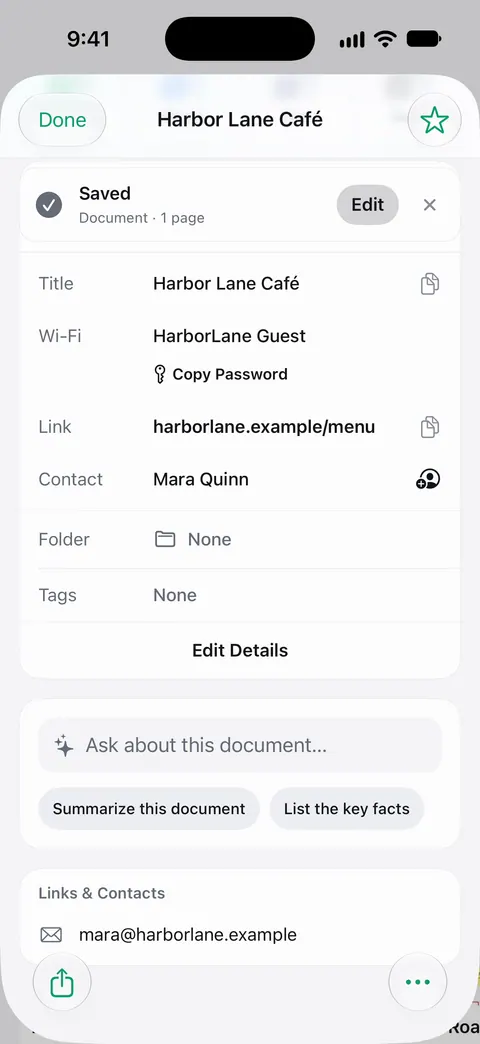
You don’t need to scan the paper again to use it. From Home you can bring in pictures from Photos and files from the Files app, or scan an ID card. Other apps can send a file to Scanner One with Save to Scanner One in their share sheet. So a screenshot of a ticket, or a PDF from your email, can go straight in, and the codes on it are listed. A business card’s contact details can go straight to Contacts, as in scanning a business card into Contacts.
What it doesn’t do: it doesn’t judge whether a link is safe. Read the address before you open it, just as with the Camera. Scanner One is free, with generous limits: scanning, clean PDFs and text search never stop.
When the built-in way is enough: for a code on a poster or a screen in front of you, the Camera is faster than any app. The app helps when the code is already a file on your phone. More on the QR codes and barcodes page, and for copying the text around a code, see copying text from a photo.
Questions and answers
How do I scan a QR code that’s in a screenshot on my iPhone?
Apple’s guides only describe scanning a code with the camera. The reliable way is to show the screenshot on another screen, such as a computer or tablet, and point your iPhone’s Camera at it, or use a scanner app that reads codes from images.
How do I find the photos that have QR codes in them?
In Photos, tap Collections, scroll down and tap Utilities. Photos groups photos by content there, including ones with QR codes.
Can the iPhone read a barcode on a product?
Apple’s Code Scanner guide covers QR codes for websites, apps, coupons and tickets. For other barcodes in a photo or a PDF, use an app that reads barcodes.
Is it safe to open a QR code from an email?
Be careful. The FTC advises not scanning codes in emails or texts you weren’t expecting, and inspecting the link before you open any code found in an unexpected place.
Sources
What this page says about Scanner One was checked against the app on .
- Apple Support, Scan a QR code with your iPhone or iPad (article 102680) — the Camera and Code Scanner steps, and adding Scan Code to Control Center; published 2026-09-14
- iPhone User Guide (iOS 27), Scan a QR code with your iPhone camera — Photo mode, tapping the link, the flashlight tip; read 2026-11-13
- iPhone User Guide (iOS 27), Find receipts, QR codes, recently edited photos, and more — Photos finds photos that contain QR codes under Utilities; read 2026-11-13
- iPhone User Guide (iOS 27), Interact with content in a photo or video — Live Text in a photo: copy text and quick actions such as opening a website; read 2026-11-13
- FTC Consumer Alert, Scammers hide harmful links in QR codes to steal your information — inspect the URL before opening it; don’t scan codes in unexpected emails or texts; dated 2023-12-06
- Scanner One on the App Store — the app’s own listing
Get Scanner One
Scanner One is free, with generous limits: scanning, clean PDFs and text search never stop.

Scanner OneScan, sign and ask anything
Scanner One is free, with generous limits: scanning, clean PDFs and text search never stop.